> ## Documentation Index
> Fetch the complete documentation index at: https://docs.ideatura.ai/llms.txt
> Use this file to discover all available pages before exploring further.
# Connect apps
> Choose standalone work or connect your CAD application.
1\. Standalone Ideatura
Choose a task that runs without a connected CAD application and provide the supported input. Follow the [standalone drawing example](/draw/drawing-output/create-a-model-and-dynamic-2d-views-in-standalone-ideatura) for its scope and output checks.
2\. Connect Revit
Check the supported version and required add-in, then open the intended project or family. Select the document in **Connected Apps** and [verify the target](/start/connect-model#check-the-target) with a small inspection before editing. Save and recover through the native Revit workflow for your project.
Choose a drawing, sheet or family workflow in [Work in Revit](/apps/revit).
3\. Connect AutoCAD
Check the supported version and required add-in, then open the intended drawing. Select it in **Connected Apps** and check units and scope before editing. Save and undo through the native AutoCAD workflow for the drawing.
Start with the drawing-reference workflow in [Work in AutoCAD](/apps/autocad).
4\. Connect Rhino
Check that a supported Rhino connection is available for your installation, then identify the document used by the task.
Choose an example listed as supported for Rhino and check its geometry, units, and saved output.
Use [Work in Rhino](/apps/rhino) to define a small area and resolve an undocumented operation.
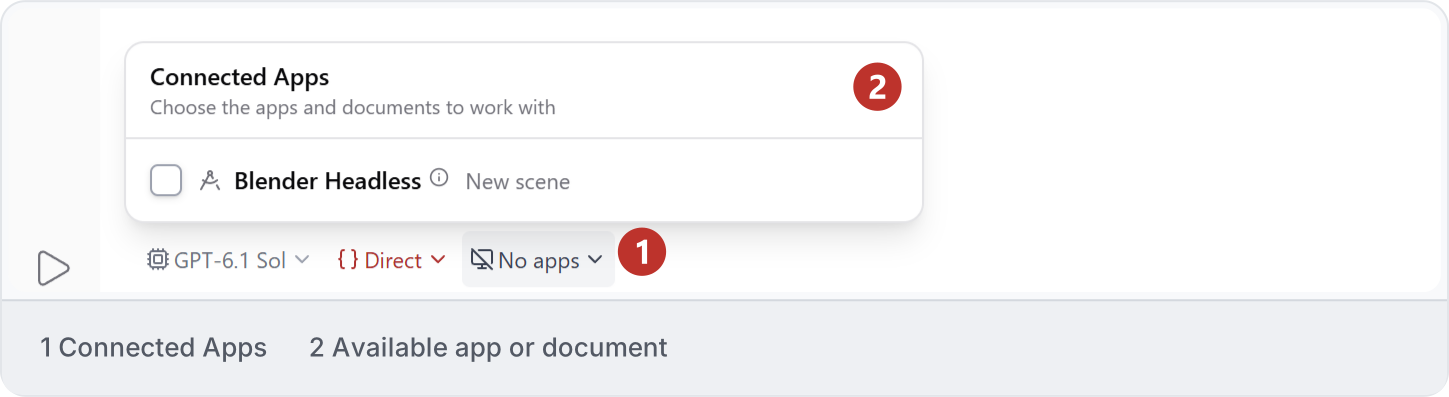
5\. Connect Blender
Check that a supported Blender connection is available for your installation, then identify the scene used by the task.
Choose an example listed as supported for Blender and check object scope, units, and the saved result.
Use [Work in Blender](/apps/blender) to check the scene, output and scope of a first task.
6\. Check compatibility
Check the exact application edition, version, operating system and required add-in before installation. An application name in this guide is not a complete compatibility matrix. A connection can support some operations without supporting the output you need; read [Supported tasks](/studio-reference/supported-tasks) and test a small example.
If the installed app reports an incompatible or missing add-in, preserve the error and version information and follow [Troubleshooting](/help/problems). Account access, installation and a working host connection are separate checks.
This documentation is built and hosted on [Mintlify](https://mintlify.com), a developer documentation platform.