> ## Documentation Index
> Fetch the complete documentation index at: https://docs.ideatura.ai/llms.txt
> Use this file to discover all available pages before exploring further.
# Conversation controls
> Choose AI settings, attach context and follow a request.
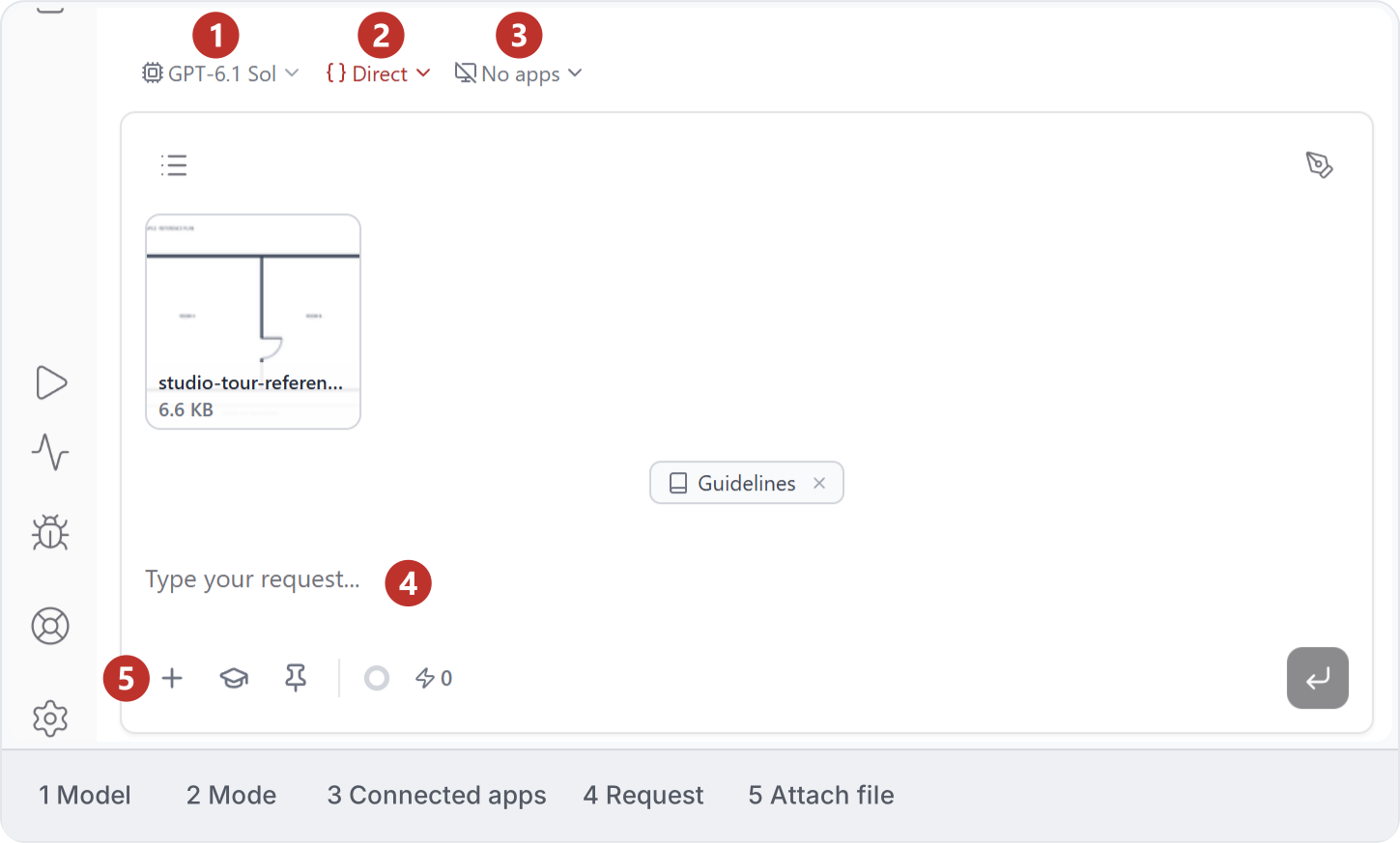
1\. Composer controls
Before sending, check the AI model, execution mode and connected-app selection beside the prompt. Thinking level is a separate model setting. In this example, the mode is **Direct** and the app selection is **No apps**.
2\. AI models
The model selector names the model used for the task. Available models and their supported thinking levels can vary; use the options shown for the selected route.
Compare models using the same bounded task and an inspected result. A longer model list is less useful than examples showing the trade-off between quality, time and cost.
3\. Thinking level
Thinking level controls the reasoning setting offered by the selected model. Choose from the levels shown in the picker; available levels can differ between models.
For a straightforward rename, begin with a modest setting. For a family with interacting constraints, compare a higher setting on a small test. More thinking is not a guarantee of a correct model.
4\. Attach files
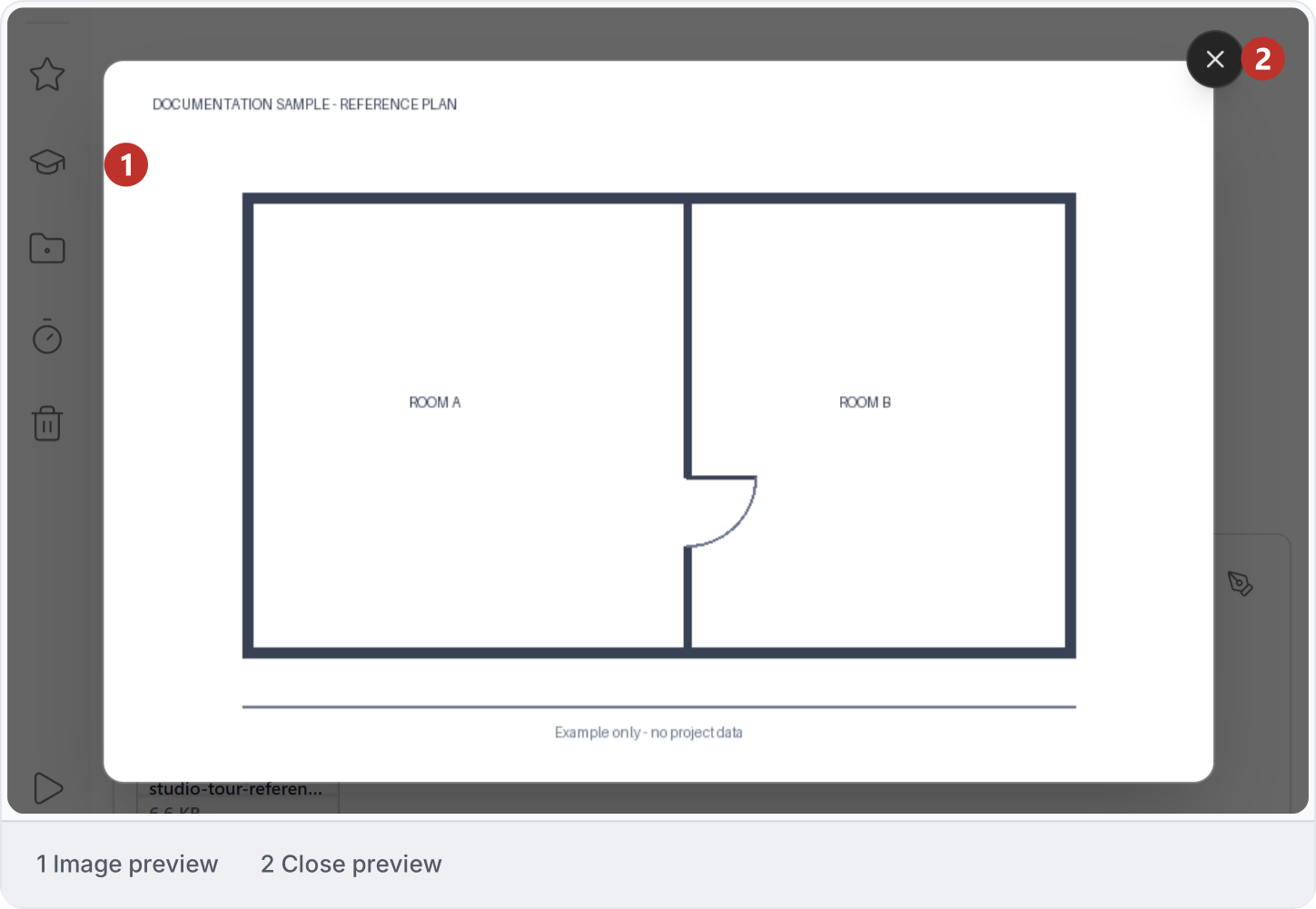
Use **Attach file** to supply task references. Click an image attachment to preview it, then close it with **X**. Before sending, check file names, versions and what each reference establishes.
A drawing can establish geometry or dimensions; a photo can establish appearance; a specification can establish a requirement. Explain those roles when attaching several sources.
5\. Skills and Guidelines
The composer includes a skill control and can show a Guidelines chip. Use a skill for a repeatable method; use the current request for the specific input, scope and result.
Inspect which instructions are active before sending. Removing a chip from a draft is a different operation from deleting a shared skill or editing workspace Guidelines.
6\. Pin context
The prompt and viewer expose Pin controls. Use the pin state to keep important material associated with the conversation where the current interface supports it.
Attach, Pin and Clone are separate actions. Confirm what is pinned, what is added to the next message, and what has become an editable copy.
7\. Send and stop
Send starts the request using the currently selected context and controls. During work, read the progress and tool/output messages before deciding whether to refine or stop.
History’s Stop all is broader than stopping one task. Stopping work does not by itself reverse an application change already made.
8\. Usage indicators
Hover over a usage indicator and read its tooltip before interpreting the number. For account allowances and Workspace Storage, open Settings.
Context-window usage, token usage and credits measure different things. See [Context window](/ai/context-window#context-window) and [Tokens and credits](/ai/models-credits#tokens-and-credits) to compare them.
This documentation is built and hosted on [Mintlify](https://mintlify.com), a developer documentation platform.