> ## Documentation Index
> Fetch the complete documentation index at: https://docs.ideatura.ai/llms.txt
> Use this file to discover all available pages before exploring further.
# Viewers and markup
> Inspect references beside the conversation, capture views and add markup.
1\. Side panels
The split-panel control opens a viewer beside the main Studio area. File tabs, close controls and the panel boundary organise the workspace.
Opening or closing a preview is separate from saving or deleting its underlying file. Keep the source visible while discussing a change.
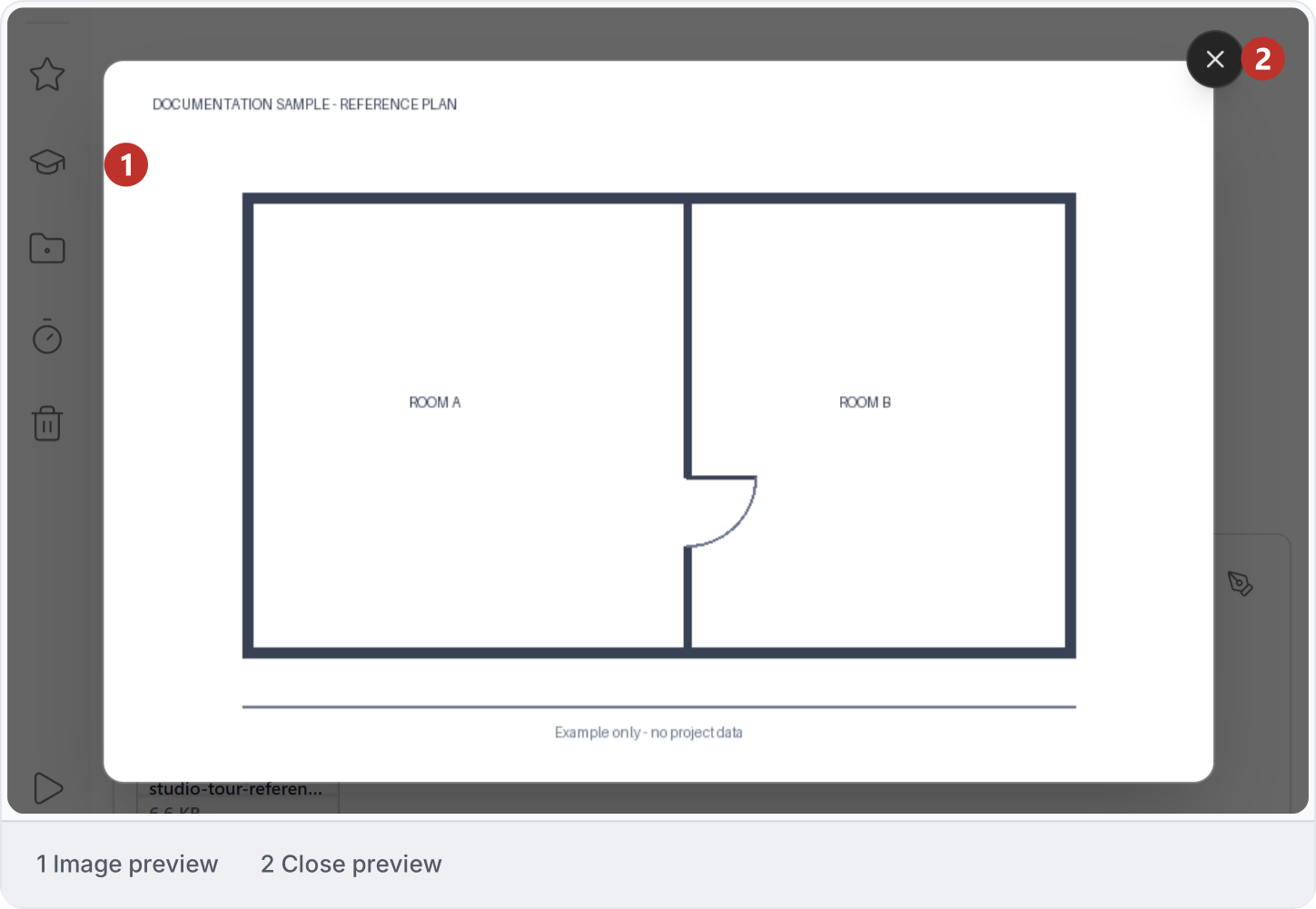
An image attachment can also open as a preview over the conversation. Click the attachment to inspect it, then close the preview with **X**.
2\. Capture a view
The empty capture panel asks you to select an app to capture and annotate. Choose the intended application and document before taking a visual reference.
A captured image supplies visual context. Application access determines what Ideatura can read or change in the underlying document.
3\. Add markup
Choose the pen, shape or text tool in the viewer toolbar. Mark a specific part of the image or model view and state the intended change in words.
A markup communicates intent; it does not independently establish exact dimensions or confirm a native edit. Include the dimensions, element scope and exceptions the drawing cannot express.
4\. Edit markup
Use selection and eraser controls to correct an annotation. Undo and redo change markup history; the clear/delete control removes marks according to its current scope.
Distinguish changing the annotation from changing the IFC or connected application model. Review the marked image before submitting it.
5\. Viewer actions
The viewer menu provides **Attach**, **Pin** and **Clone** actions. Check the conversation and file location, then choose whether to add material to a message, pin context or create an editable copy. Confirm the attachment, pinned state or Workbench copy afterward.
6\. Save viewer files
The IFC panel shows history, download, save and close controls above the file. These operations have different destinations and scopes.
Check whether you are saving an editable Studio copy, downloading a file or saving a connected application document. Reopen the intended output to confirm the result.
This documentation is built and hosted on [Mintlify](https://mintlify.com), a developer documentation platform.