1. Find a conversation
Open History and search by conversation title. Reopen the task and read its latest report before continuing. Use Rename in the conversation menu to give useful tasks recognisable names.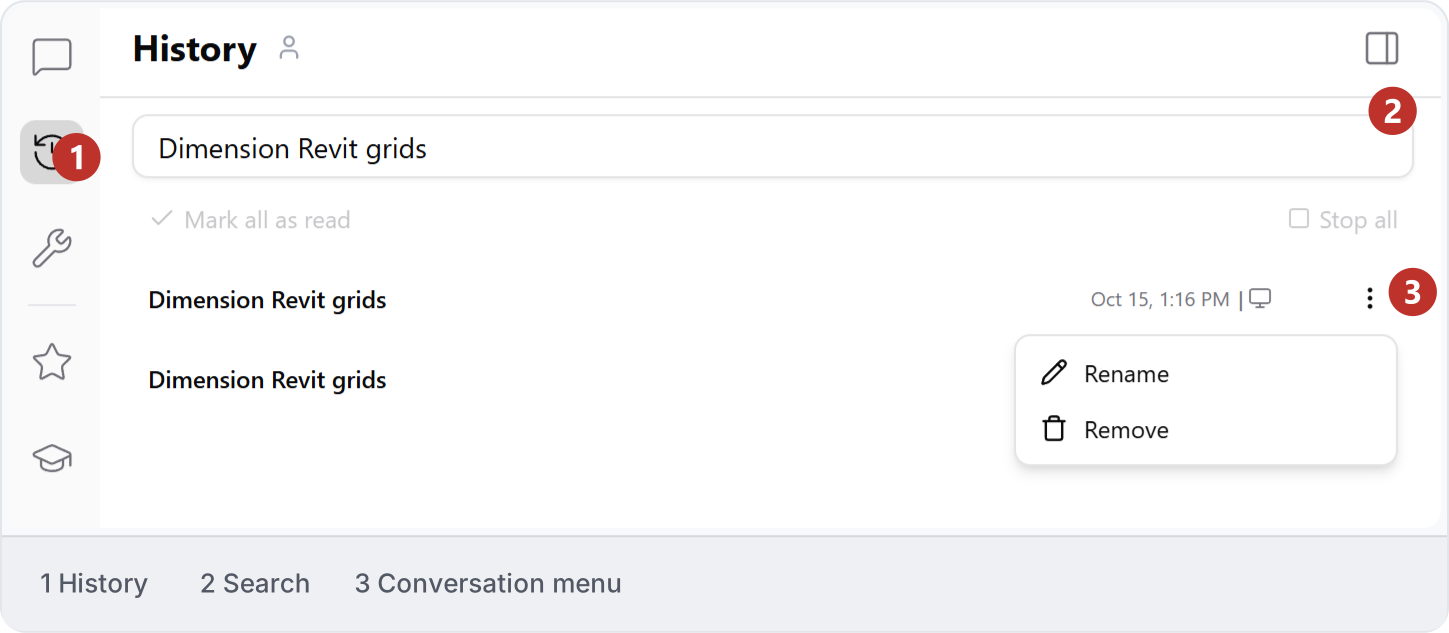
2. Keep useful output
Read the retention notice at the bottom of History: personal conversations are kept for 30 days, then deleted. Keep useful results and instructions separately, and check that you can reopen the files you need.
3. Find the Studio tabs
Use the navigation rail to open Conversation, History, Workbench, Automations, Skills, Projects, Timeline and Trash. Locate the areas you need before starting a task, so you know where to return to conversations and saved work.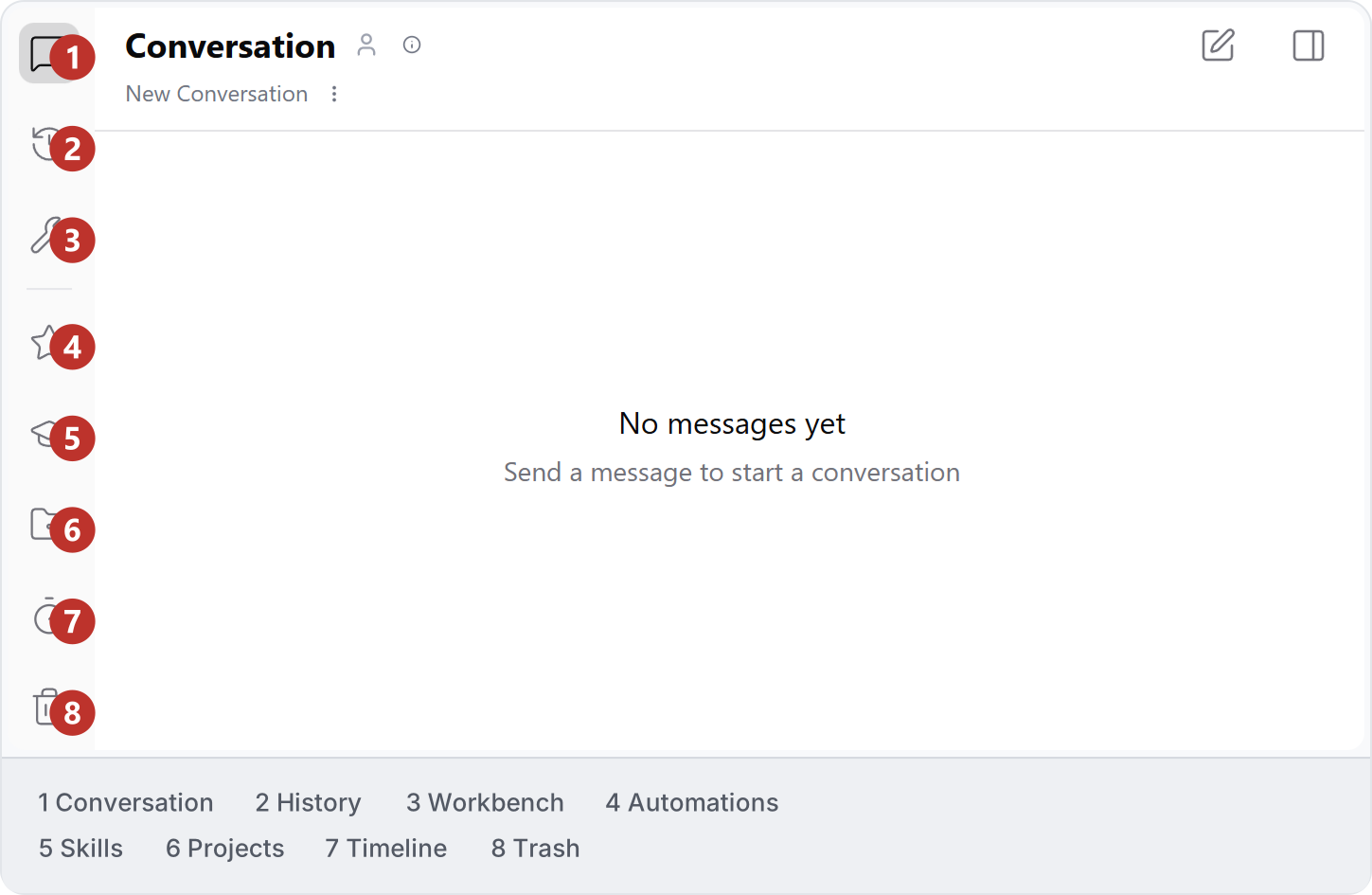
4. Locate the task controls
Open Conversation and locate the prompt, model selector, mode and connected-app selector. The example shows Direct and No apps. Beside the prompt, find Attach file, Attach skill and the pin control before preparing your request.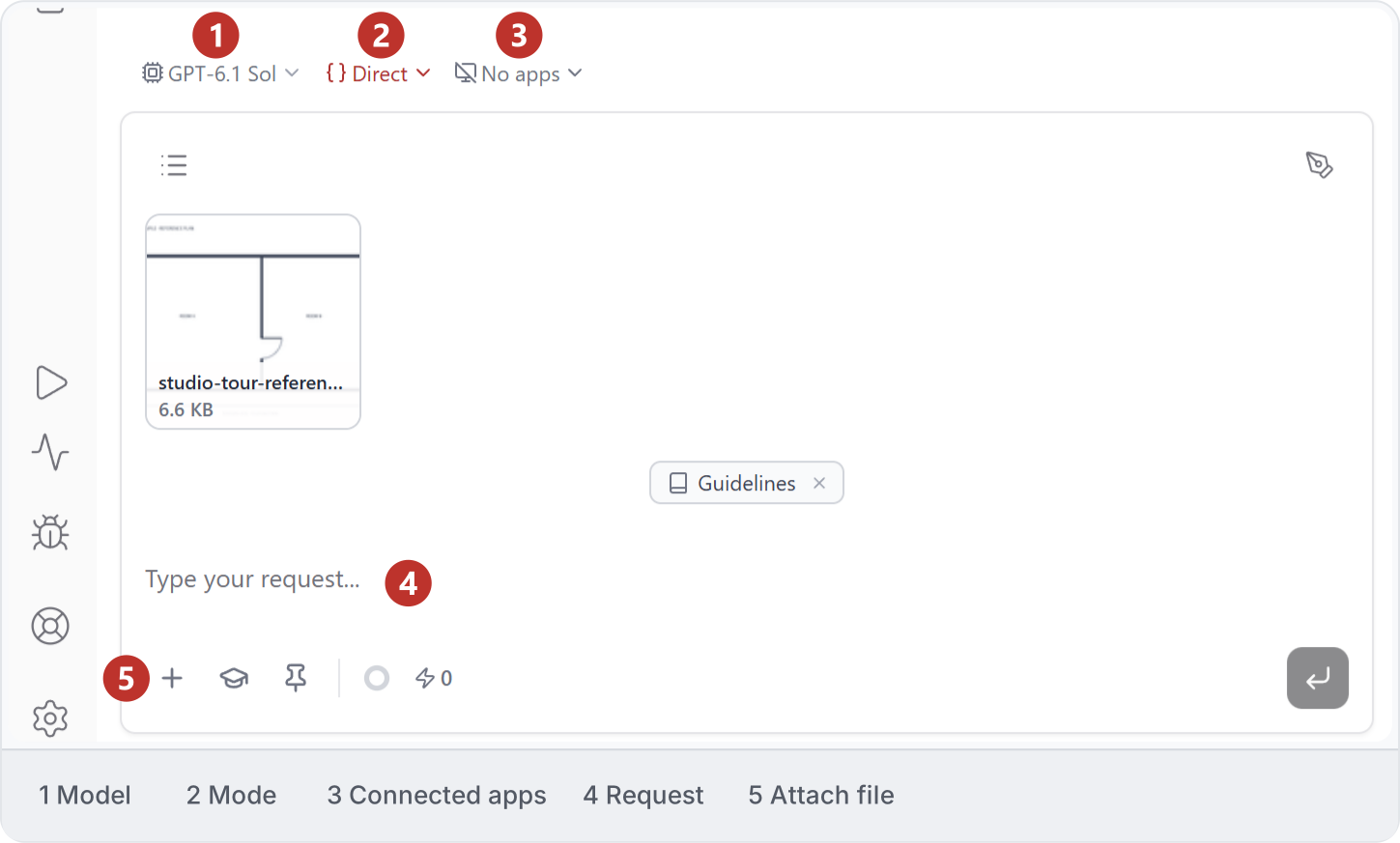
5. Preview an image
Choose Attach file and select an image. Click its attachment to open a preview over the conversation. Check that it is the intended reference, then close the preview with X before continuing your request.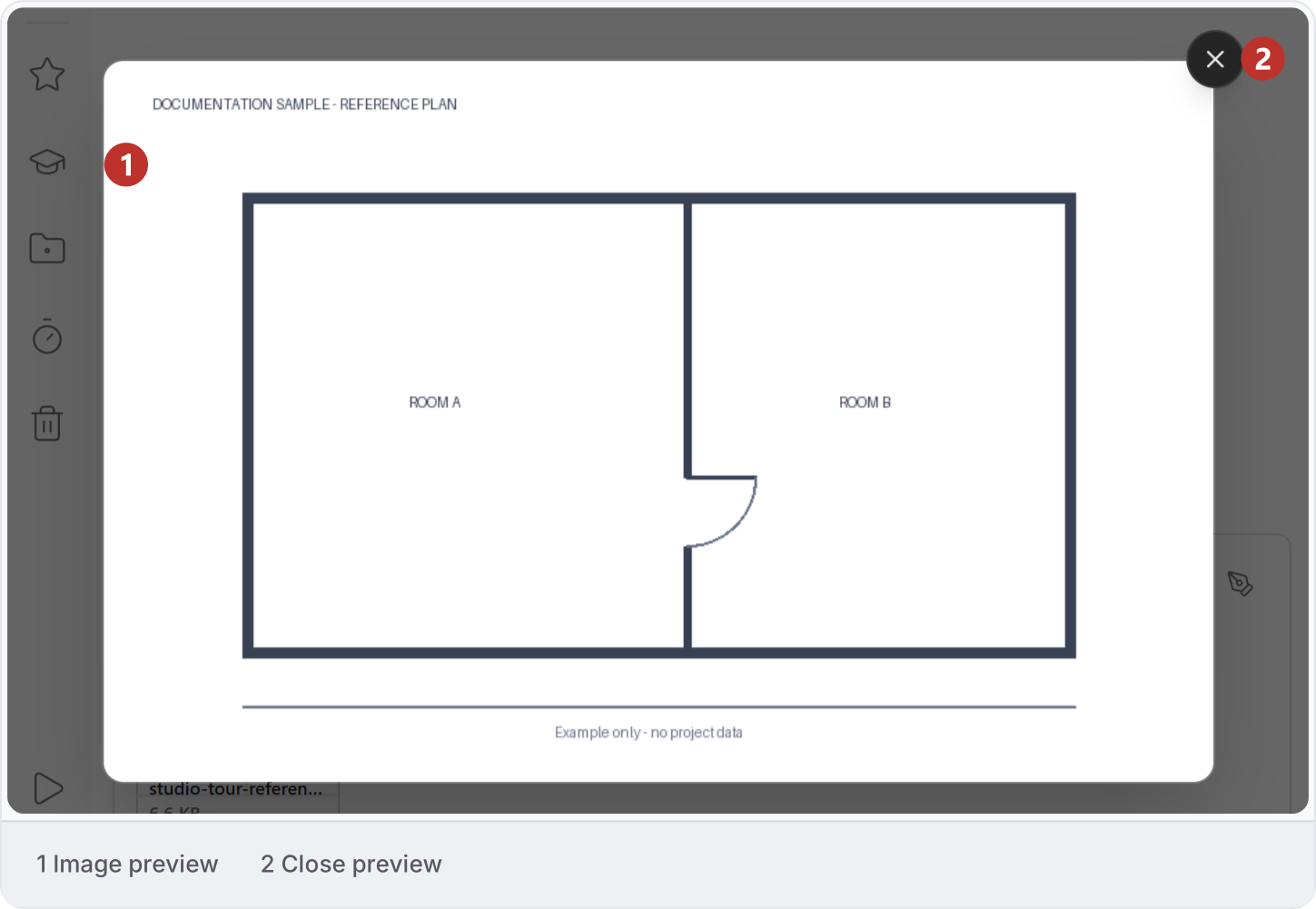
6. Check credits and storage
Open Settings → General and read the credit and storage meters for your account. The example shows Monthly Credits, Additional credits, Daily Credits and Workspace Storage. Use your own displayed allowances when checking available usage.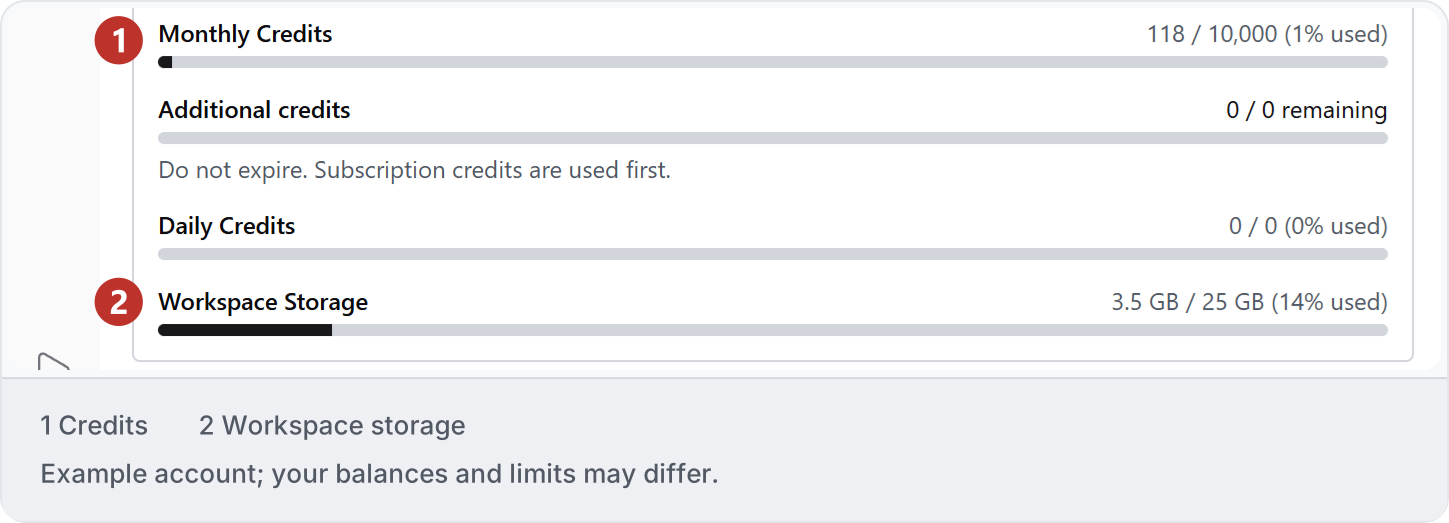
7. Check interface preferences
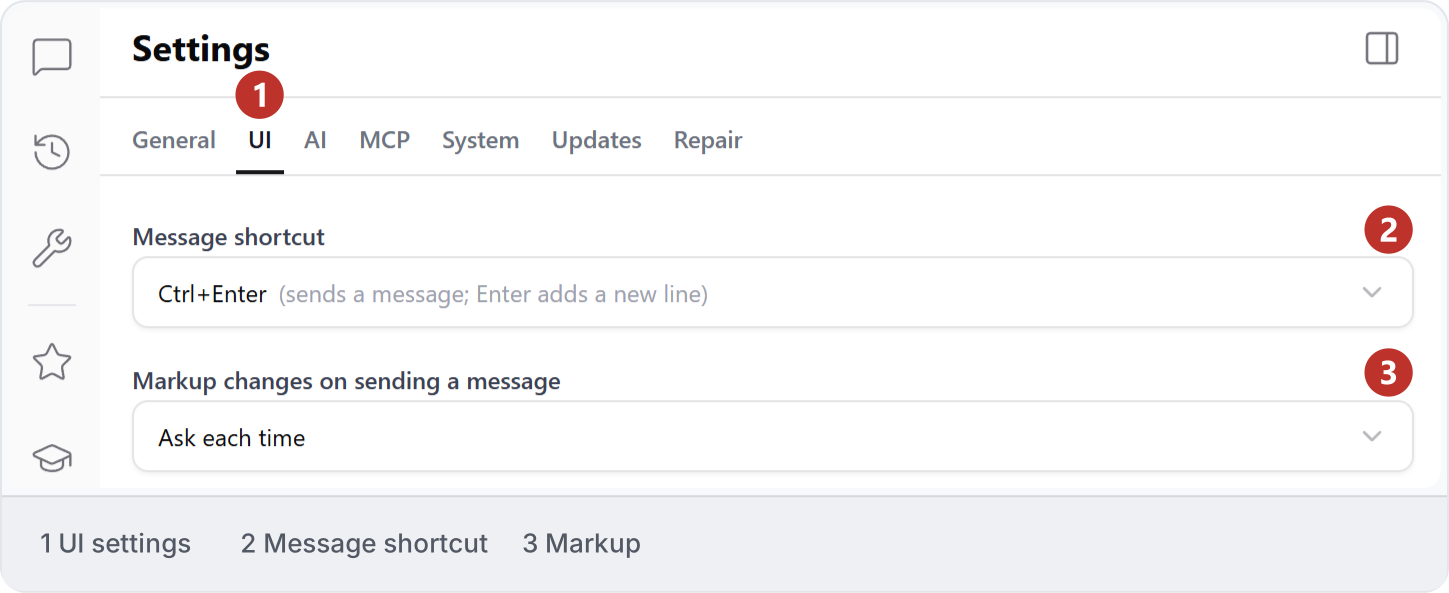
Open Settings → UI and review Message shortcut and Markup changes on sending a message. Here, Ctrl+Enter sends a message, Enter adds a new line, and markup handling is set to Ask each time. Read your selected values before changing them.