1
Find your IFC in Project Files
Open Project Files, expand the project and find your IFC. This example uses Garden House.ifc: a three-storey house with a pitched roof, windows and an entrance door.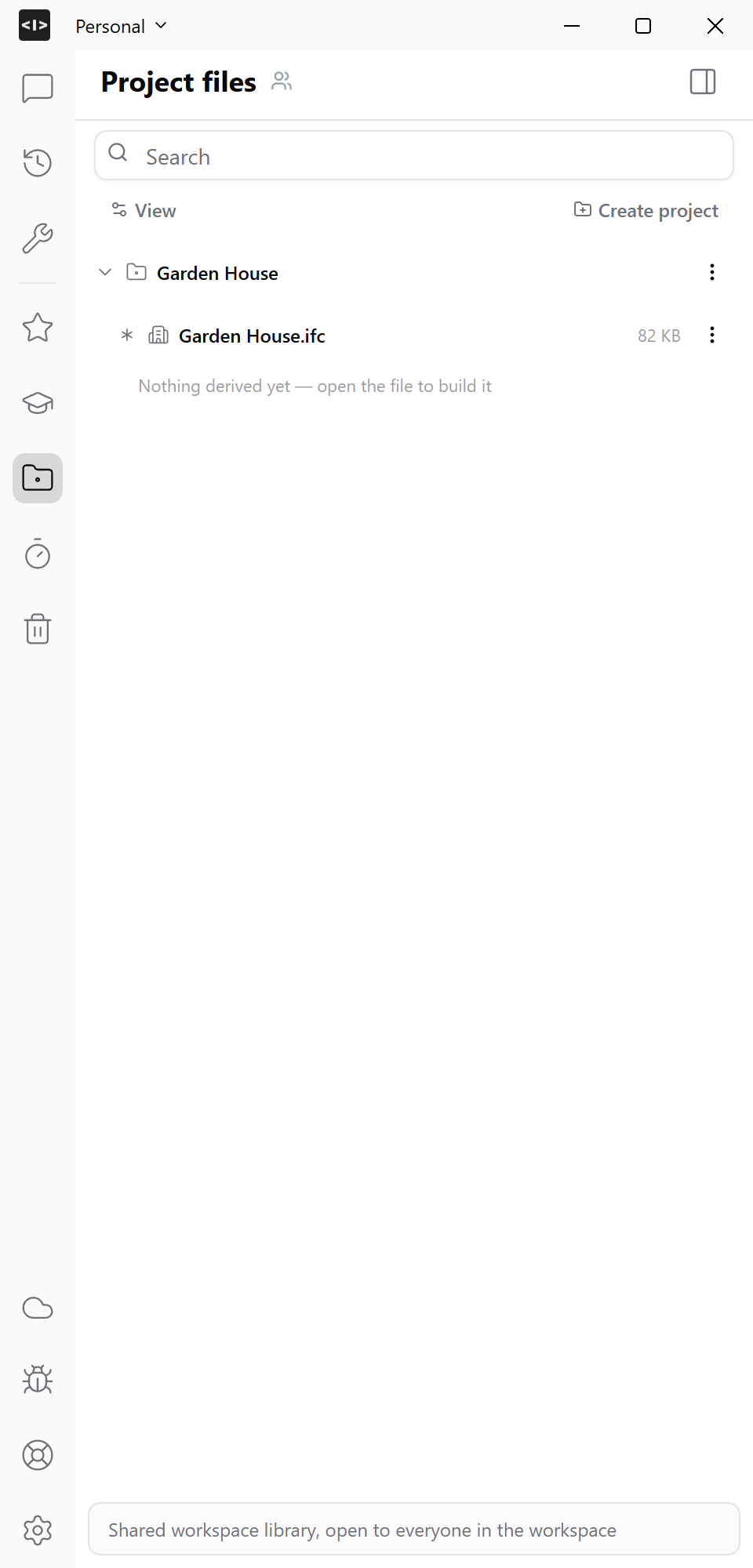
2
Open the IFC preview
Open the file and inspect the whole house in the preview. Check that the roof, windows and door are present. Close the preview when you are ready to start the conversion.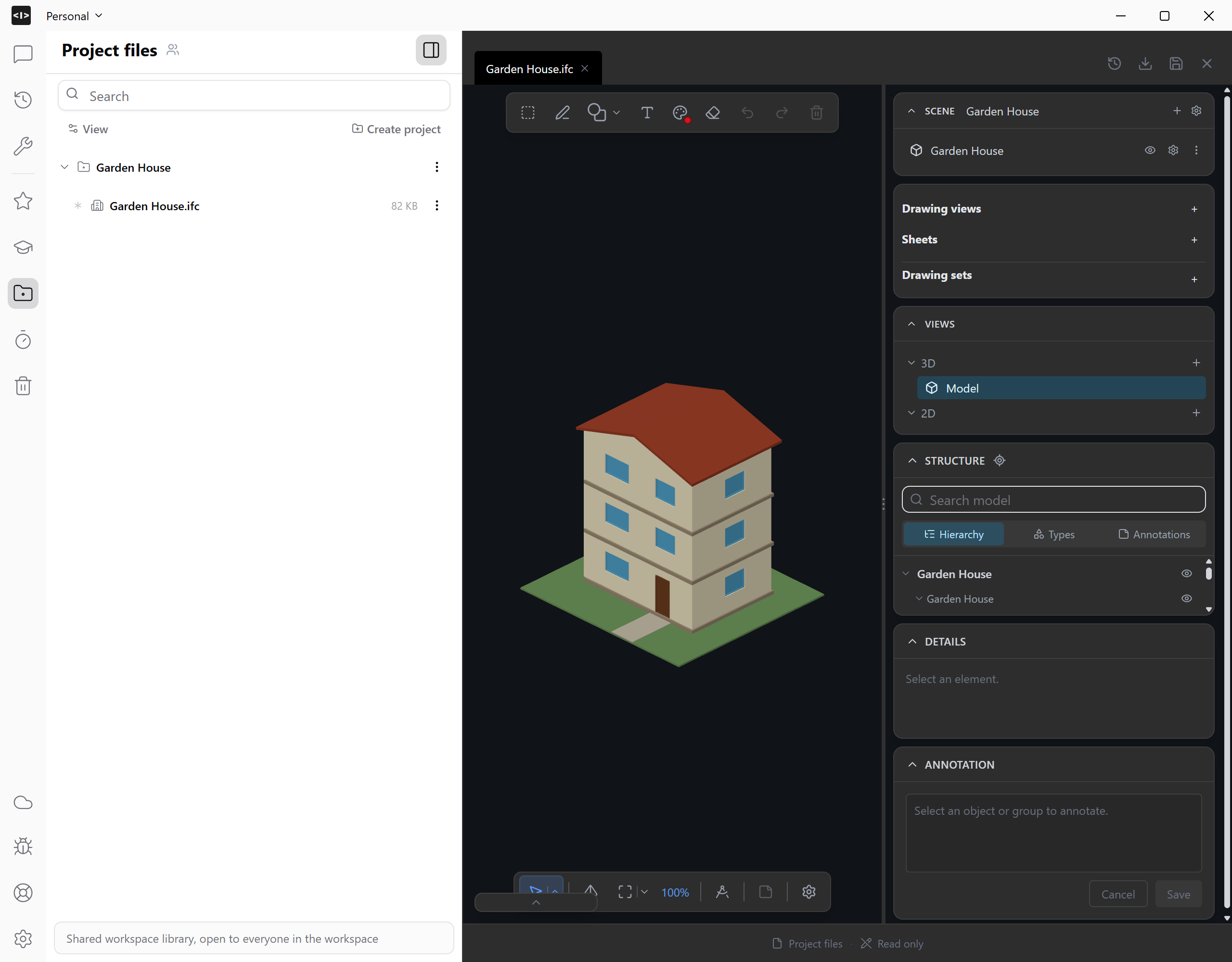
3
Add the IFC to your prompt
In Project Files, open the IFC’s menu and choose Reference. Start a conversation and paste the file reference into your message.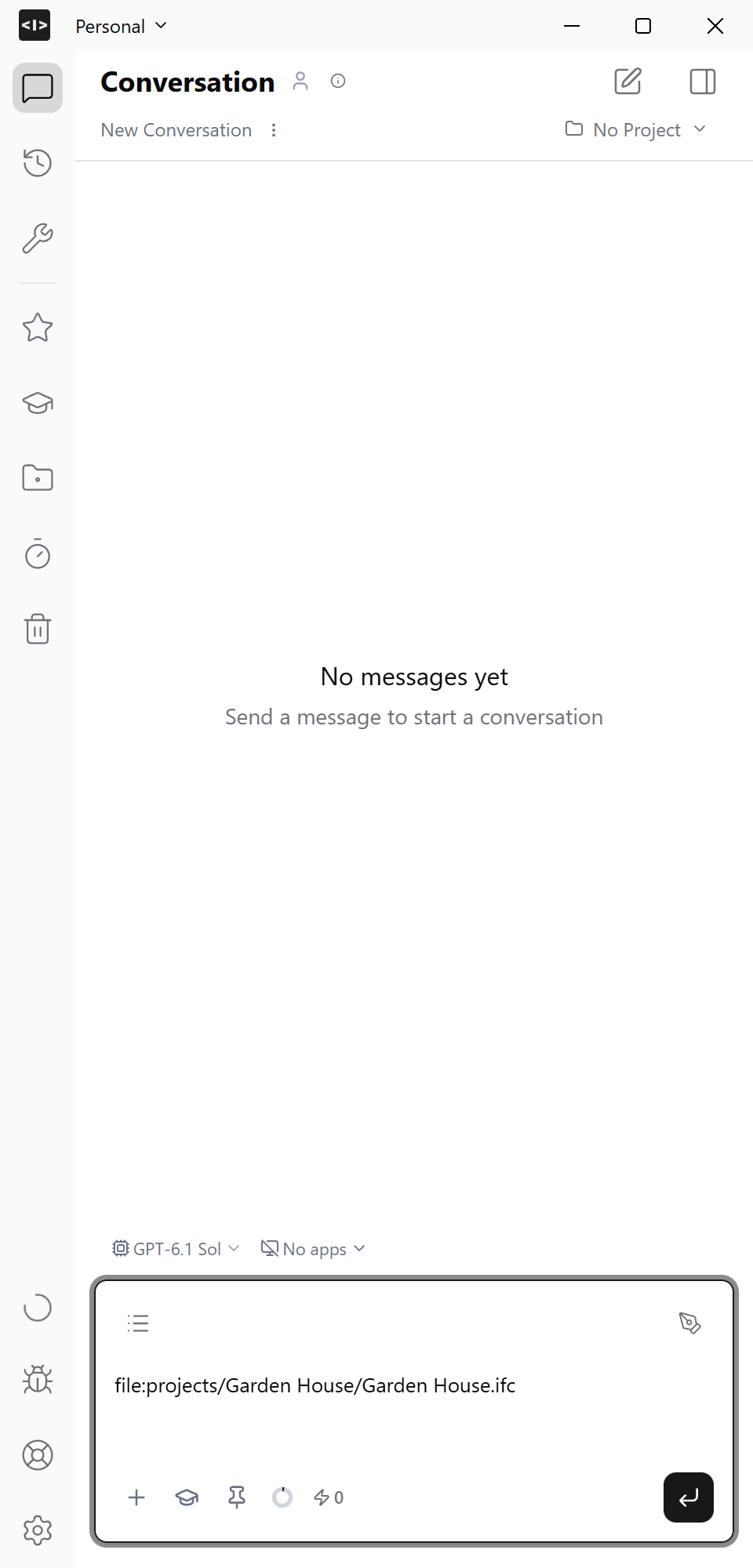
4
Ask AI to convert the IFC to Revit
Tell Ideatura what you want to create. For this house, enter: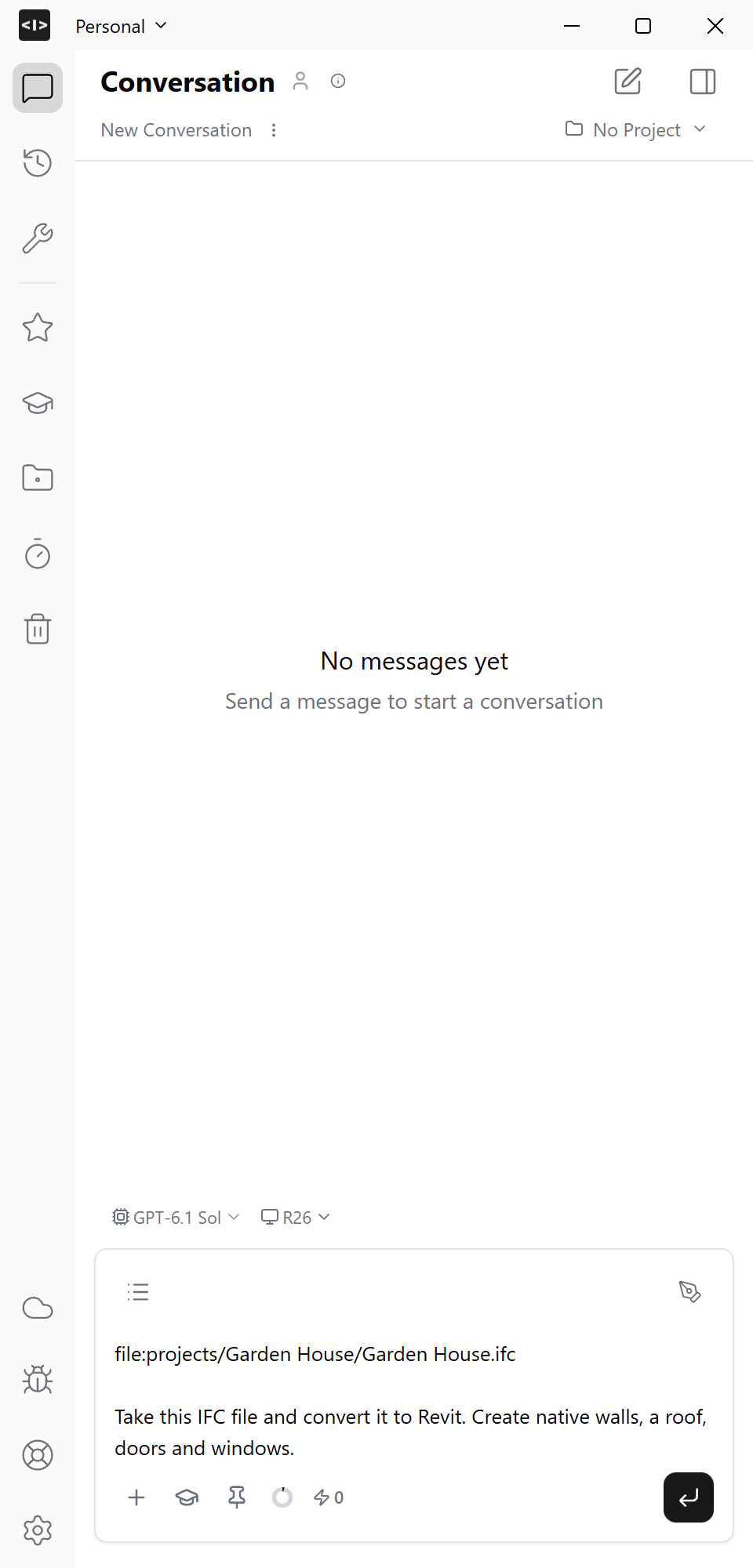
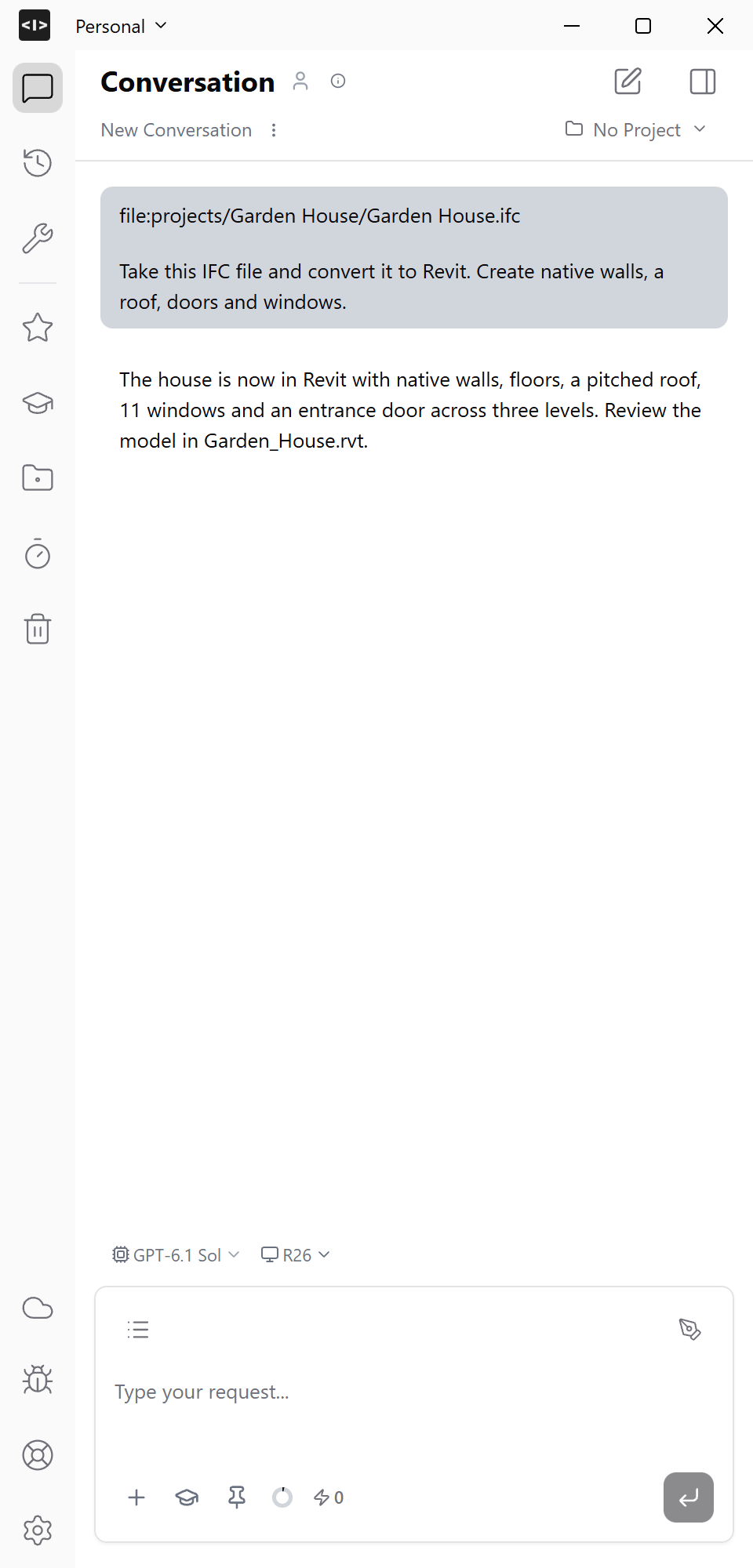
Take this IFC file and convert it to Revit. Create native walls, a roof, doors and windows.
5
Follow the progress
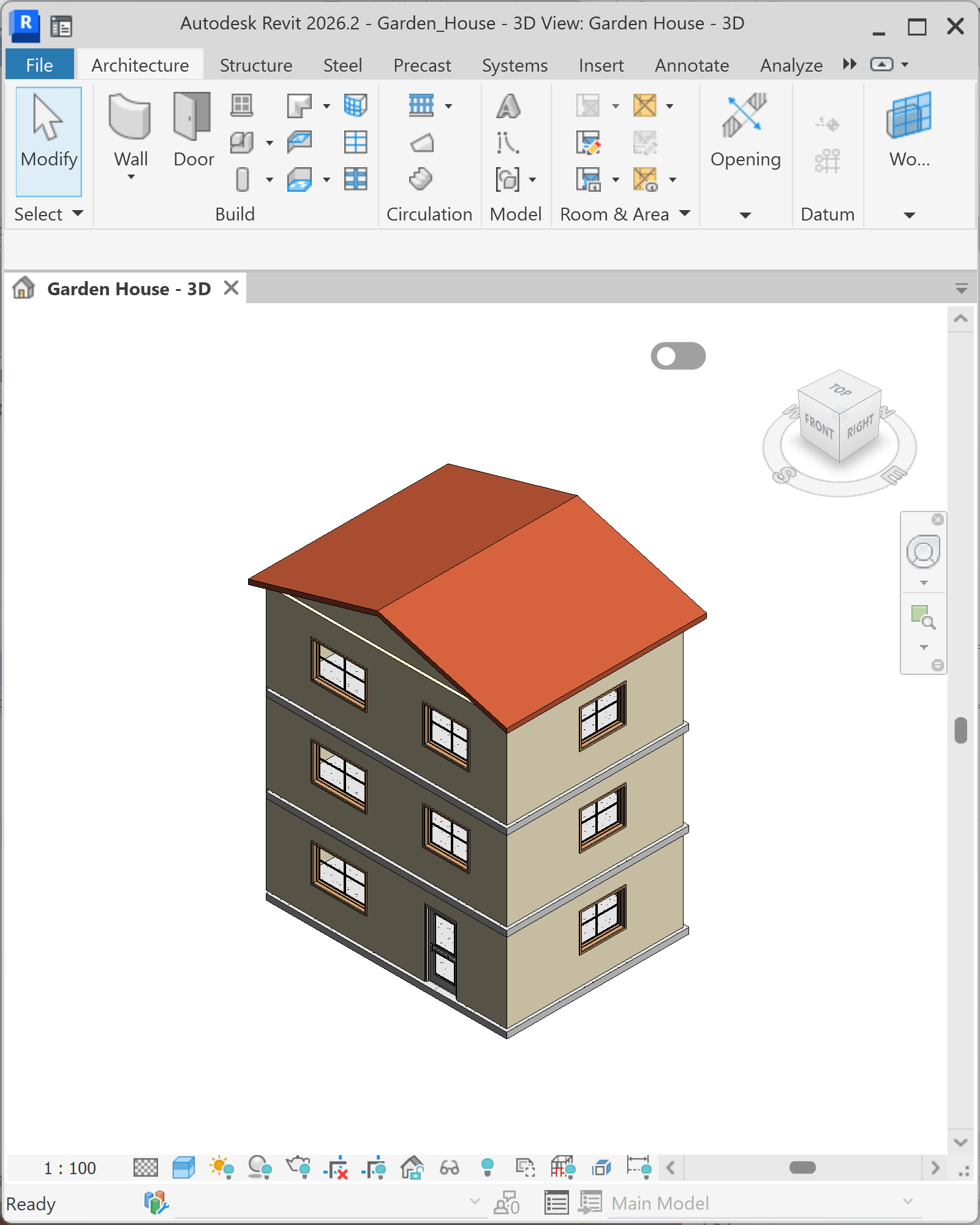
Keep Studio and Revit visible side by side. Follow the active tool calls in the chat as the walls, roof, doors and windows appear in Revit.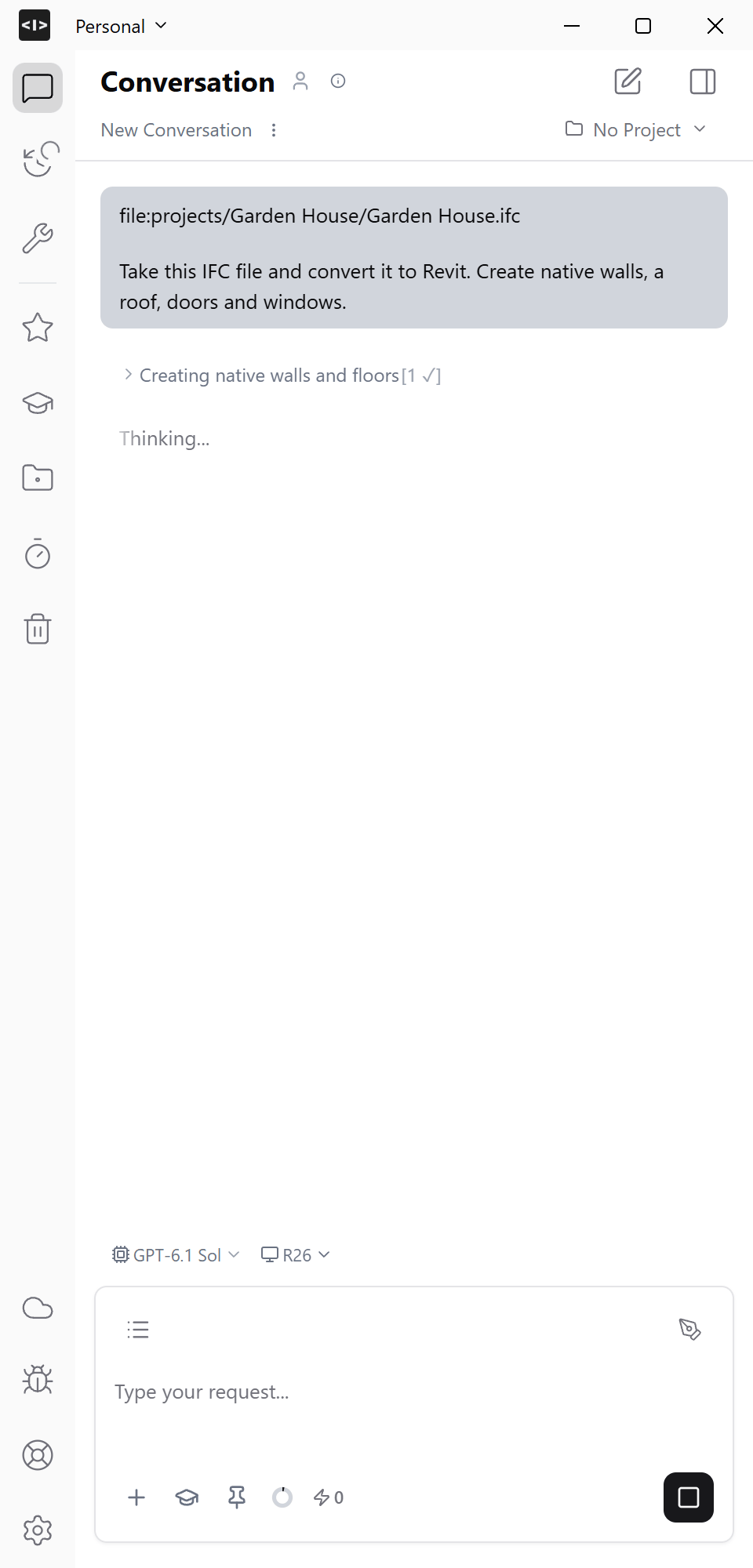
6
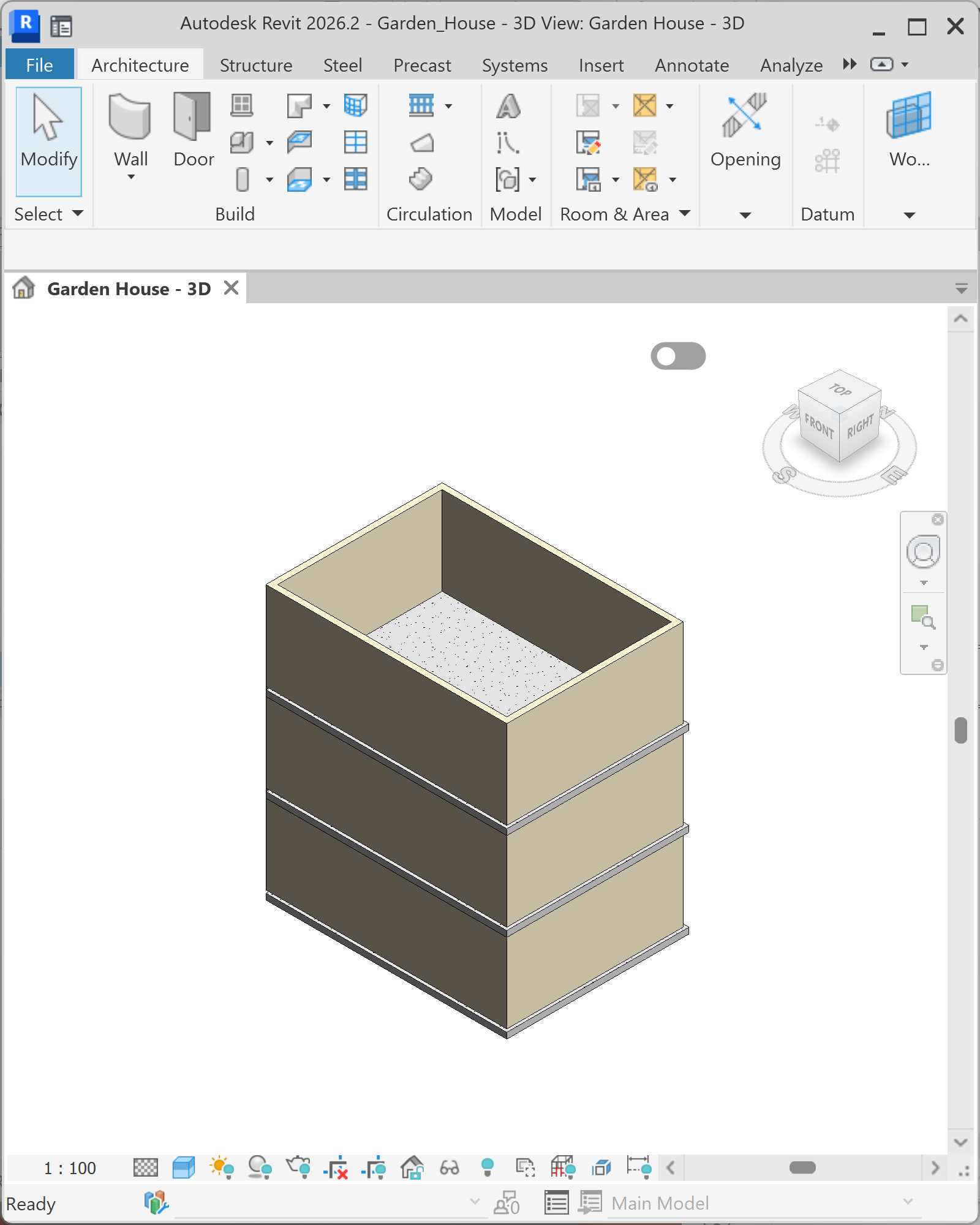
Check the finished house
Inspect the house in Revit and compare it with the IFC. Check the roof, openings and overall dimensions. Select a wall or window to inspect the native Revit element.