Confirm the workspace, application and document before asking Ideatura to make changes.

1. Choose the workspace

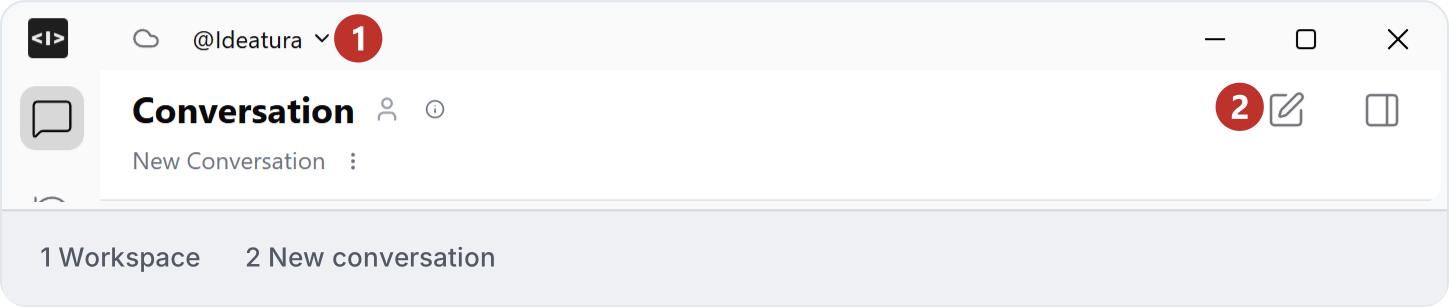
Check the workspace name at the top of Studio. Choose the workspace containing the references or automation for your task. If saved work is missing, check this selection before looking elsewhere. See Workspaces. Workspace selector at the top of Studio showing the selected Ideatura workspace.
2. Confirm the application

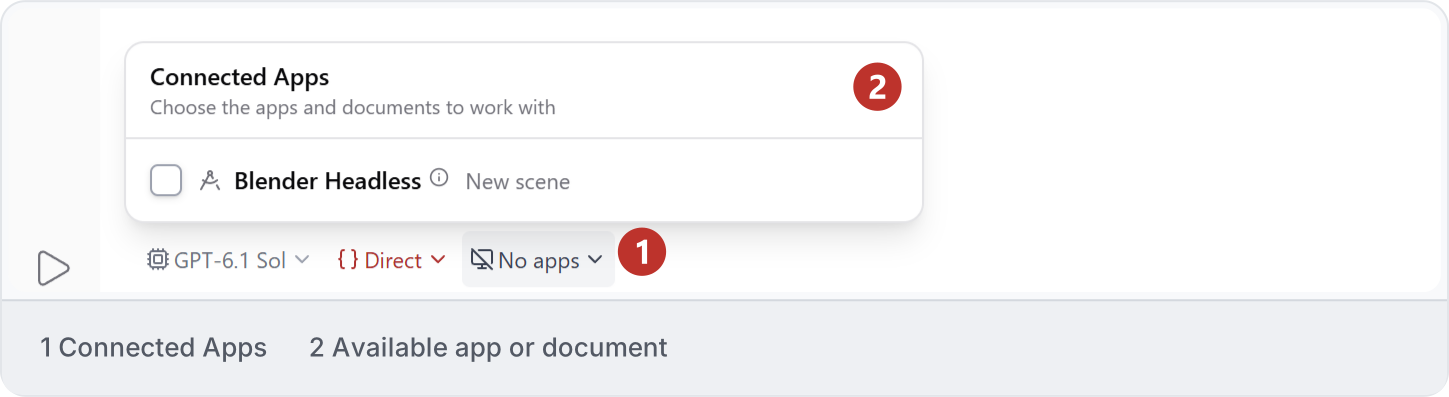
Open Connected Apps and select the intended application and document. The example shows an available Blender Headless — New scene entry, still unchecked. Check the selected target and available access options before sending a request. See Modes and access. Connected Apps before a selection: Blender Headless, New scene is unchecked and the composer shows No apps.
3. Check the target

Before editing, ask for a read-only identification of the active document, view and selected elements. Compare the answer with the application itself. Name the view or elements again if the selection or active document changes.

4. Resolve a mismatch

Stop if the reported target differs from your intended file. Check the connection and active document, then repeat the inspection. For busy sessions or unavailable controls, use Troubleshooting; do not open several chats and assume each owns an independent model.