Connect your Blender scene and choose the objects you want to work on.

1. Identify the scene

Open Connected Apps and choose the running Blender session for your open scene. Blender Headless is a separate session. Both use Full access, so check that you have selected the right scene. Viewport captures require the visible Blender session; Headless uses a scene camera for images.

2. Define the geometry and output

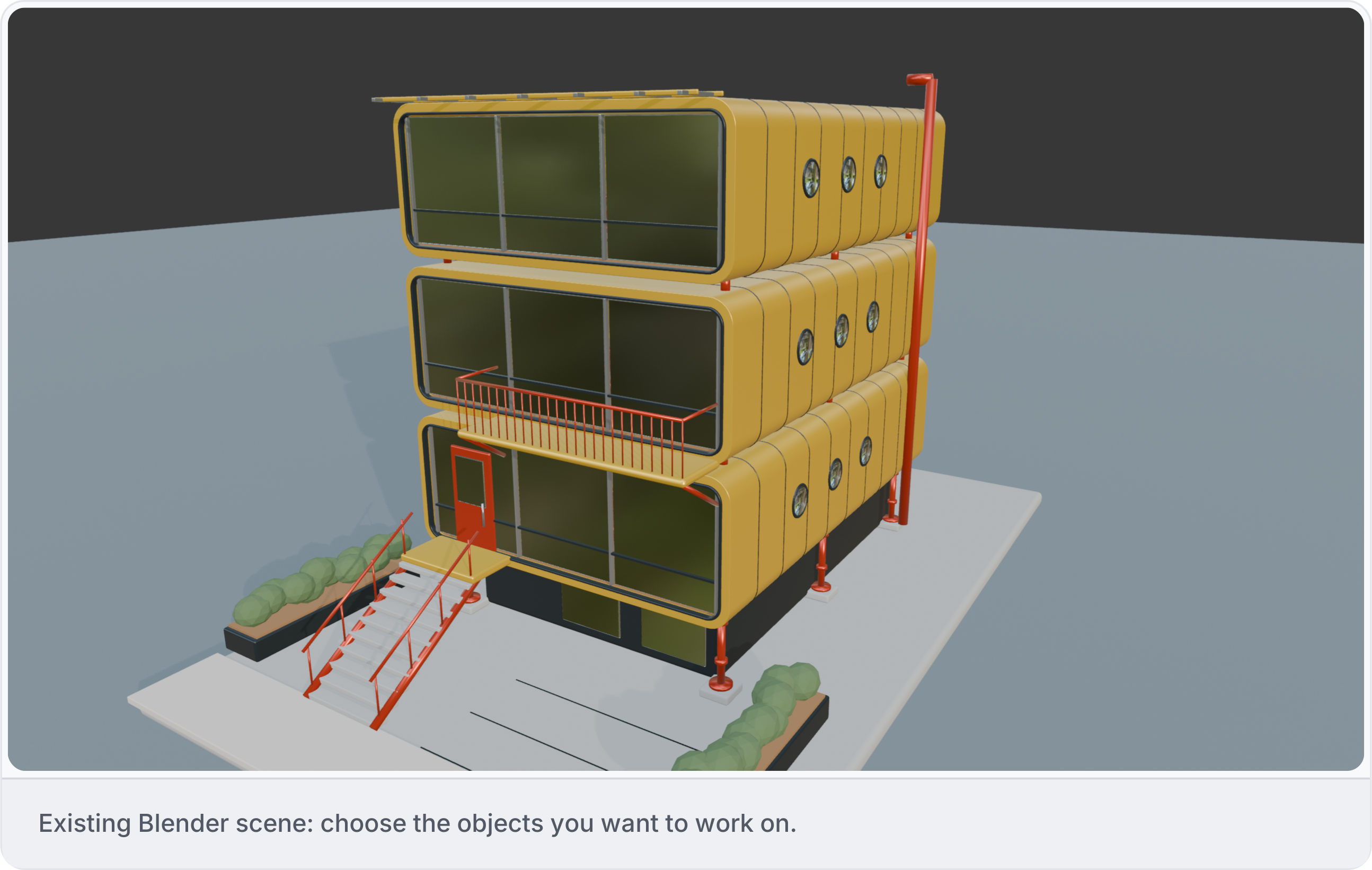
Select an object or group and describe what you want to change. Give dimensions where needed and say what should stay as it is. This existing scene uses metric units. Existing Blender scene showing objects to choose for a task.
3. Inspect a small area

Start by checking the objects you want to work on. Confirm their dimensions, position and scale, then describe the change. Review the result in Blender alongside the surrounding objects. See Inspect model data.

4. Save and reopen

Save the native scene or export a .blend copy or GLB through the integration. A .blend export does not change the active file path or automatically pack external files and textures. GLB retains only data supported by its exporter; IFC export is not provided by this integration. Reopen the output and check its contents. See Files and outputs.