Connect the open Rhino document, define a small area and inspect the model before saving.

1. Check the connection

Run Studio and Rhino 8 on the same Windows machine, with the Ideatura add-in installed. Open your model and select it in Connected Apps. Read access permits viewport captures; operations in Rhino require Full access. Confirm the document again after restarting Rhino or switching files.

2. Choose what to change

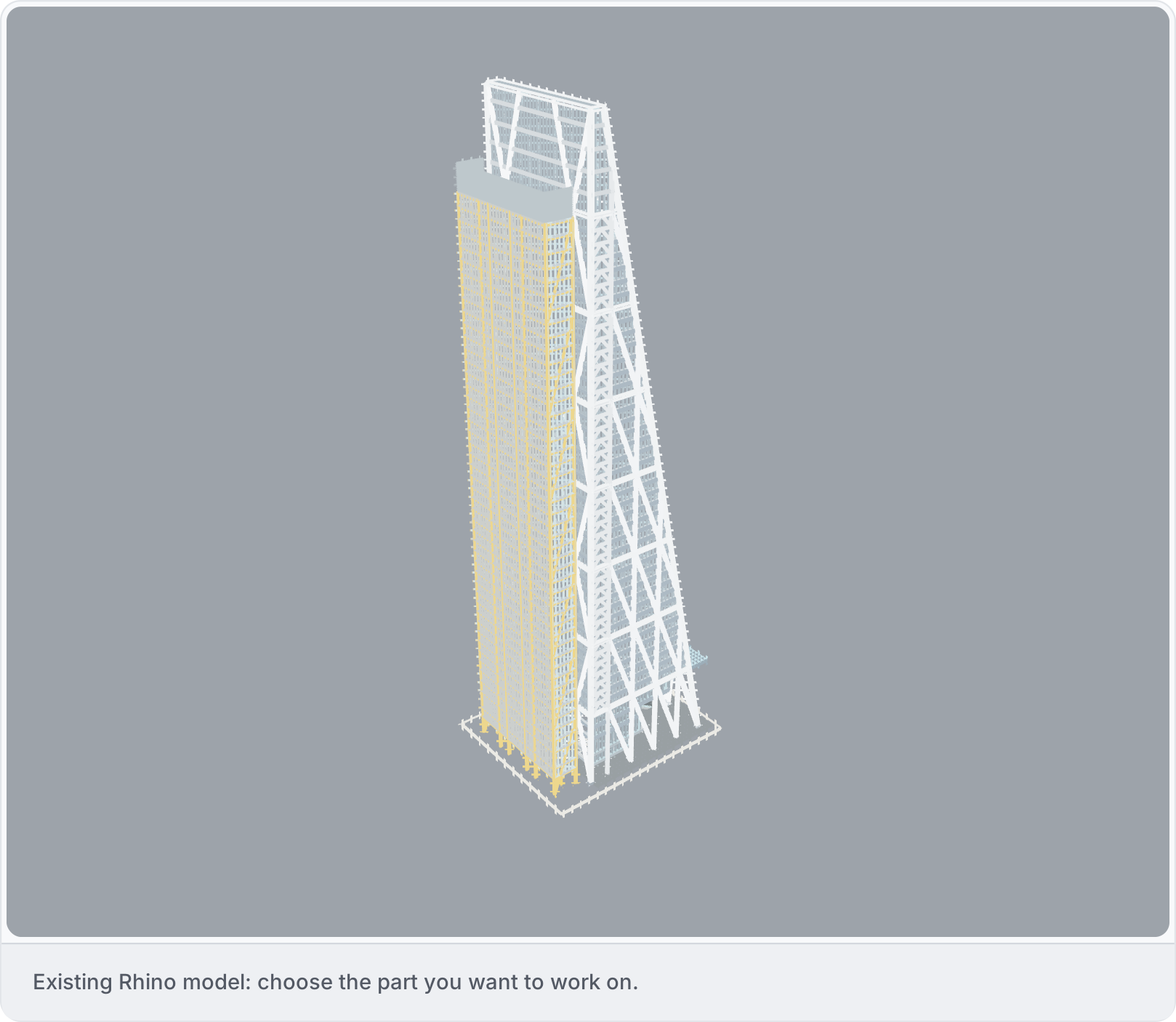
Select the objects you want to work on and describe the change. Give dimensions where needed and say what should stay as it is. This existing Rhino model uses millimetres. Existing Rhino model showing the area to work on.
3. Inspect a small area

Try one part of the model and check the shape and dimensions in Rhino. If a task fails, some changes may already have been made, so check the model before trying again. See Edit existing models.

4. Save and reopen

Save the checked document through Rhino and reopen the file. Check that the saved model has the right units and can still be edited. For an undocumented operation, check Supported tasks.