

Download Studio
Open ideatura.ai/download and choose the installer for your operating system.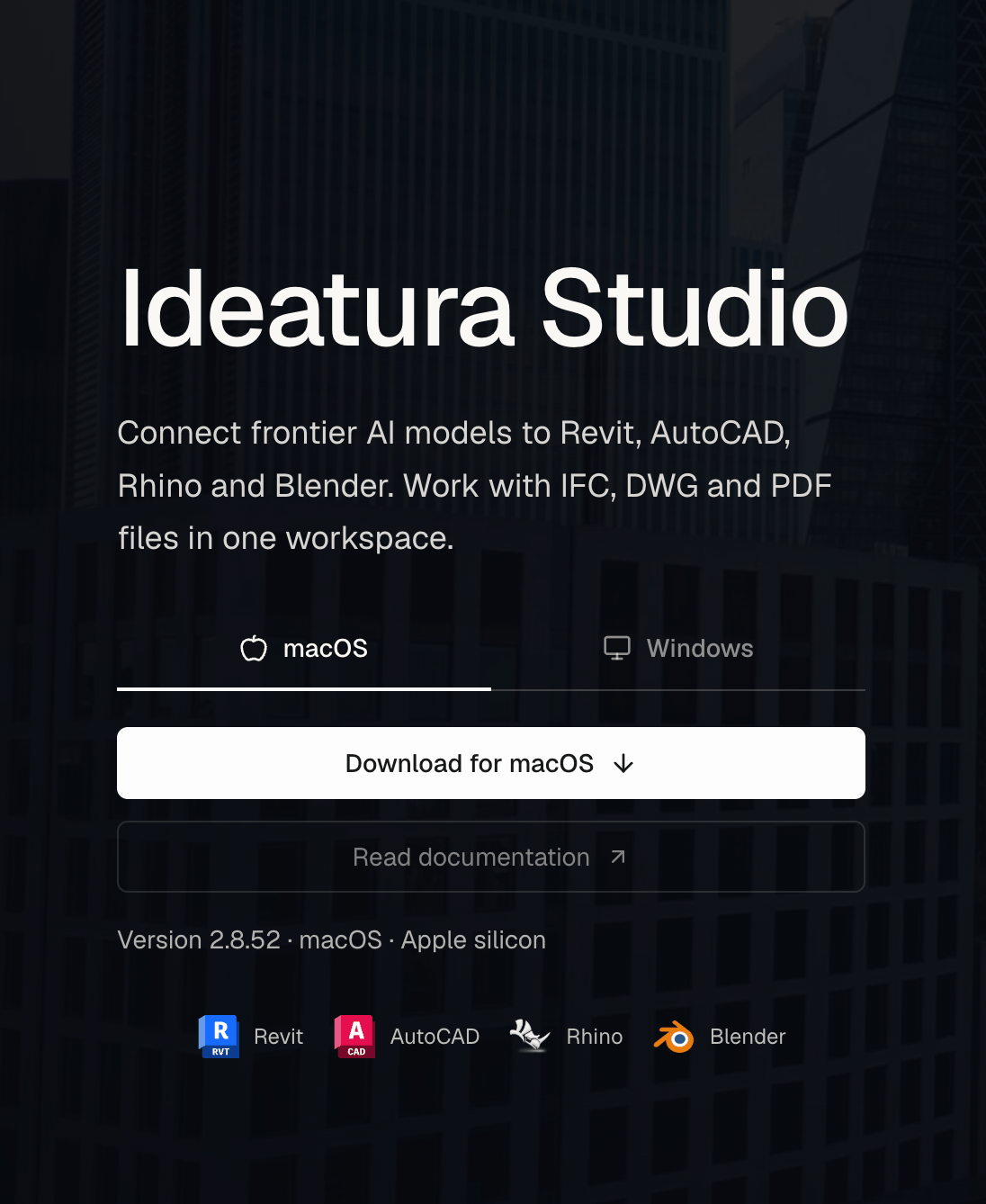
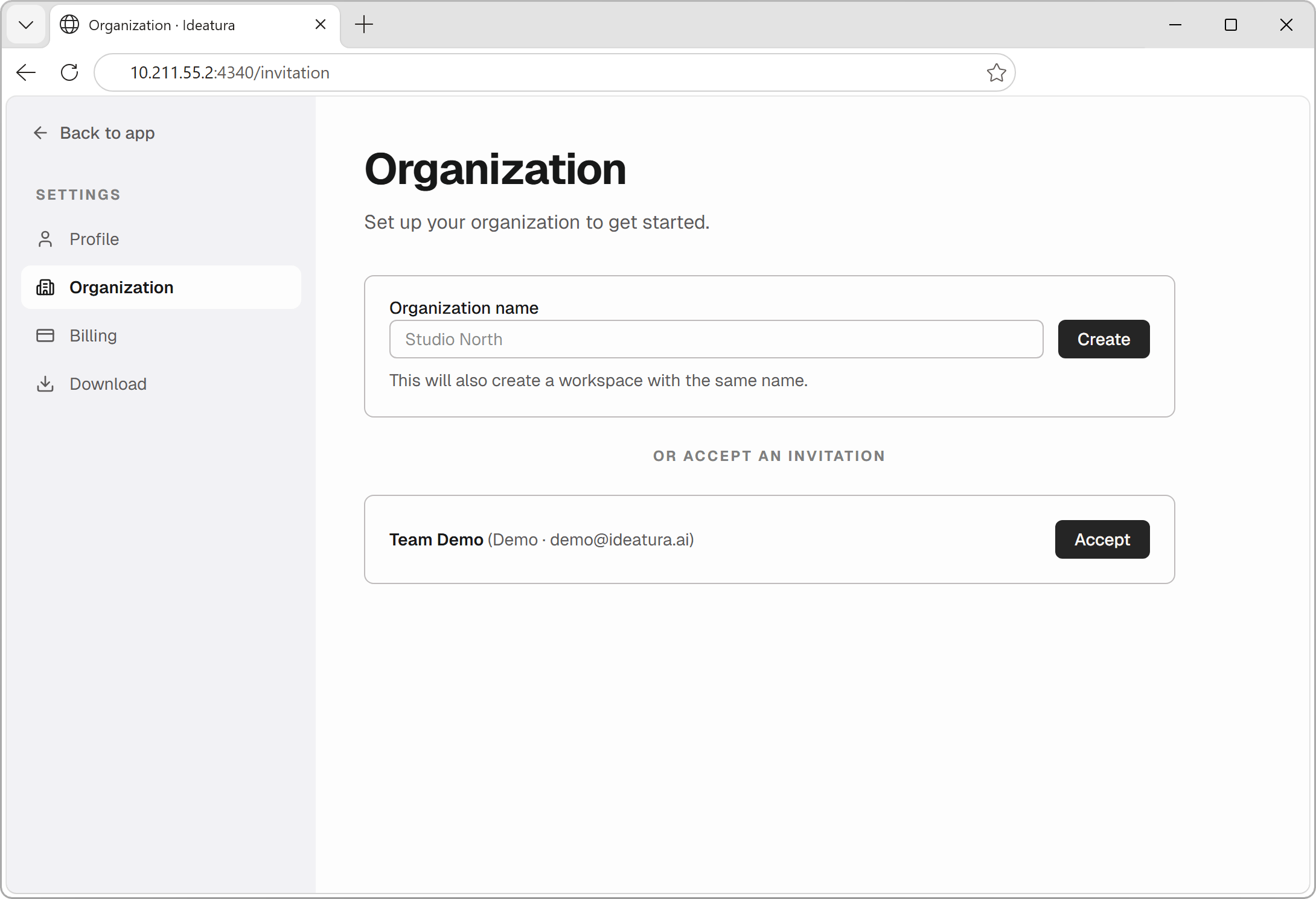
Install Studio
- Windows
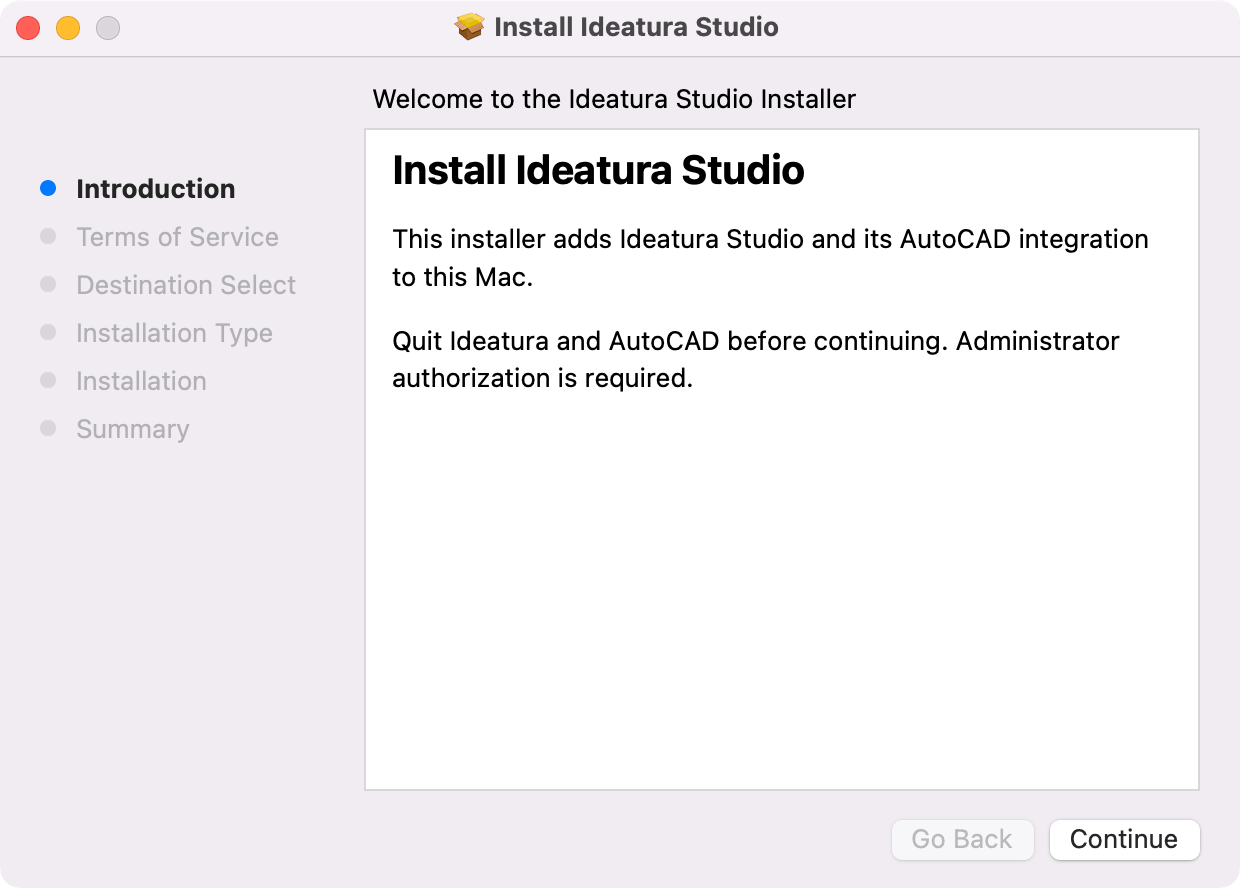
- macOS
- Close Revit, AutoCAD, Rhino and Blender before installing, so their add-ins can be installed or updated.
-
Run the downloaded
.msiinstaller and click Next.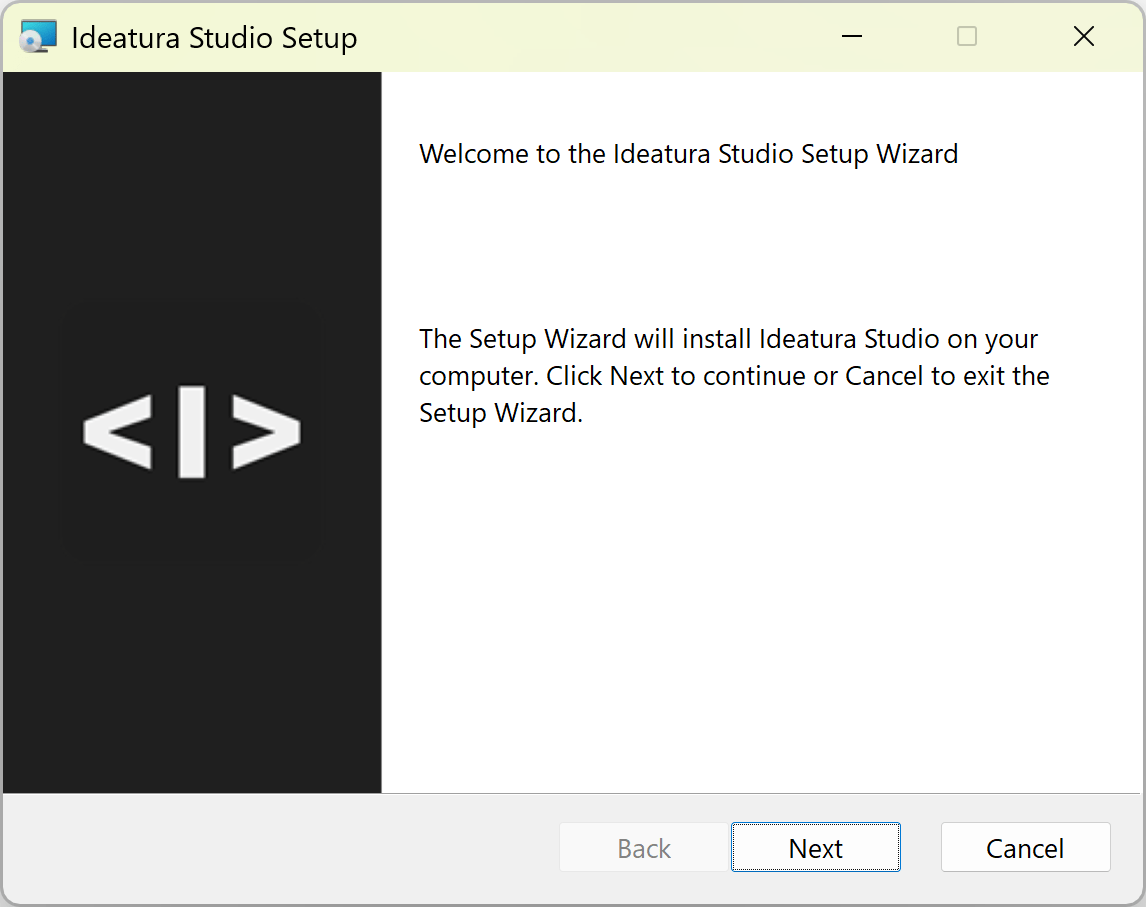
-
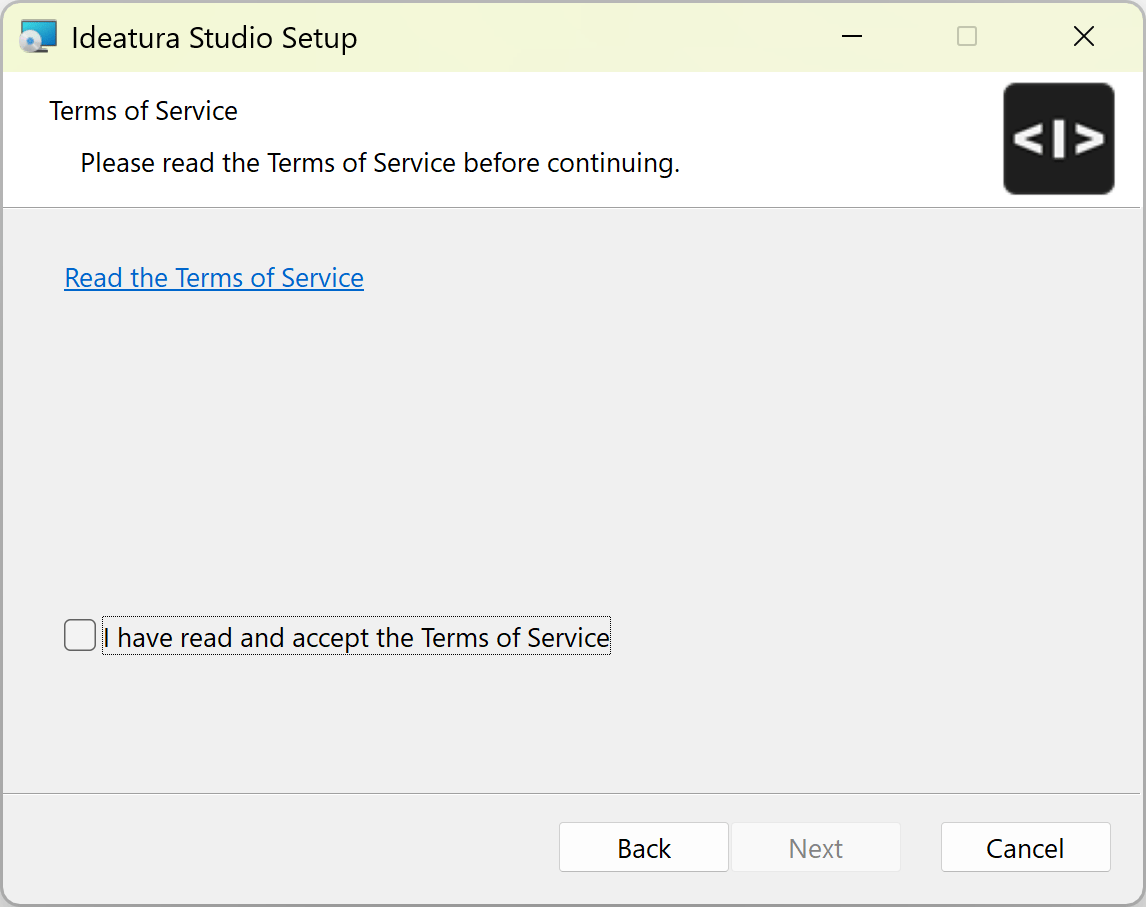
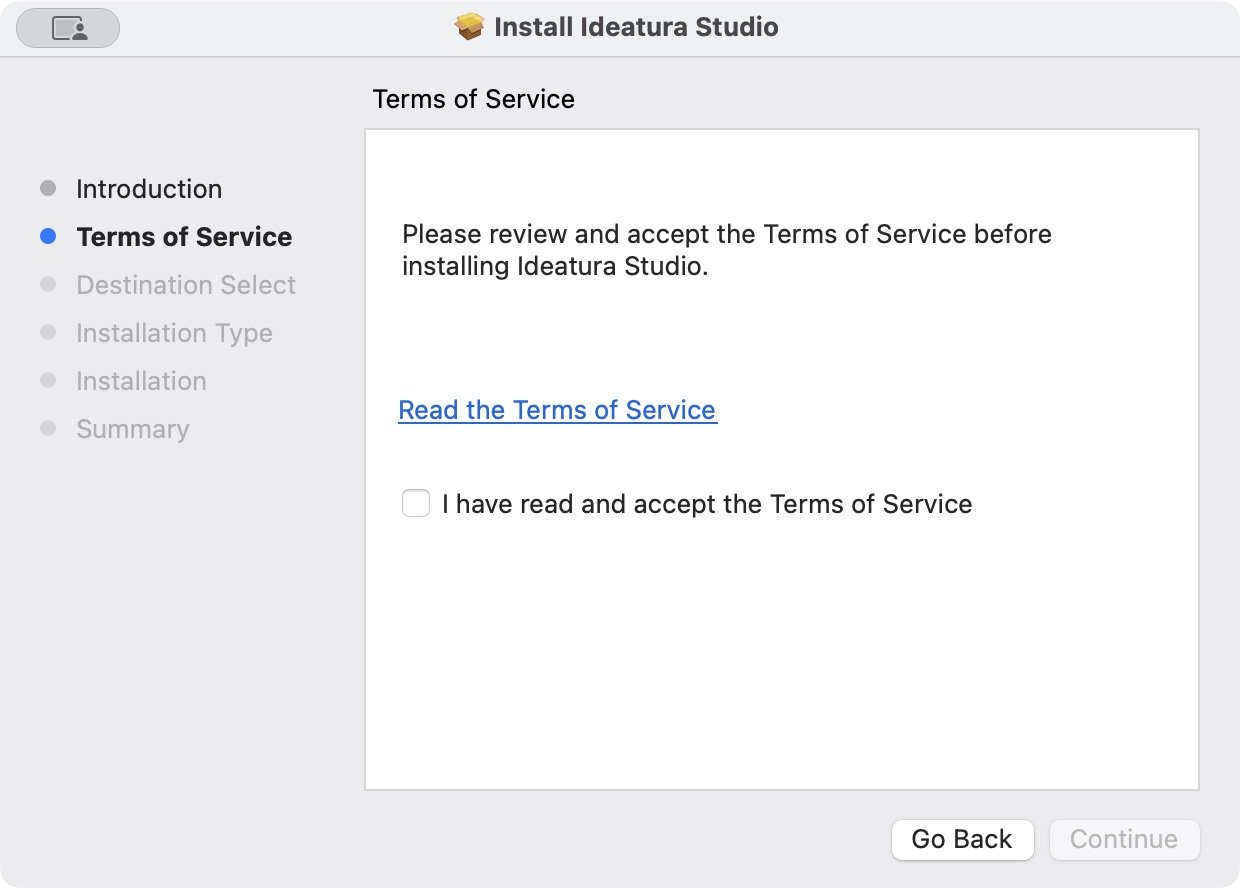
Open Read the Terms of Service. If you agree, select I have read and accept the Terms of Service and click Next.
-
Select Install for all users and click Next.
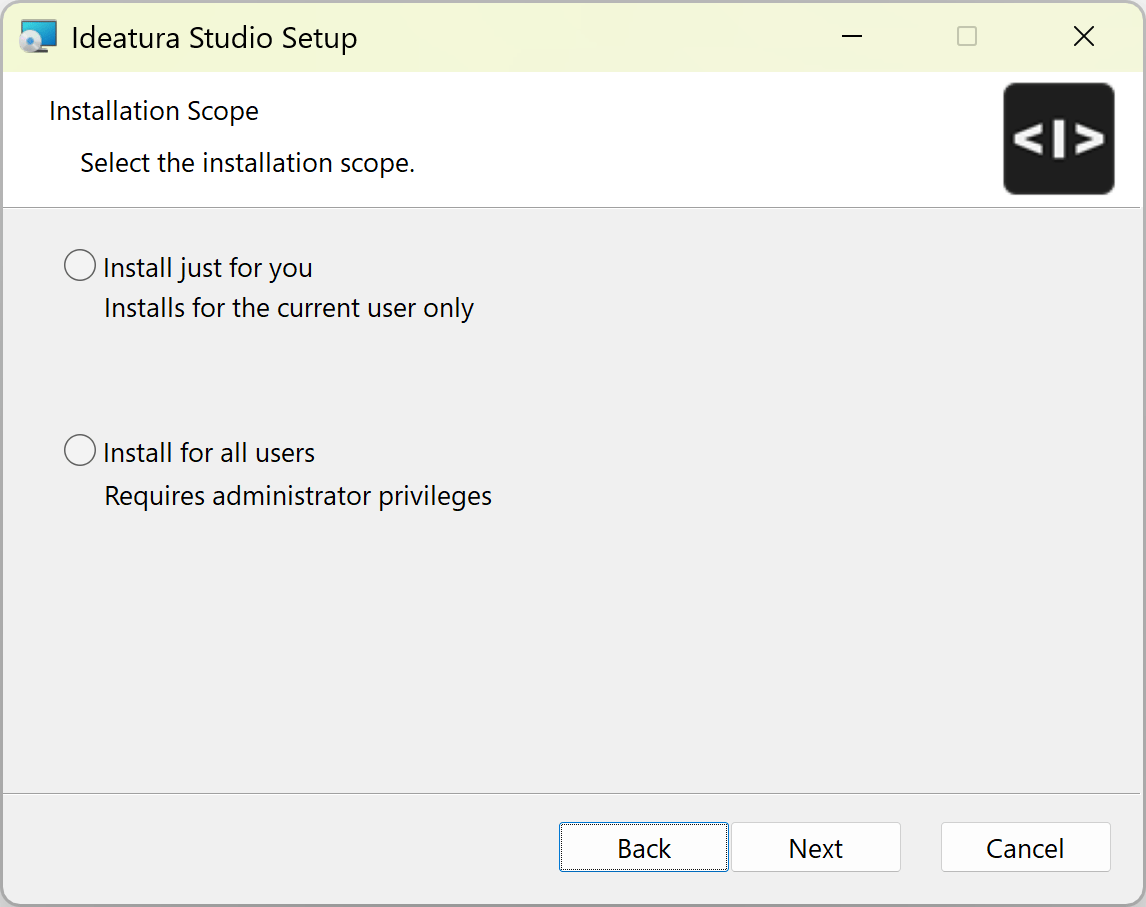
- Click Install. Allow the Windows administrator prompt to continue.
- Finish the installation and launch Ideatura Studio.
Sign in
-
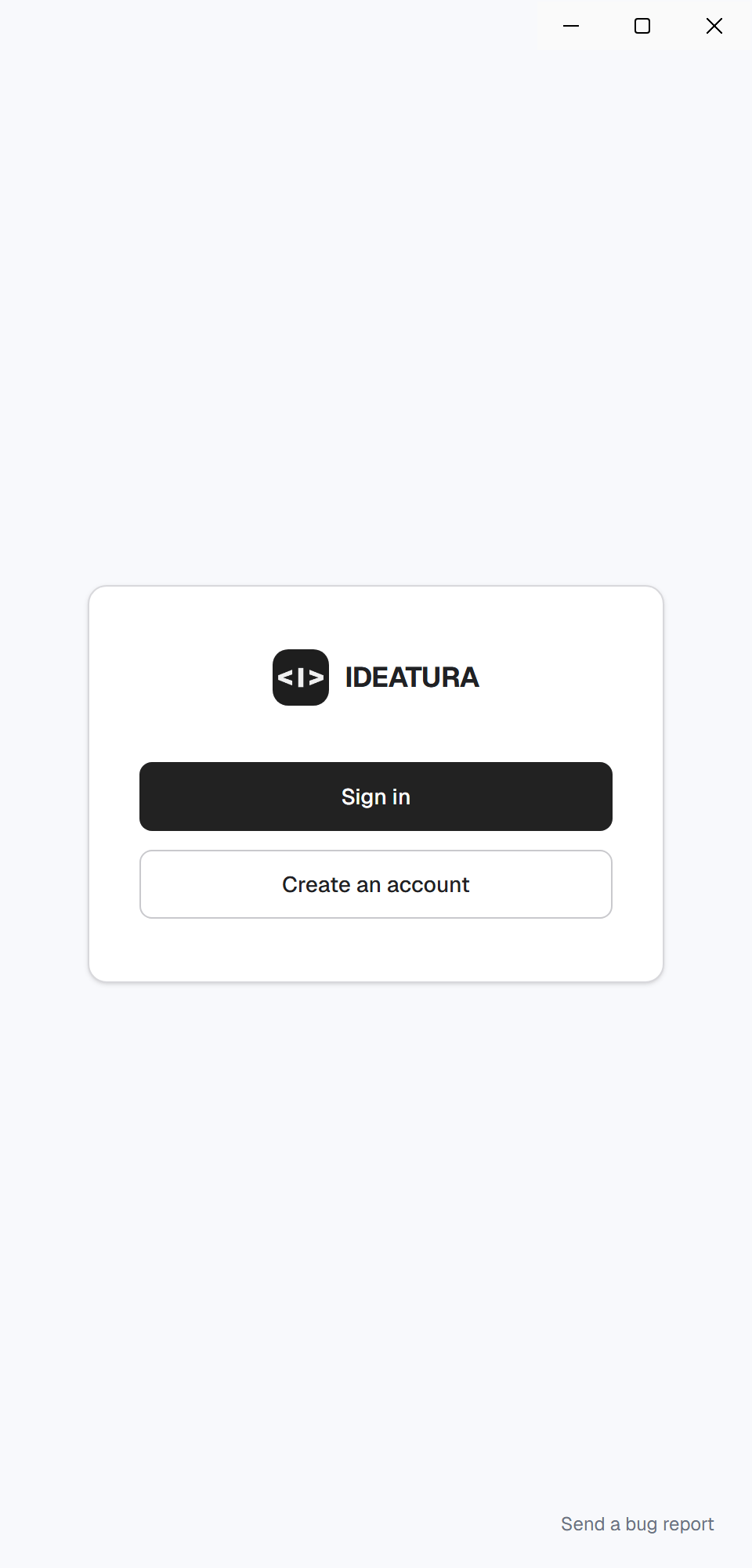
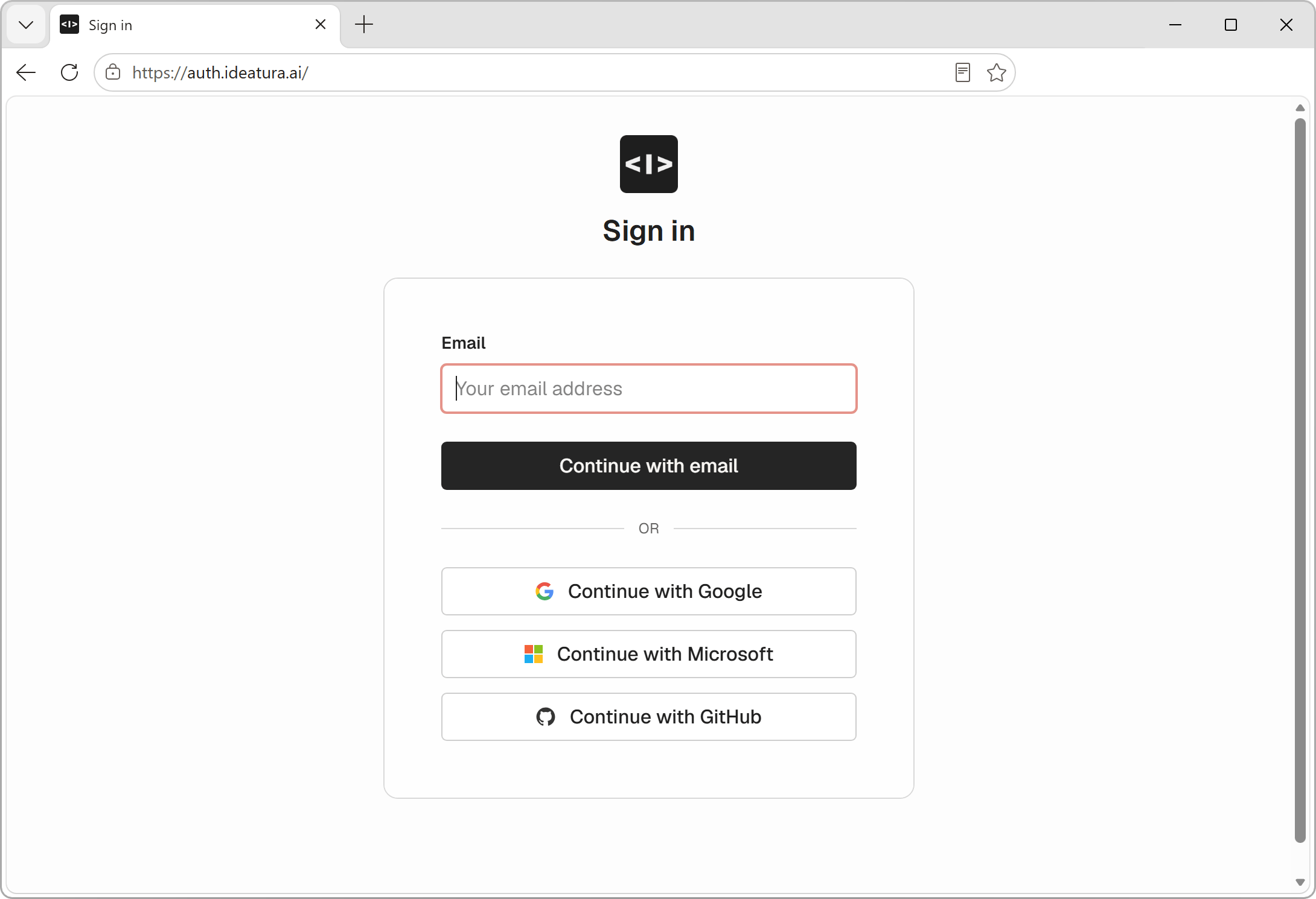
Click Sign in in Studio. Your browser opens for authentication; Studio shows “Waiting for the browser…”.
-
Complete sign-in in the browser using the account you use in the web portal. If you are already signed in, you will see the approval screen instead.
-
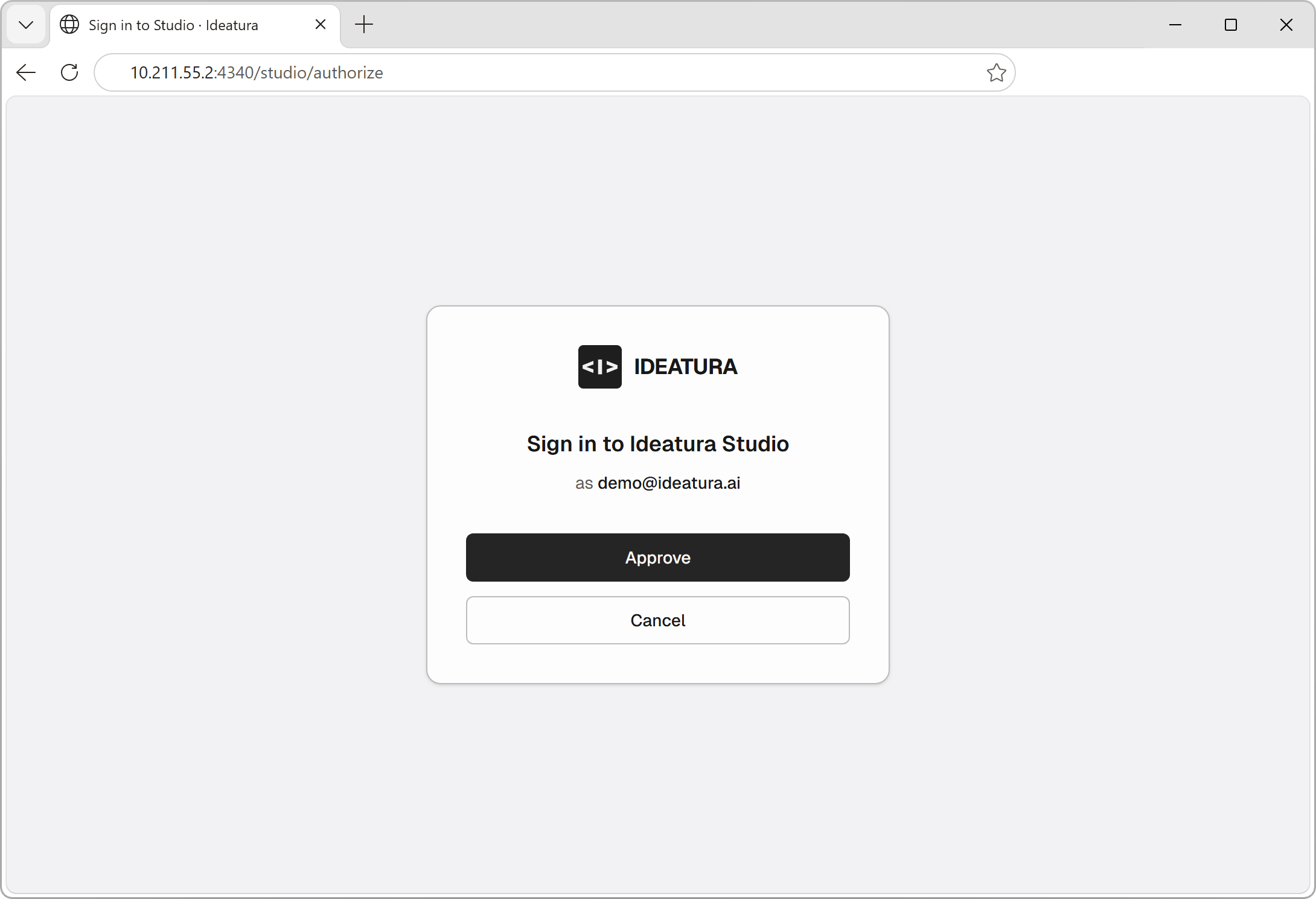
On Sign in to Ideatura Studio, check that the account shown is the one you want to use, then click Approve.
If it shows a different account, switch to the account that has your Ideatura access before approving.
-
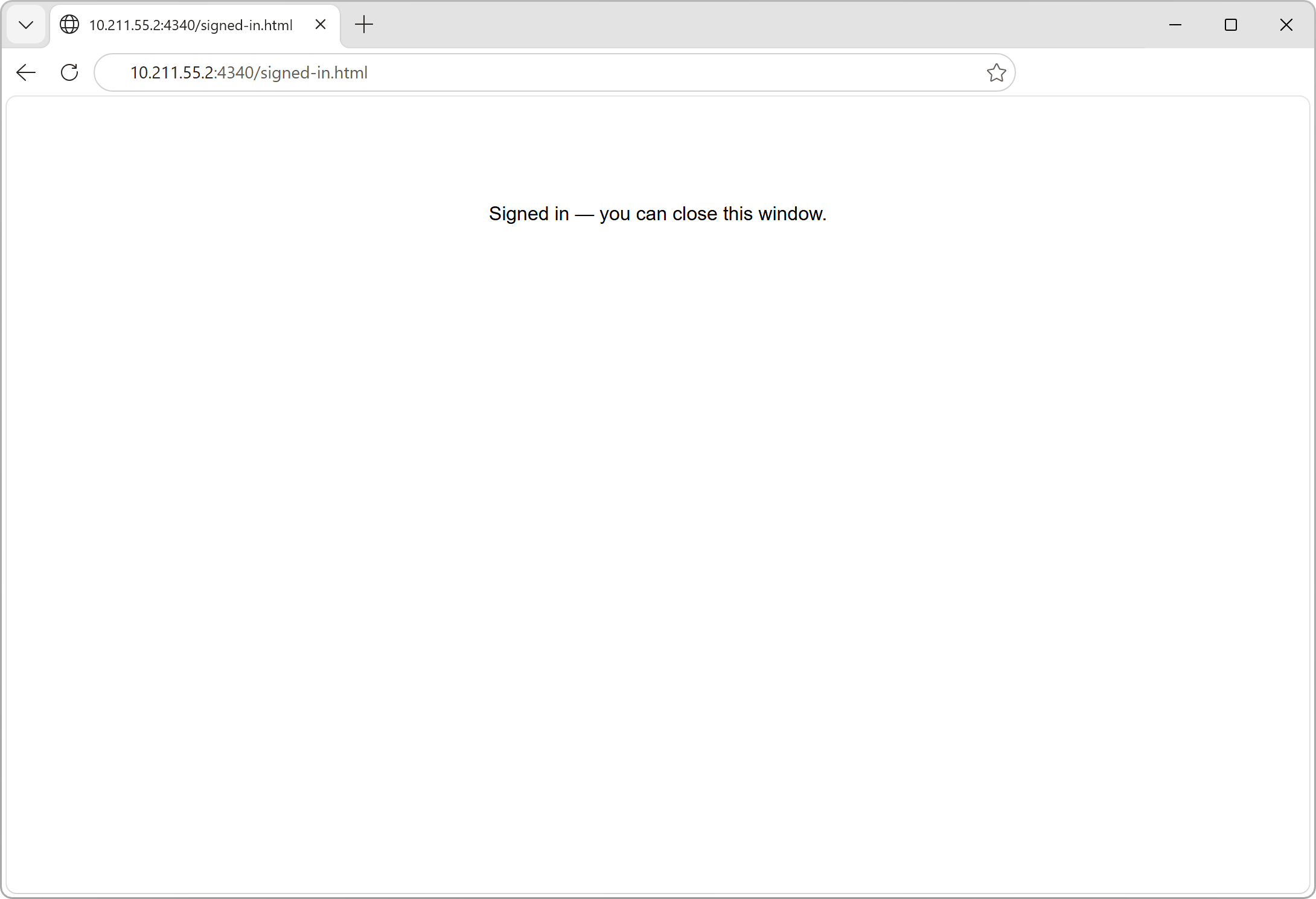
Wait for the browser to show Signed in — you can close this window. You can now close the sign-in tab.
-
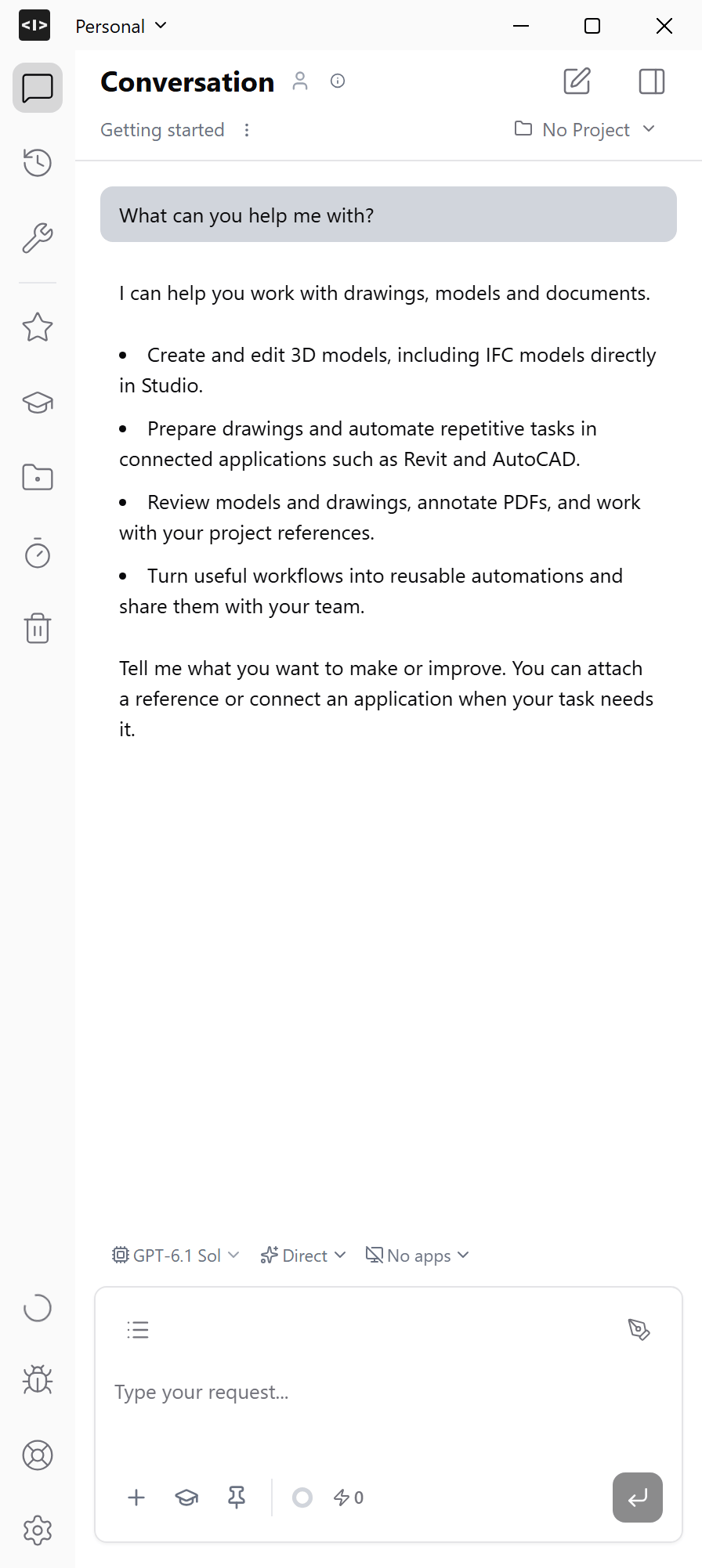
Studio is ready for your first prompt. In the empty conversation, type
What can you help me with?and send it. Read the reply to see what you can do with Ideatura.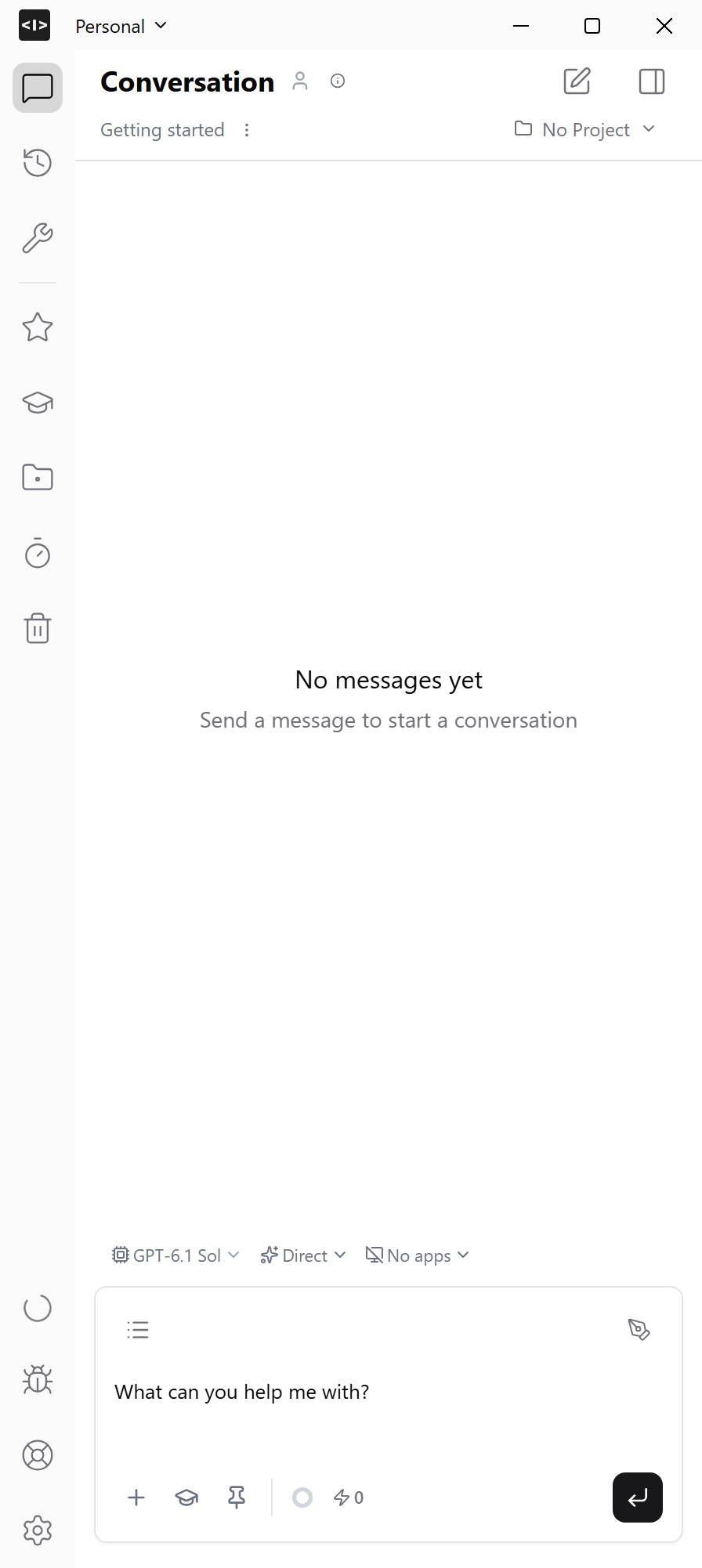
3D Modeling quick start
Create a small IFC house directly in Studio.