Use Ideatura with AutoCAD to work on an existing drawing or recreate a drawing reference. Start with a clear task, such as adding grid dimensions, and check the result in the DWG.

1. Connect the drawing

Open and save your drawing in AutoCAD. Use the controls marked in the screenshot:
  • Connected Apps (1): open the application and document selector.
  • AutoCAD drawing (2): select the exact DWG—here, DOCS-AutoCAD-grid-dimensions.dwg in AutoCAD 2027 (shown as A27). If several drawings are open, confirm the selected filename and the model or layout you intend to work in.
  • Access mode (3): Read allows inspection without lasting changes; Full allows editing. Direct mode requires Full access.
AutoCAD connection controls: 1 Connected Apps button, 2 selected DOCS-AutoCAD-grid-dimensions.dwg drawing, 3 access mode. Check the drawing units before requesting dimensions or geometry. See Connect your model for connection help.

2. Try grid dimensions

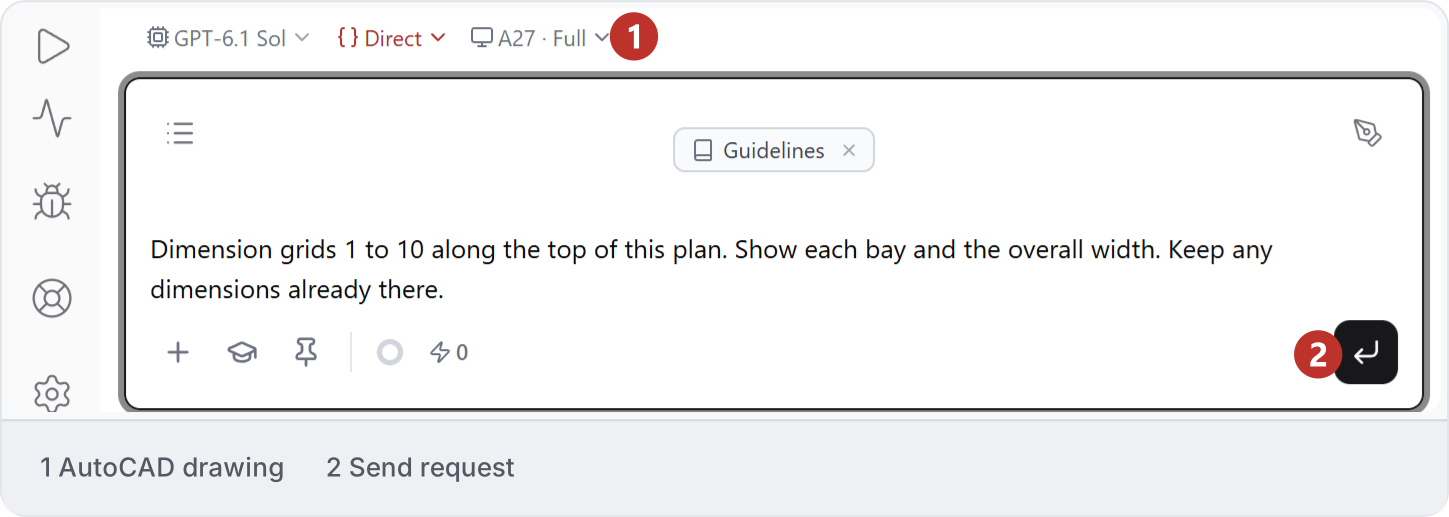
Describe the change in plain language: “Dimension grids 1 to 10 along the top of this plan. Show each bay and the overall width. Keep any dimensions already there.” Confirm the connected drawing in the selector (1), then send the request (2). Request to dimension AutoCAD grids 1 to 10 while keeping existing dimensions. The demonstrated result shows the 54000 mm overall dimension (1) and nine 6000 mm bays (2). Existing bay dimensions were kept. Compare the values, placement and readability with your own drawing before accepting the result. Completed AutoCAD sample with nine 6000 mm bays and a 54000 mm overall dimension.
3. Recreate a drawing reference

Follow Screenshot to AutoCAD to work from a floor-plan image toward an editable DWG. Provide a known dimension or scale, then compare the geometry, layers and labels with the reference.

4. Choose the output

Use an editable DWG when the work belongs in AutoCAD. If you need native Revit elements from a vector drawing, follow DWG to Revit and review that example’s inputs and limitations.

5. Inspect and save

Review the result in AutoCAD, including units, missing or repeated items and anything that should have stayed unchanged. Save the DWG after checking it. Use Review and recover for corrections or Supported tasks for work outside these examples.