Before asking Ideatura to change a drawing, check which file it can work in and what access it has. These controls are separate from choosing the AI assistant. For example, creating grid dimensions needs access to change the selected Revit project.

1. Select an app

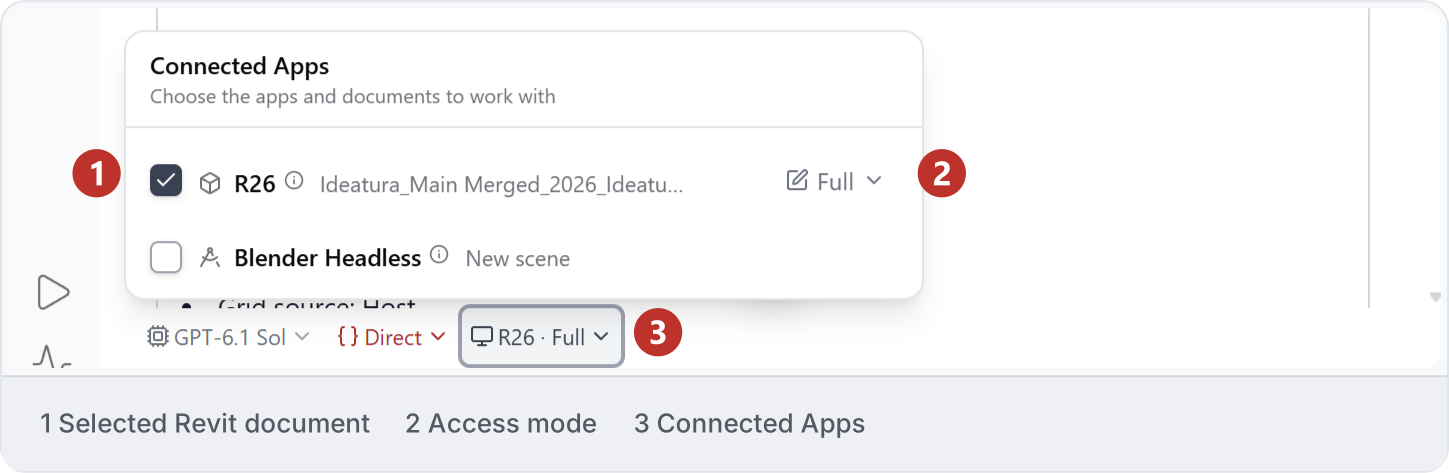
To work in Revit, AutoCAD, Rhino or Blender, open Connected Apps and select the document you need. This example has a Revit document selected. No apps is available for work without a connected application. Connected Apps with a Revit document selected and Full access.
2. Access levels

Choose the access needed for the task from the options offered by your application. Read is for inspection; Markup allows supported markup; Full permits model changes. The screenshot shows Full access to Revit. Check the selected file as well as the access label. Selected Revit connection with Full access displayed in the composer.

3. Execution modes

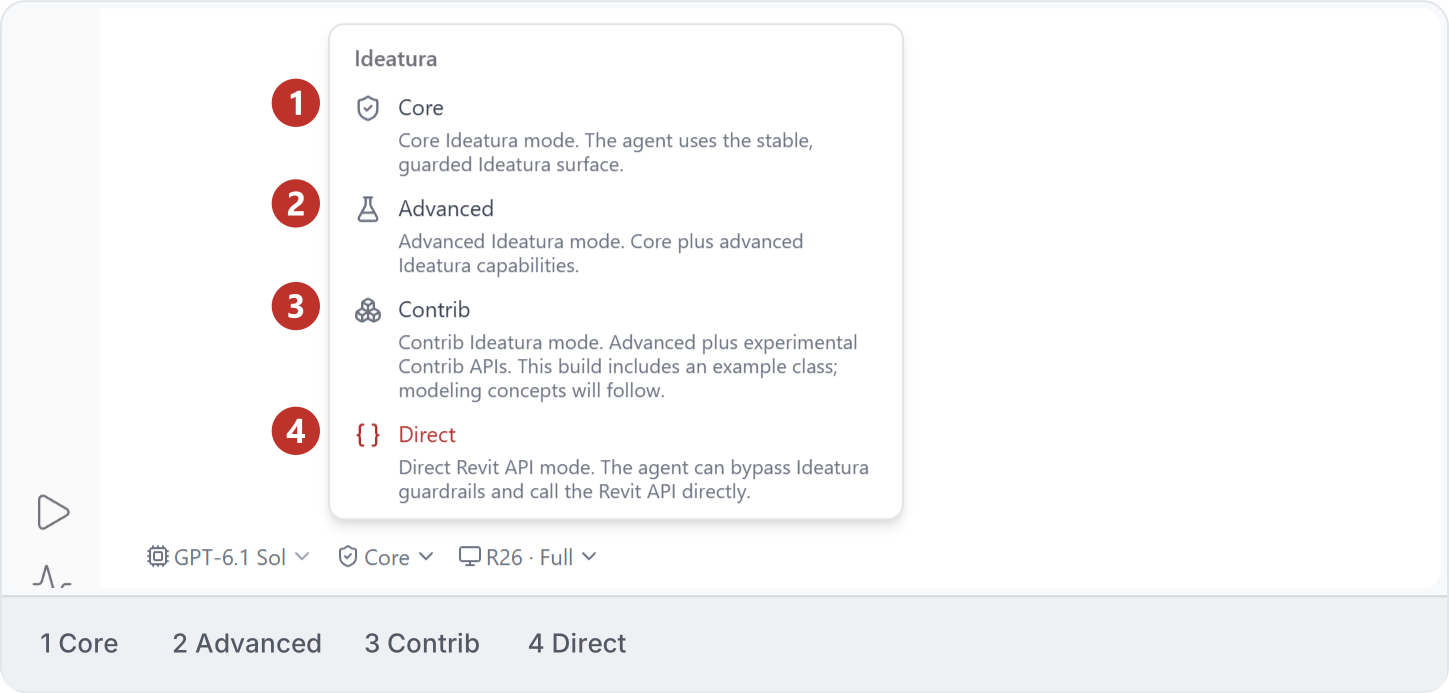
Open the mode menu to review Core, Advanced, Contrib and Direct. Contrib is experimental. Direct can bypass Ideatura’s guardrails and call Revit directly, so read its description and check the connected document before choosing it. Mode is separate from the AI model, thinking level and application access; this menu shows Core selected. Execution mode menu with Core, Advanced, experimental Contrib and Direct; Core is selected.
4. MCP connections

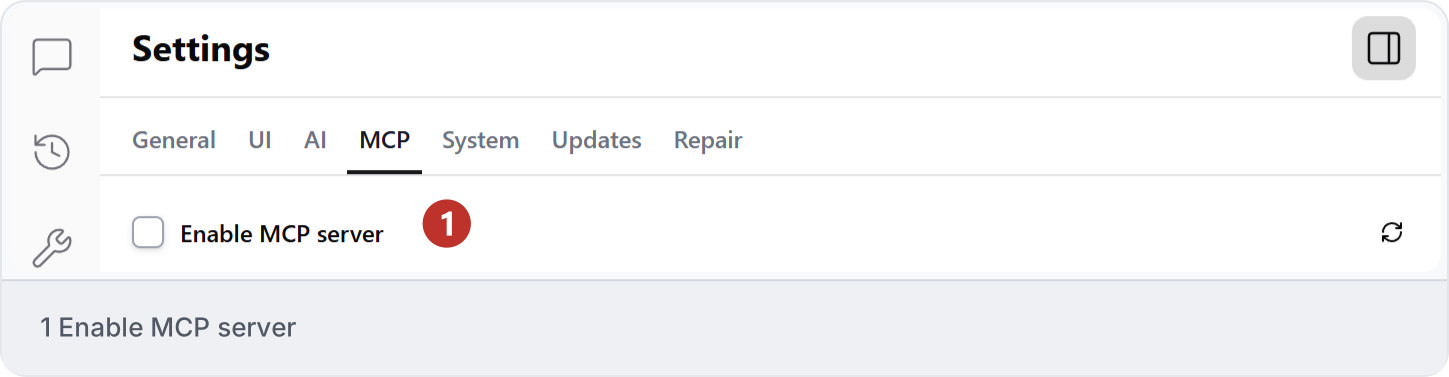
MCP connects another AI application to tools provided by Ideatura. Skip this section if you are working directly in Studio. For that separate connection, follow its setup guide and check Settings → MCP → Enable MCP server; it is unchecked here. MCP settings with Enable MCP server unchecked.
5. Recover connections

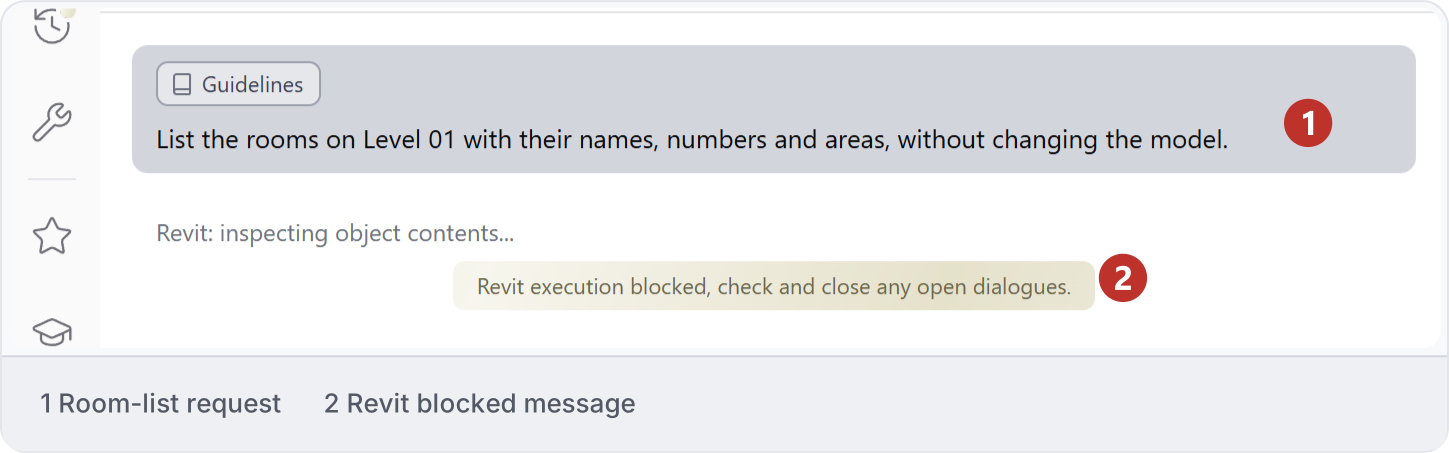
Read the message to identify which connection needs attention. If Studio shows Revit execution blocked, check and close any open dialogues, switch to Revit and check for a dialog needing a response. The message identifies blocked execution; it does not establish the cause or confirm that the task completed. Room-list request with Studio reporting Revit execution blocked and asking to check open dialogues. Confirm the application is running and the document you need is open. Recheck the selected document and access in Connected Apps before continuing. If no dialog is visible and blocking persists, keep the message and follow Troubleshooting. Connected Apps with a Revit document selected and Full access for checking the task target.
6. Application capabilities

Before choosing an application, check its supported version, setup requirements and the operation you need. Reading a file, editing native elements and exporting a result require different capabilities. Read Apps and compatibility for the checks relevant to Revit, AutoCAD, Rhino and Blender. Check the task’s inputs and output format before running it.

7. Understand execution controls

Tell Ideatura what you want changed, such as “Dimension the grids in this view only.” Check the connection’s access settings as well: wording in a message does not change those settings. See AI controls for more detail.