

Create a chat
Click the pencil button at the top of the conversation to start a new chat.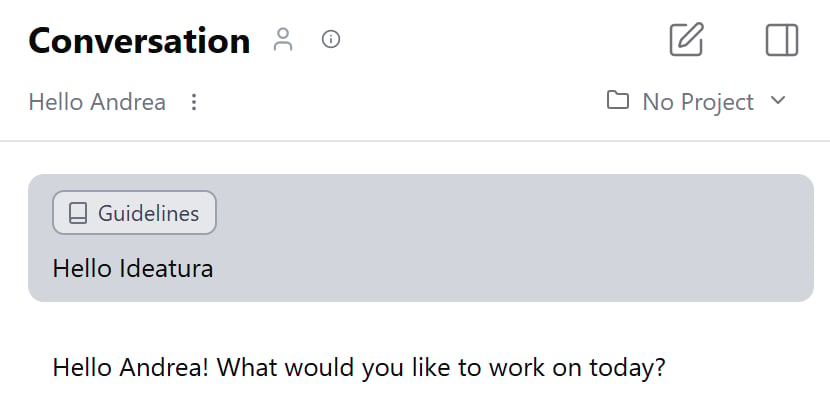
Send first prompt
Paste this into the message box and click Send:Create a simple single-storey house as an IFC model. Use metres: an 8 × 6 m rectangular footprint, a ground-floor slab, four external walls 3 m high and a gable roof with its ridge along the 8 m direction. Use light walls and a dark roof. Keep this first version simple, with no interior partitions, doors or windows. Give me the IFC file and open a 3D view so I can inspect it.Wait for the reply and file card. AI may ask a question; answer it in the same chat. Your file name and some modelling details may differ from this example.
Open and inspect the result
Click Open on the IFC file card if the viewer has not opened beside the chat. Use Fit scene in isometric view to see the whole house. Choose Orbit from the navigation menu to look around it, and use the mouse wheel to zoom.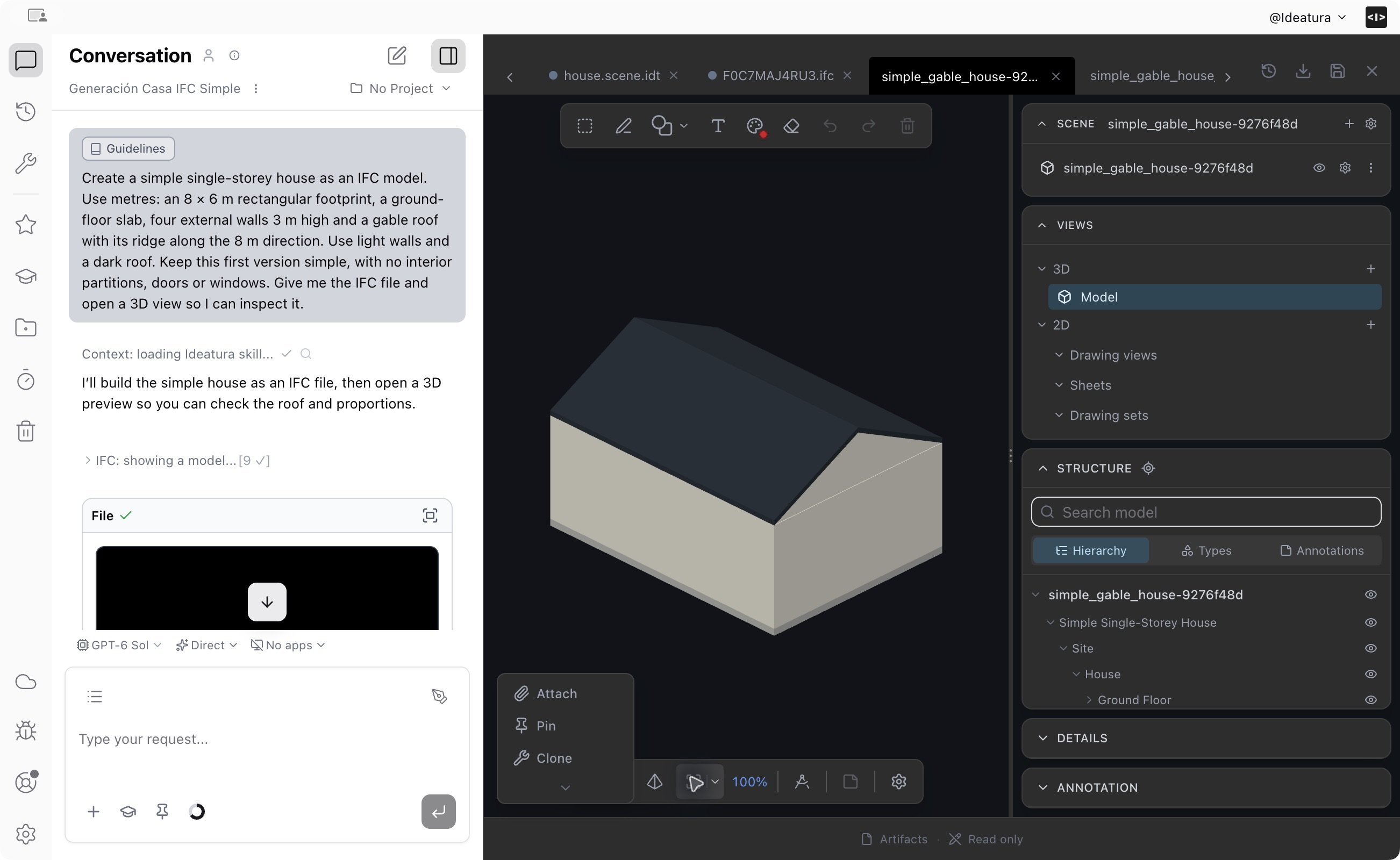
The first result: a simple house with light walls and a dark gable roof, generated in Studio with No apps selected.
Refine it in the same chat
Ask for one specific change:Change the roof colour to terracotta red. Keep the house dimensions, wall colour and geometry unchanged. Return the updated IFC file.Open the updated file card and inspect it. Keep using this chat to refine the same house; start a new chat for a separate task.
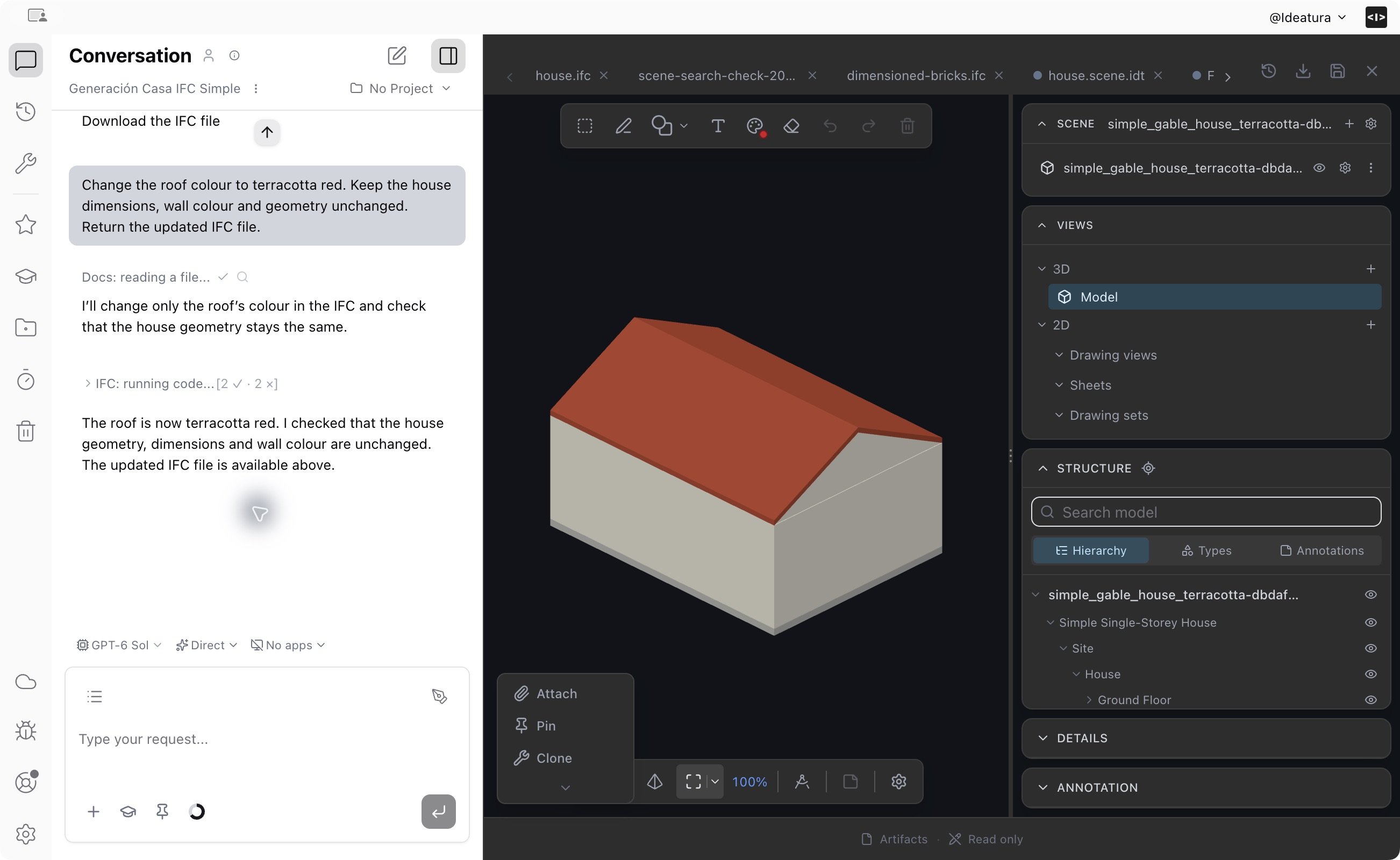
The same house after a follow-up request to change the roof colour.
Download the IFC
With the result open, click Download and export in the viewer’s top bar and choose Download source IFC. Save the file on your computer.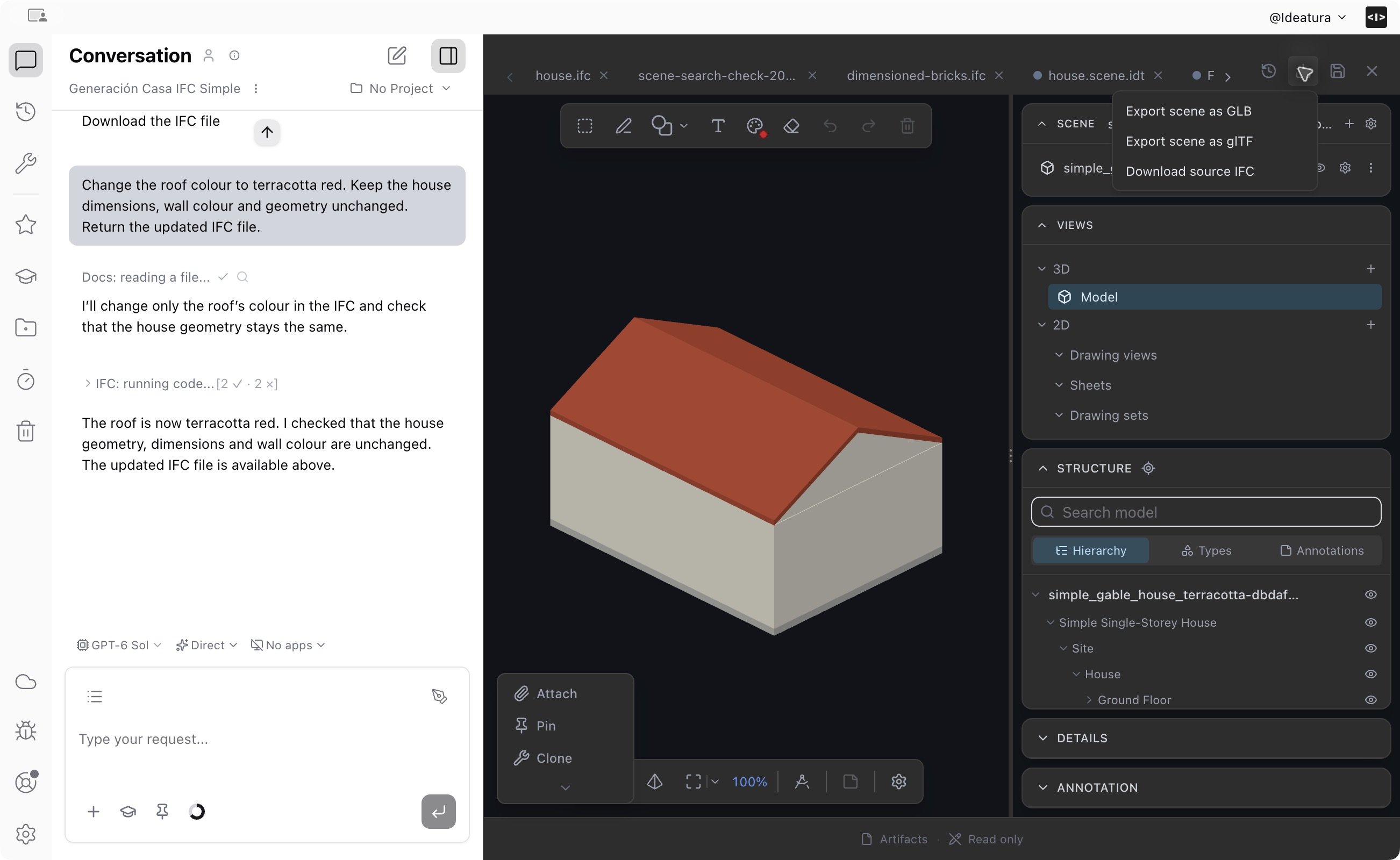
Download source IFC saves the building model. The other options export the visible scene as GLB or glTF.
Explore Studio
Find your files, mark up a view and organize your work.
Try a Revit task
Connect a Revit plan, add dimensions and save an automation.