Create a chat
In Studio, click the pencil icon at the top of the conversation to create a new chat.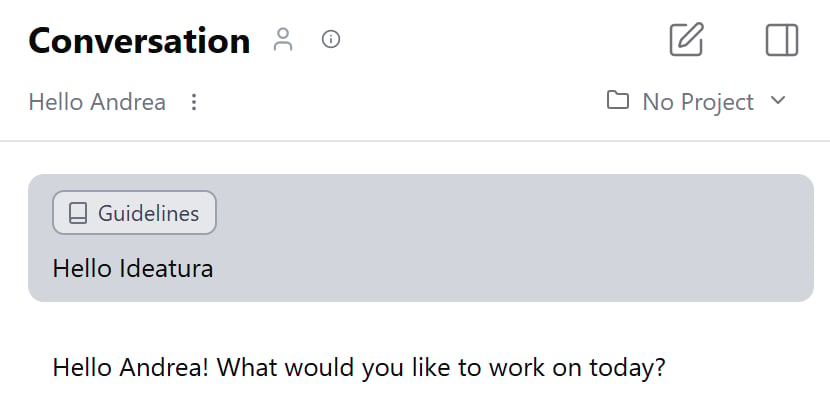
The pencil button in the conversation header starts a new chat.
Connect Revit
Open the project and floor plan in Revit. In Studio, open Connected Apps, select that Revit document and use Full access so Ideatura can add dimensions.
Send first prompt
Send this prompt, replacing the plan name with yours:In the Revit floor plan [plan name], dimension the straight, orthogonal grids in both directions. Add individual spacings and an overall dimension. Place the strings outside the grid bubbles, using the project’s default dimension style. Keep existing dimensions and avoid duplicates. Work only in this view.Click Send at the bottom right of the message box.
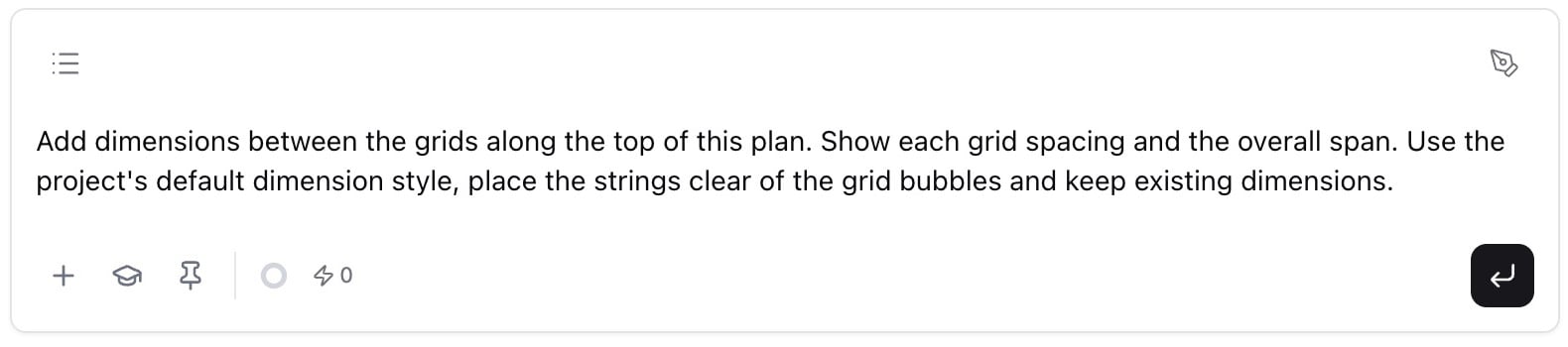
Type your request in the message box, then click Send. This example asks for grid dimensions along one side of a plan.
Look at the result
Switch to Revit and inspect the plan. Check that the dimensions refer to the intended grids and that the strings clear the bubbles. Read the chat summary for anything skipped.
Move the dimension strings farther outside the grid bubbles. Keep their references and style, and do not add another set of dimensions.
Save work as a reusable automation
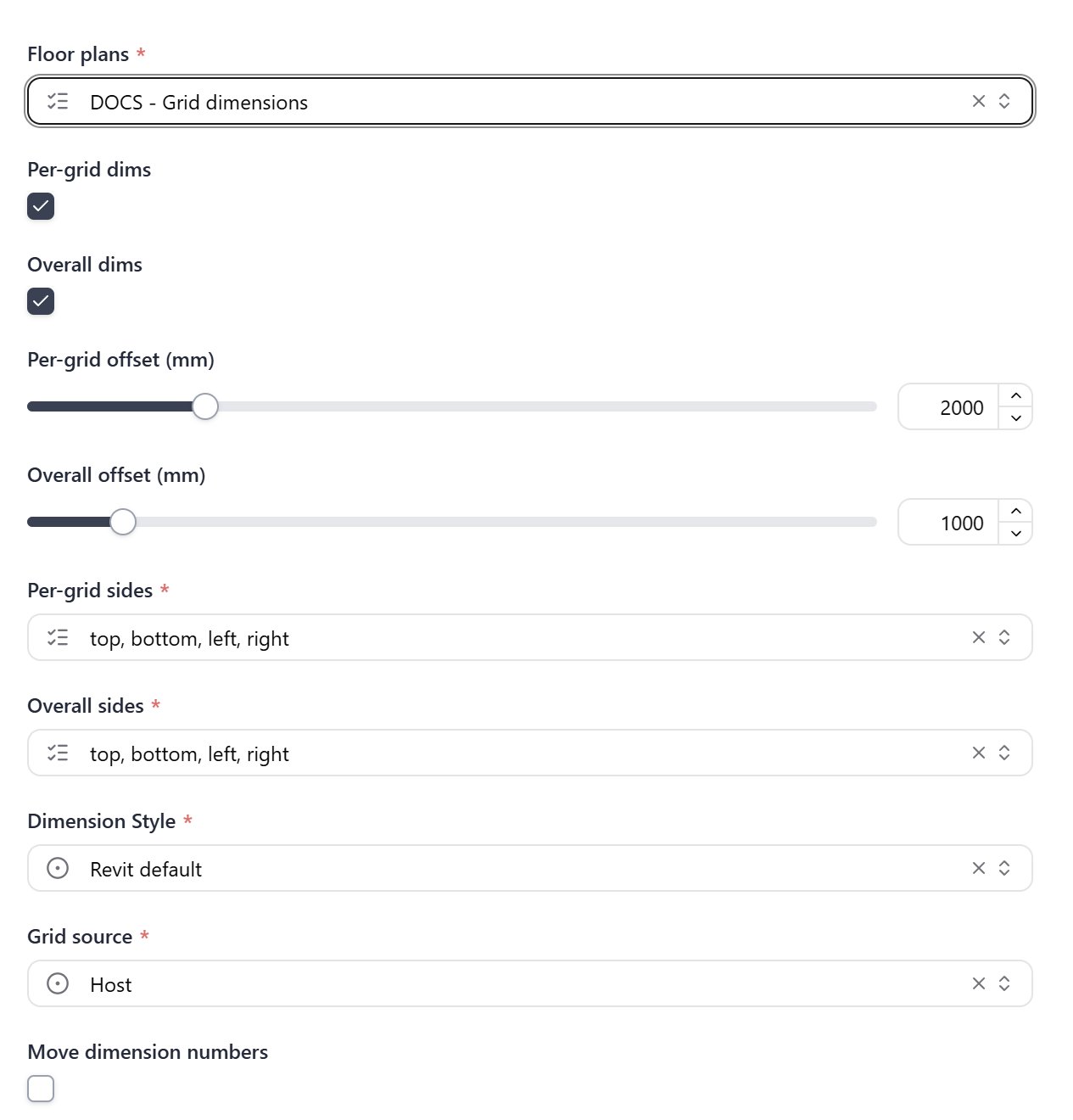
Once the drawing looks right, send:Turn this task into a reusable automation. Let me choose the floor plan, dimension style and offsets before running. Keep the rule that preserves existing dimensions and avoids duplicates.Open the generated card and check that those inputs are present. The exact form depends on what you asked AI to build.
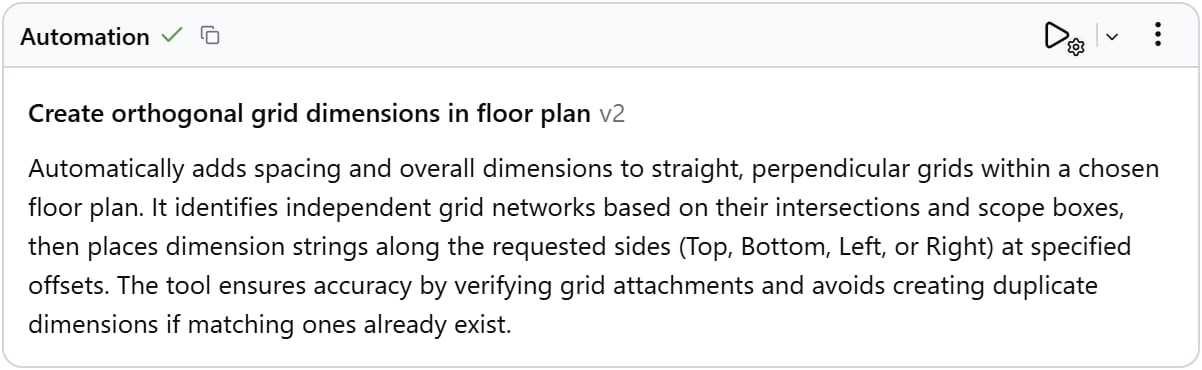
Save automation to shared library
On the automation card, choose … → Star.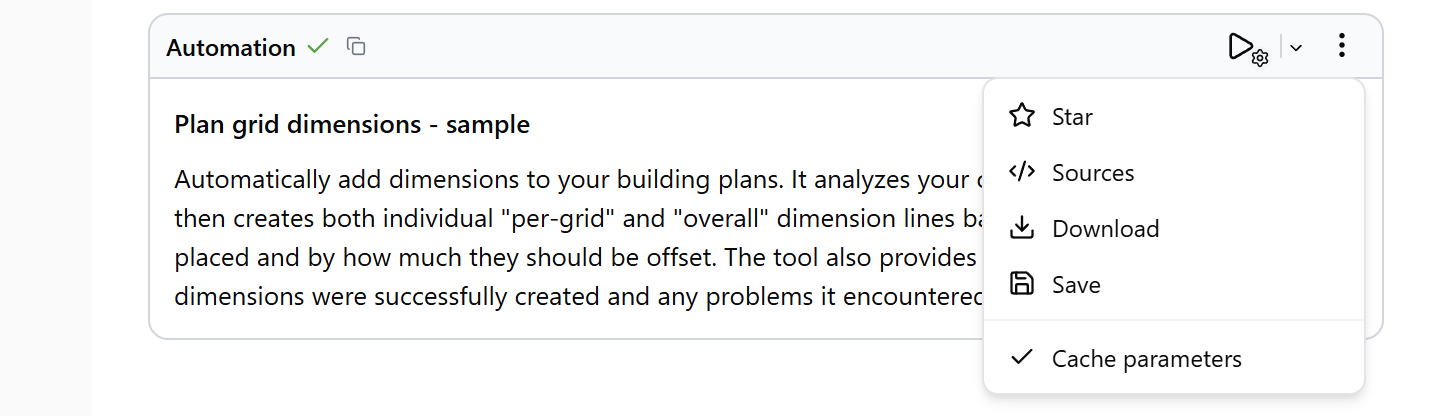
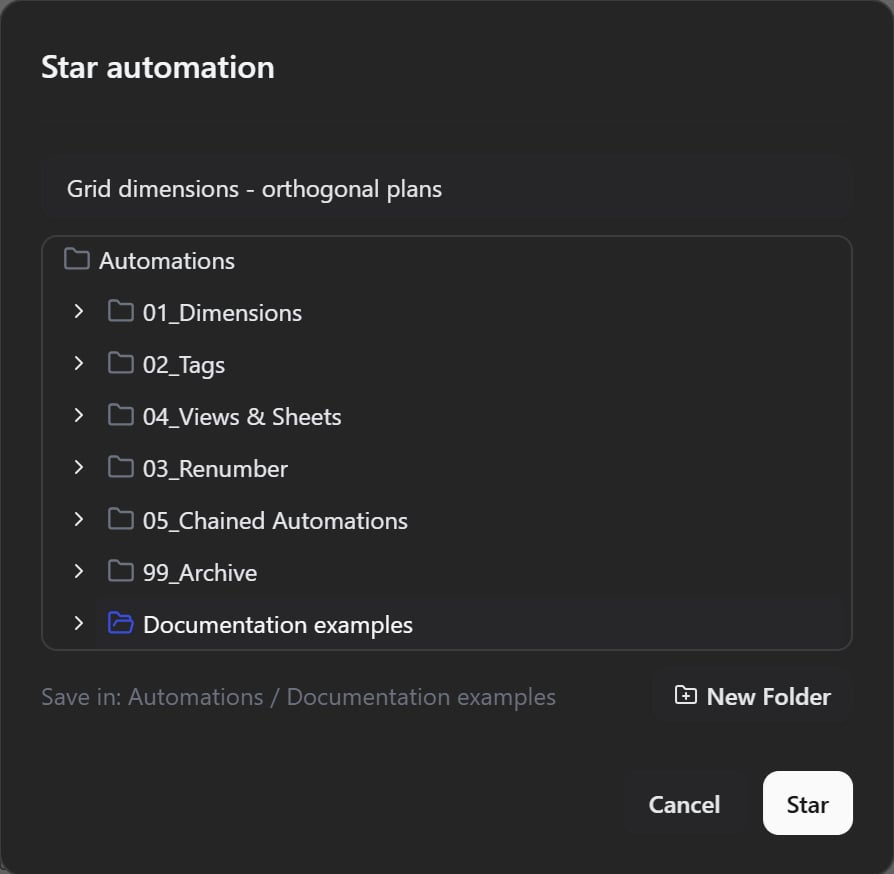
Run the saved automation
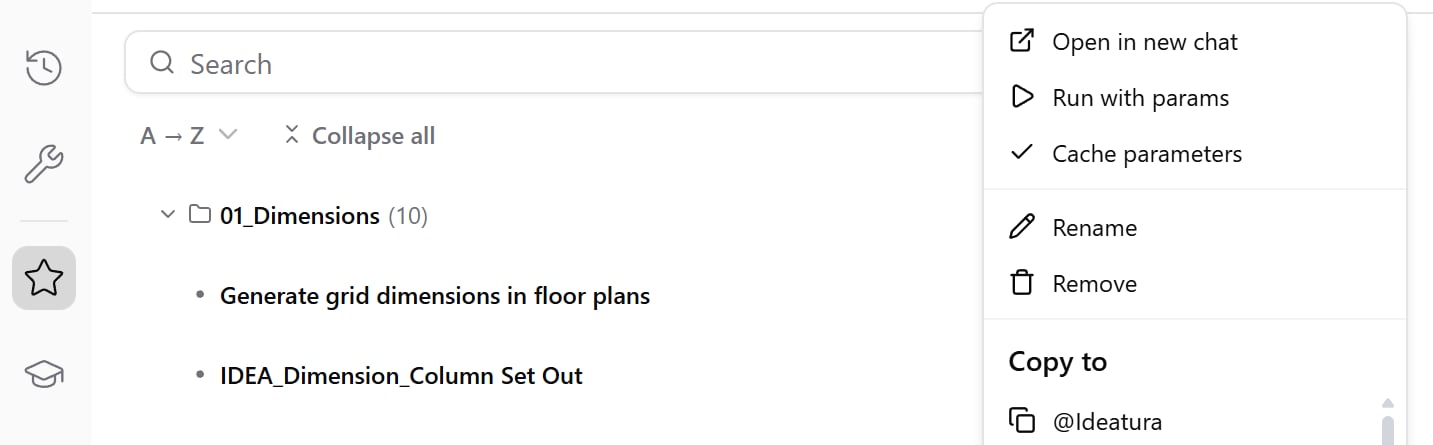
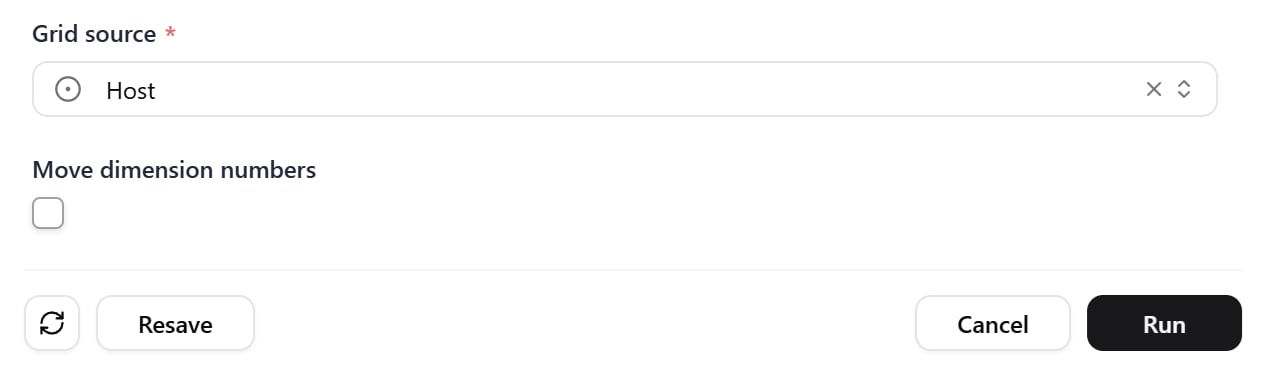
Open Automations in the sidebar and find Grid dimensions. Open its … menu and choose Run with params.