Choose an AI model
Click the model name beside the message box and select a model from the list. Keep the current model for your first task; you can change it for a later request in the same chat. Where available, the arrow beside the model opens its thinking-level choices. A higher level gives the model more time to reason and can increase usage. It can help with complex geometry or a task that needs several decisions.
Select a connected application
Open Connected Apps and select the open document you want AI to work on. Check the filename, especially when you have several projects open.
Attach a reference
Click Attach file and choose the PDF, image or other document you want to use. Explain its role in your message:Use the attached PDF as the source for the room names. Update the names in the connected Revit project; keep the existing room numbers.
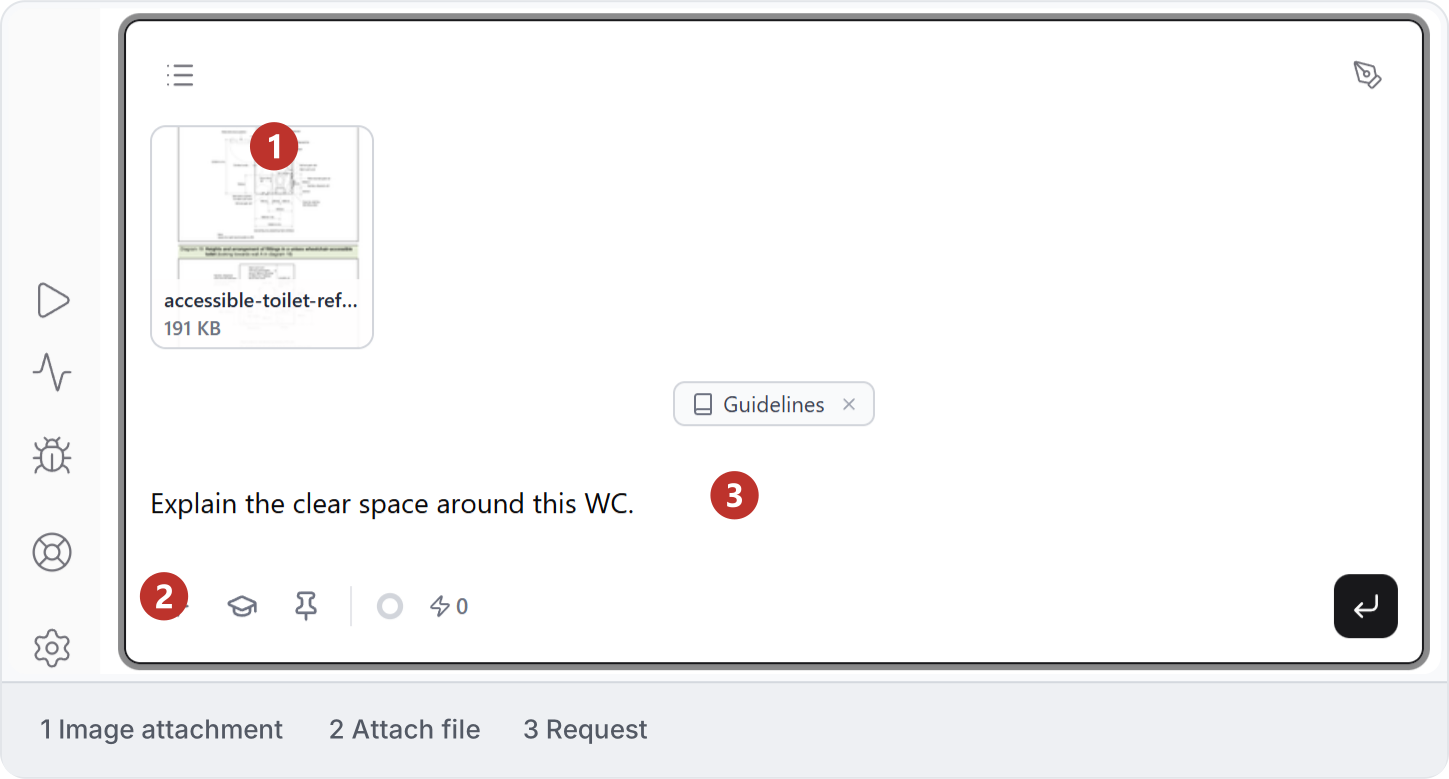
An attached reference appears above your request. This example uses an image to ask about a detail.
Send and follow up
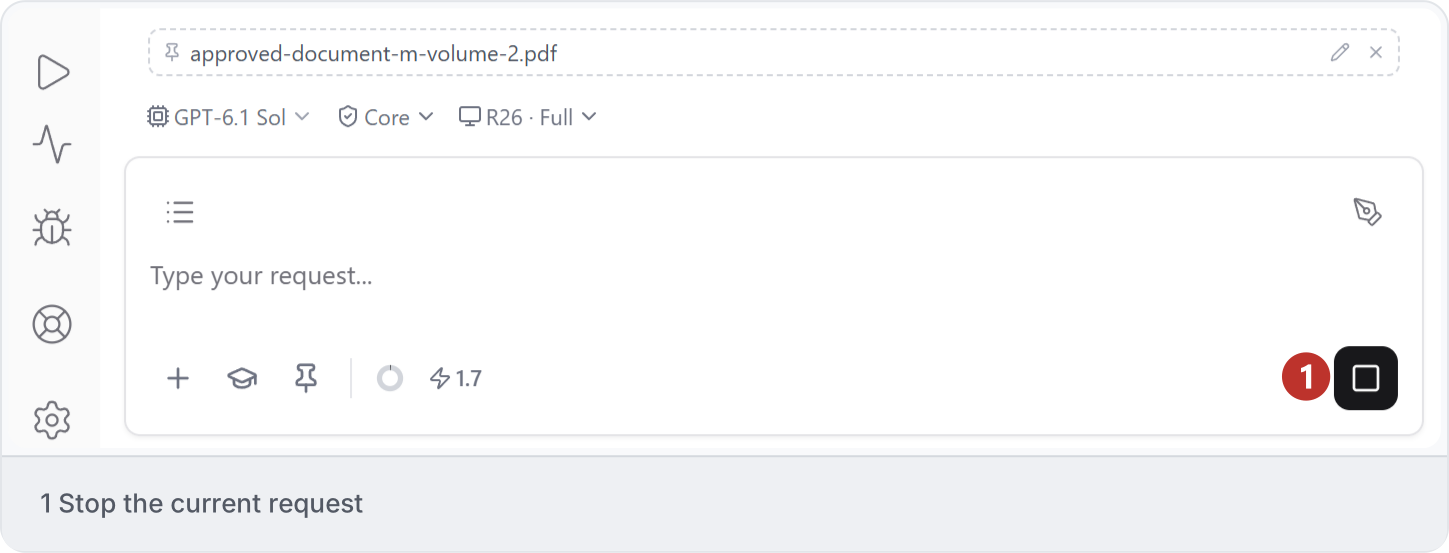
Click Send. Read the reply and inspect any drawing or model changes. You can continue in the same chat to answer a question or refine the result. Click the square Stop button to interrupt a running request. This stops further work; it does not undo changes already made in the connected application.