

Download Studio
Open ideatura.ai/download and choose the installer for your operating system. For Revit or AutoCAD, install Studio on the Windows computer where you use that application.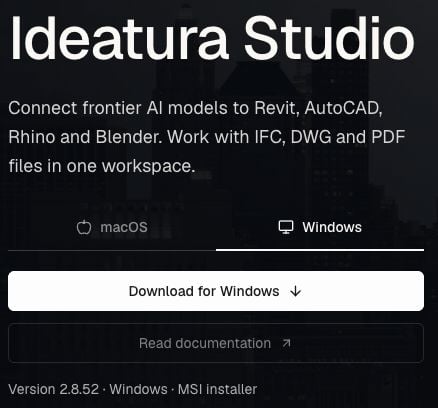
Install Studio
- Windows
- macOS
- Close Revit, AutoCAD, Rhino and Blender before installing, so their add-ins can be installed or updated.
- Run the downloaded installer.
- Choose All users when asked who to install for, and confirm with OK. Allow the Windows administrator prompt to continue.
- Finish the installation and launch Ideatura Studio.
Sign in
- Click Sign in in Studio. Your browser opens for authentication; Studio shows Waiting for the browser….
- Complete sign-in in the browser using the account you use in the web portal.
- Return to Studio when sign-in completes. You can now start a conversation.
Choose your first task
You can create and inspect IFC models directly in Studio. Follow the 3D Modelling quick start for a first task that needs no external application.Connect an application
Start your design application after installation and open the project you want to work on. In Studio, open Connected Apps beside the message box. Your open document should appear in the list.
Revit quick start
Complete a Revit task and save it as an automation you can run again.