

Conversation and viewer
The navigation rail is on the left. The conversation holds your requests, AI replies and results. Click a file or model card to open a viewer beside the chat.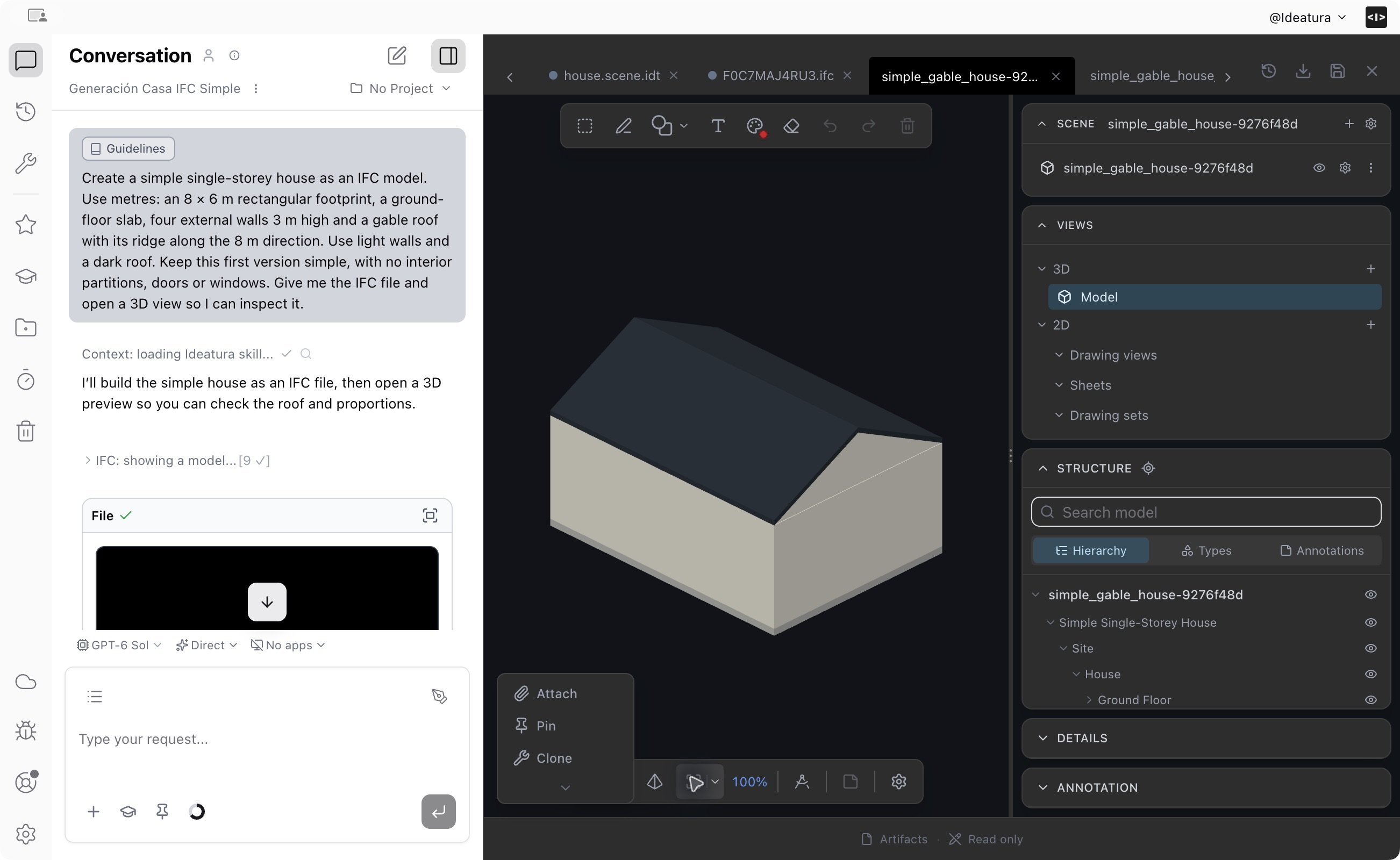
A conversation and its model, side by side. Keep the result open while asking for changes.
Send and refine a request
Type in the message box at the bottom of the conversation. Its controls let you choose an AI model, select Connected Apps, attach files and add skills. Connected Apps selects the open application document AI works on. Choose No apps for a task entirely in Studio, such as creating an IFC model. Direct is an execution mode shown beside the AI model; it is separate from which application is connected. See Prompting for the message controls. Use markup tools in a viewer to circle an area or add a note, then attach that markup to your next message. Explain the change you want, such as “Make the window marked A wider; keep the other openings unchanged.”
Markups connect an instruction to the part of a drawing you mean.