Use Ideatura with Revit to dimension drawings, place tags, prepare views and sheets, or work on models and families. Start with one task you can inspect in your project. Watch the drawing-set example to see a workflow in action.

1. Connect the document

Open your project or family in Revit. Use the controls marked in the screenshot:
  • Connected Apps (3): open the application and document selector.
  • Revit document (1): select the exact filename. If several files are open in the same Revit instance, check which one is selected and that your active view belongs to that document.
  • Access mode (2): check whether the AI has Read access for read-only inspection or Full access to make changes. The screenshot uses Direct mode, which requires Full access.
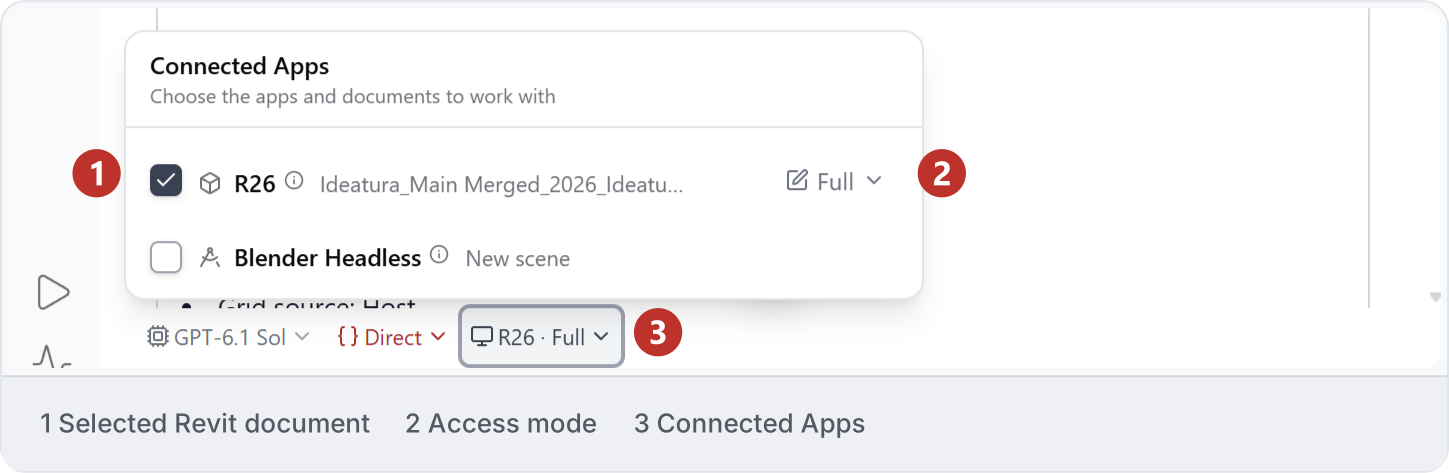
Revit connection controls: 1 selected document, 2 access mode, 3 Connected Apps button. See Connect your model for the full connection check.

2. Try grid dimensions

Open one floor plan with straight, orthogonal grids and describe the change you want:
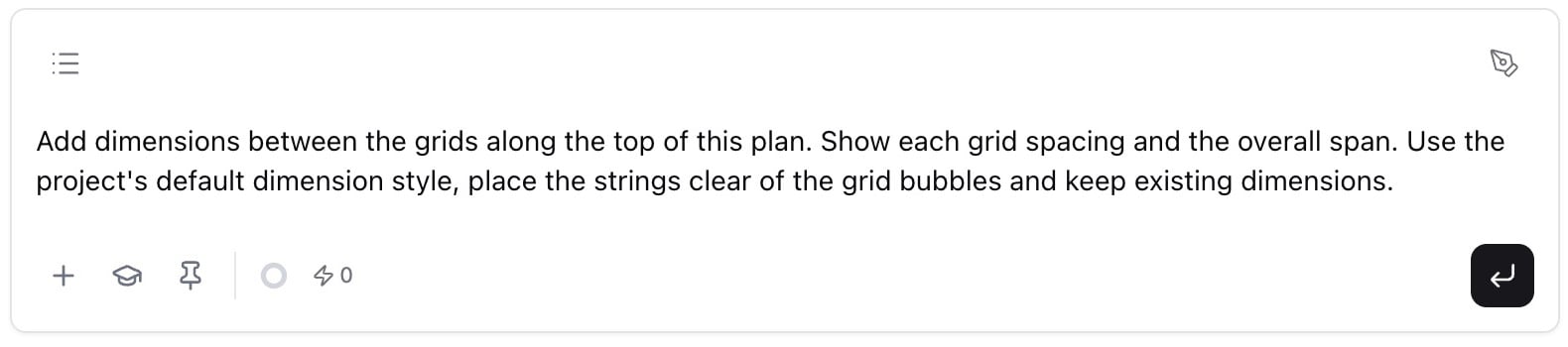
Add dimensions between the grids along the top of this plan. Show each grid spacing and the overall span. Use the project’s default dimension style, place the strings clear of the grid bubbles and keep existing dimensions.
Enter the request in Studio as shown below. Confirm the connected Revit document before sending it. Grid-dimension request entered in the Studio message field, ready to send. The worked sample below shows individual grid spacings (1) and the overall span (2), with both strings placed above the grid bubbles. In your result, check that each dimension references the intended grids and that its text is readable. Revit plan with individual grid spacings marked 1 and the overall span marked 2, both clear of the grid bubbles. To repeat the task on other plans, follow Grid dimensions to build an automation with view, style and offset controls.
3. Prepare drawings and sheets

Use Wall dimensions, Place tags or Schedules for drawing tasks. For a drawing set, follow Room packages. The existing sample sheet below shows what to review: the placed view, its title and scale, and the title block. Check their fit and specify any templates or annotations still needed. Existing Revit sheet 1001 showing a placed floor plan, view title, scale and title block for review.

4. Organise the project

Rename selected views or renumber doors by picking in the required order. Check view names, door marks and visible tags separately. Create grids or levels as separate tasks with a defined scope.

5. Work on models and families

Follow Edit existing models for a limited change, DWG to Revit for reconstruction from a vector drawing, or Revit families for a component with defined parameters. Each guide explains its inputs, demonstrated result and checks.

6. Inspect and save

Review the result in Revit before saving or synchronising. Check references, placement and missing or repeated items; for models and families, also check dimensions and editability. Use Review and recover for corrections or Reuse across projects before applying saved work elsewhere.