1. Define the drawing package
Choose a source plan containing the Revit Rooms you need to document. Define the views, templates, crop, scale, naming and title block. A Room, Area and scope box are different inputs. The walkthrough uses CHAIN_Drawing Set_Rooms with A-ENL-01-Enlarged Plan - NE as its source. For 11 rooms, the first four stages reported 11 sheets, 11 room plans, 11 reflected ceiling plans and 44 elevations. These counts describe created content; layout needs a separate check.2. Place one room package
Follow Chained automations for the workflow and checks between stages. Here, DOCS-R-104 / 108 - Conference Room was opened as the active sheet. It contained the title block but no placed views before the layout step.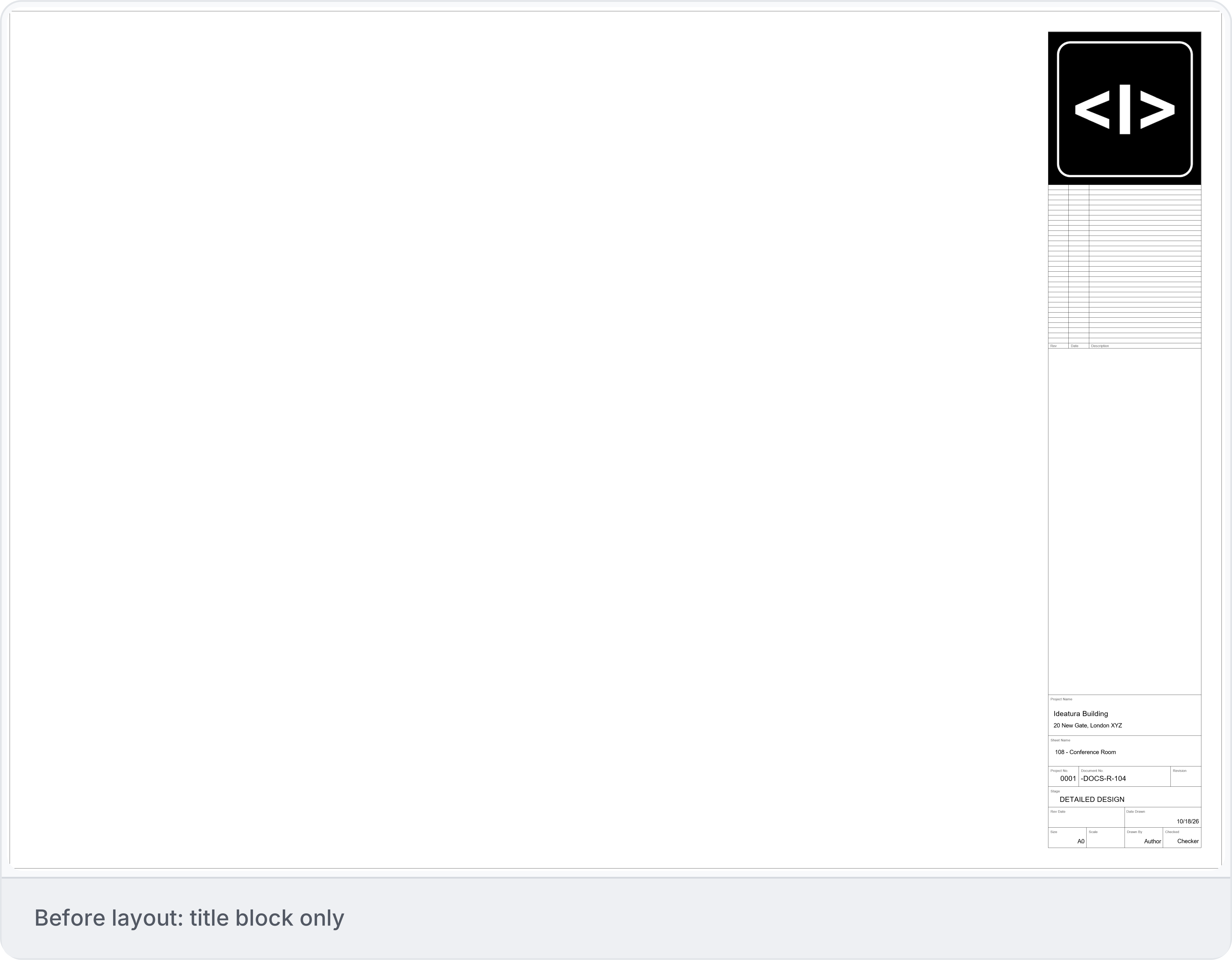
3. Check the result
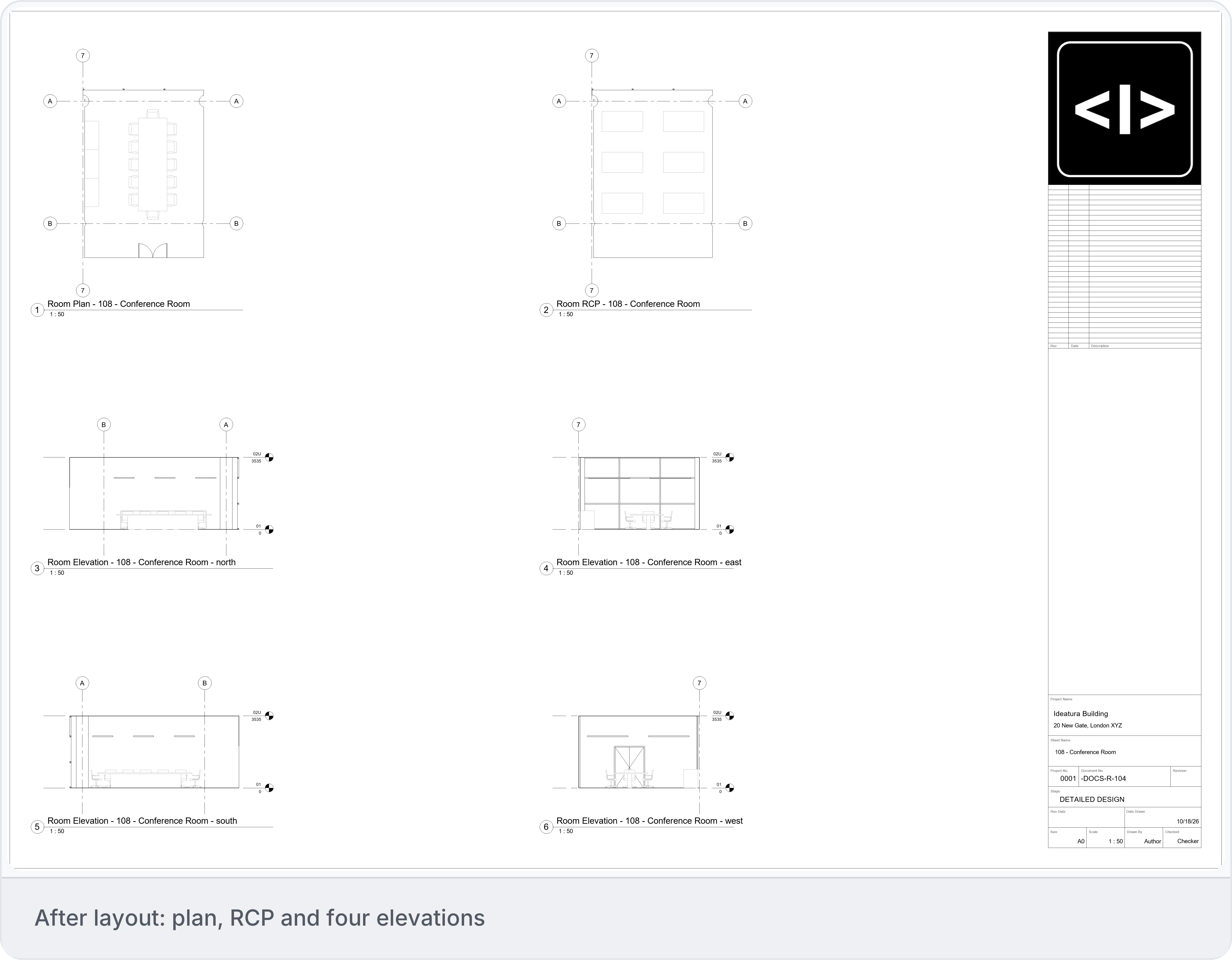
The native sheet now contains six viewports in two columns and three rows: plan and RCP; north and east elevations; south and west elevations. This result shows the conference-room sheet only, not completed layouts for all 11 rooms.