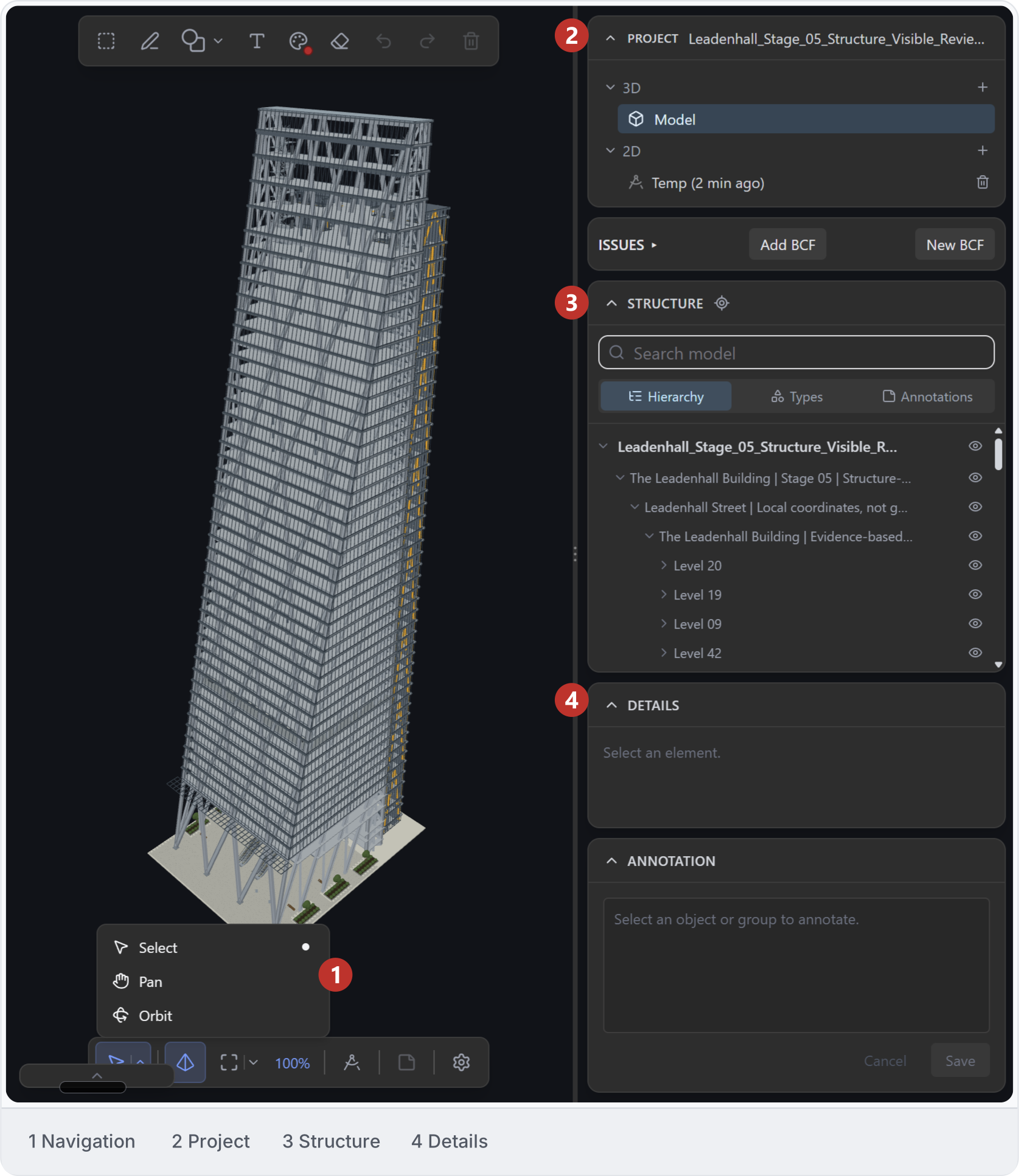
The IFC viewer lets you inspect a building model inside Ideatura. You can look around it, hide elements, check properties and cut a section. Start by opening your own IFC file; the screenshots use a sample building. Open the IFC model beside the conversation. Use Orbit to look around the building, Pan to move across the view and the mouse wheel to move closer or further away. Return to Select to pick an element. IFC model with navigation menu, Project, Structure and Details panels.
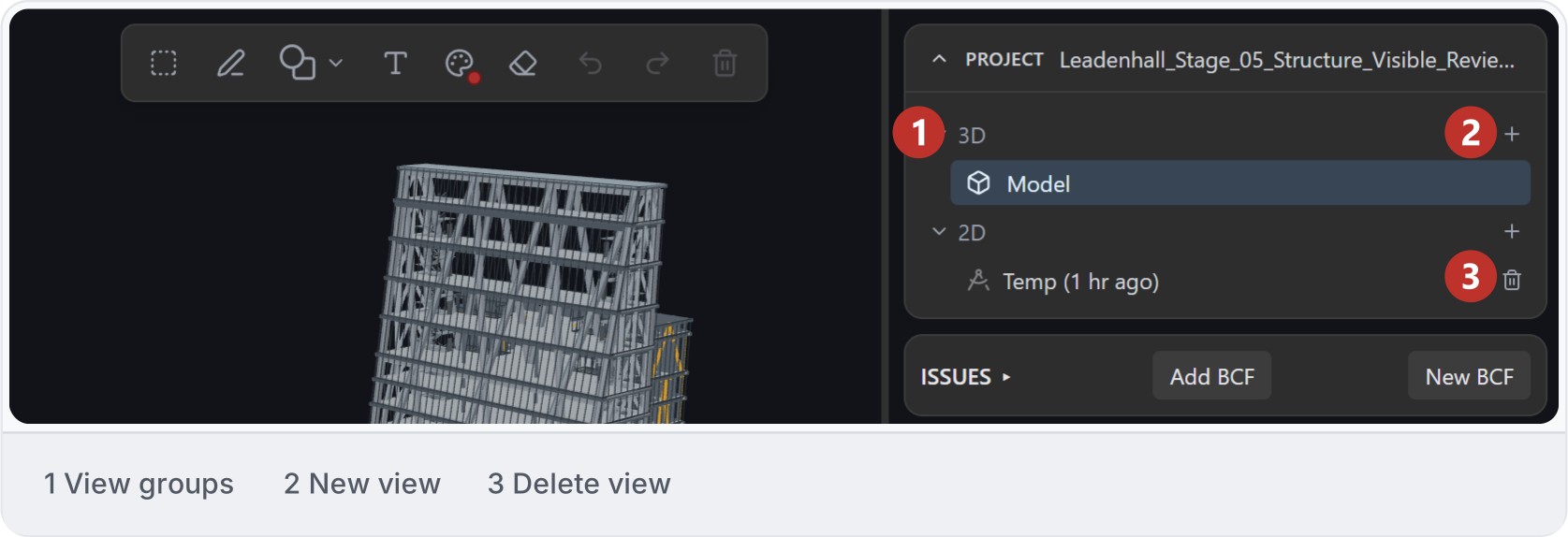
2. Project panel

The Project panel groups the open model’s views under 3D and 2D. Select a view to open it, use New 3D view or New 2D view to start another, or Delete view to remove one from the panel. Project panel with 3D and 2D views and controls for managing views.
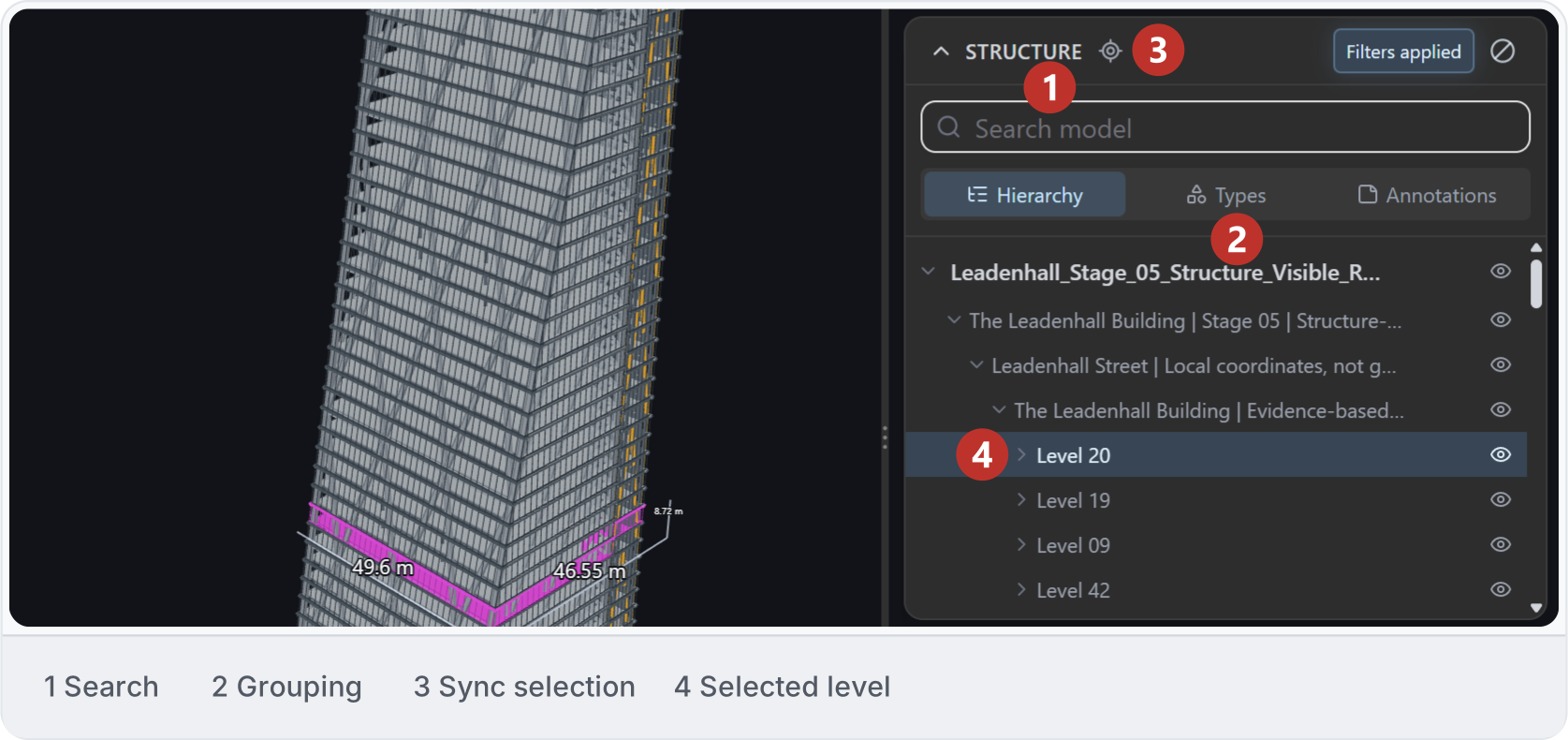
3. Find elements

Use Structure to browse by Hierarchy, Types or Annotations. Search for an element and select it in the tree or model. Turn on Sync selection with Structure if you want the tree to follow your selections in 3D. Structure panel with grouping, search and selection controls.
4. Model visibility

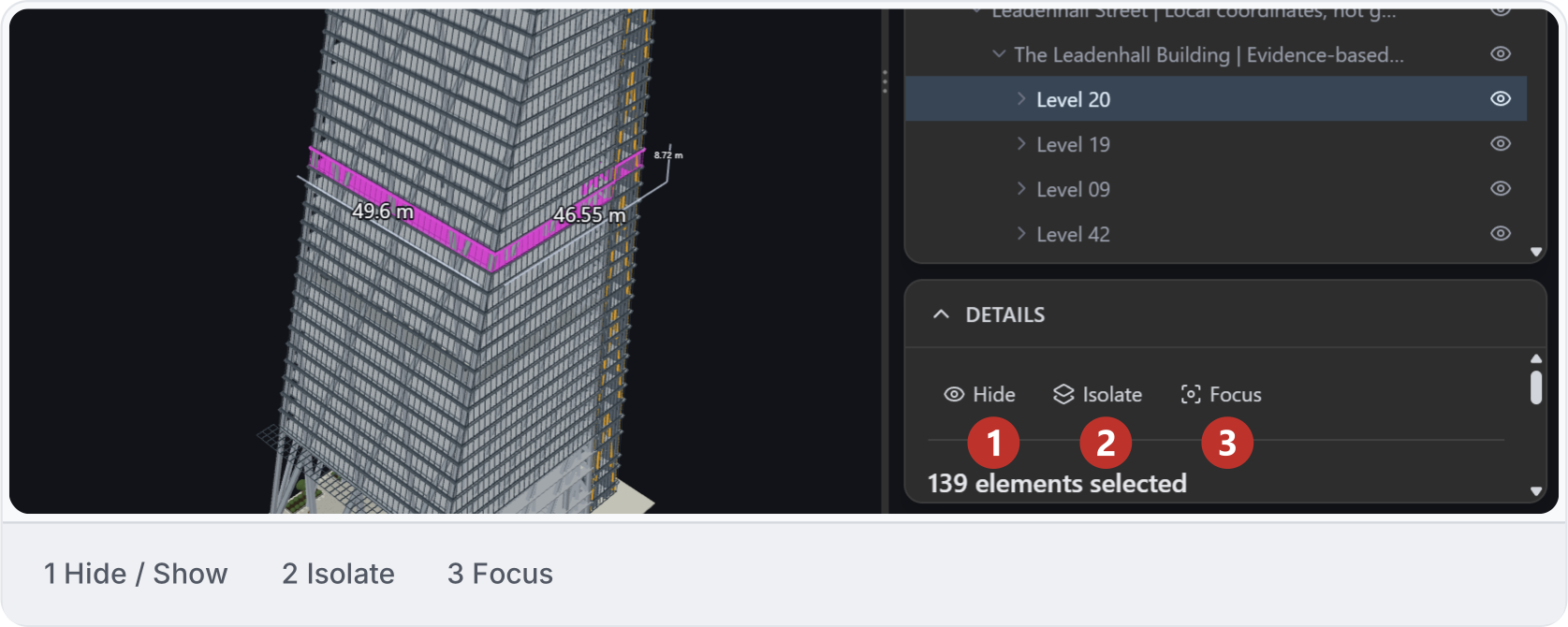
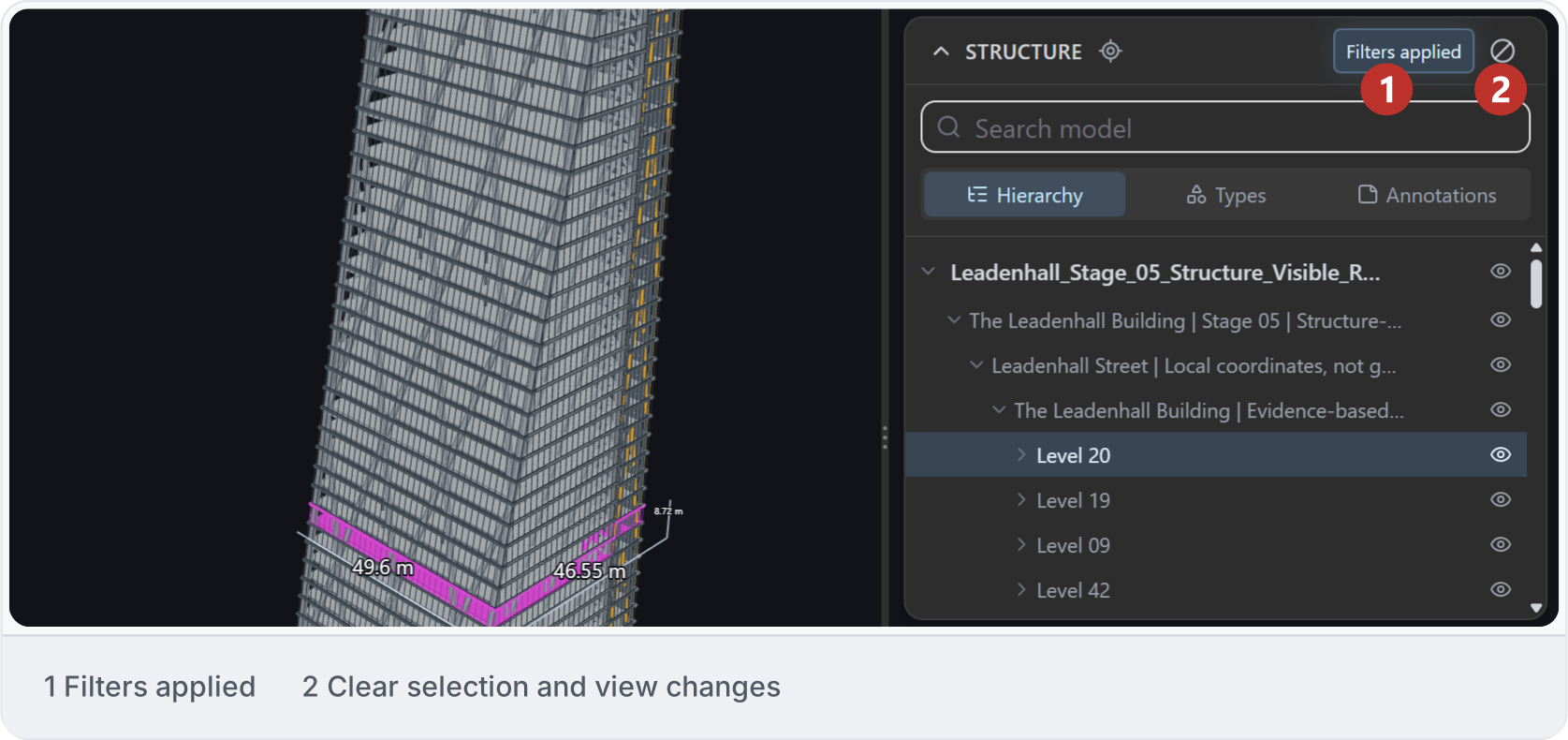
Use Hide and Show beside an entry to see past surrounding elements. Hiding leaves the element in the model. Use Focus to bring an object or group into view. Model structure controls for hiding, showing and focusing an element. Clear selection and view changes clears the selection and shows hidden elements again. It keeps your current viewing angle. Clear selection and view changes control beside the applied-filters indicator.
5. Element details

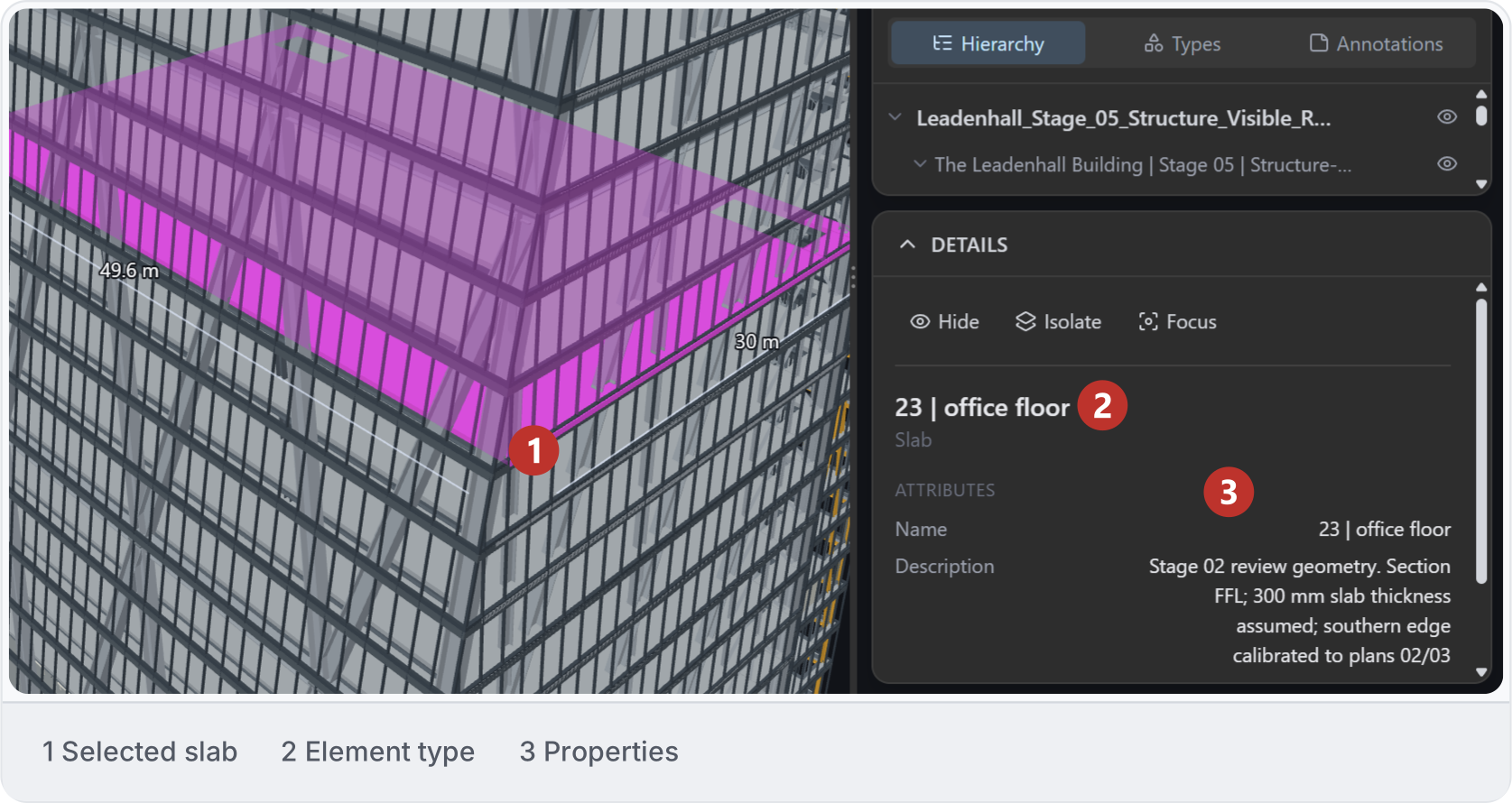
Select an element and open Details to inspect its properties. Check its dimensions and information alongside its position in the building; use Focus to bring it into view. Selected model element with its properties in Details.
6. Annotate objects

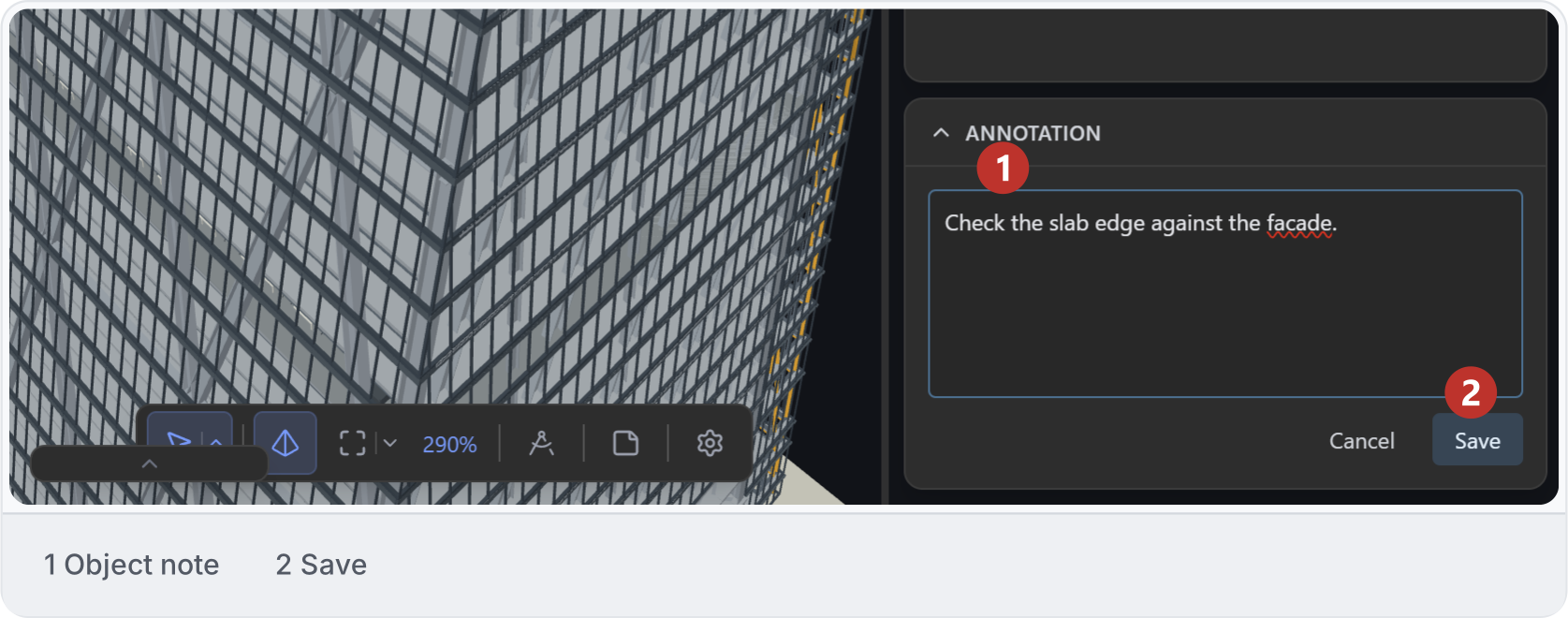
Select an object or group and open Annotation to add a note attached to the model. Save it, then find it under Structure → Annotations. For marks on a captured view, use markup. Annotation controls for adding a note to selected model objects.
7. Issues and BCF

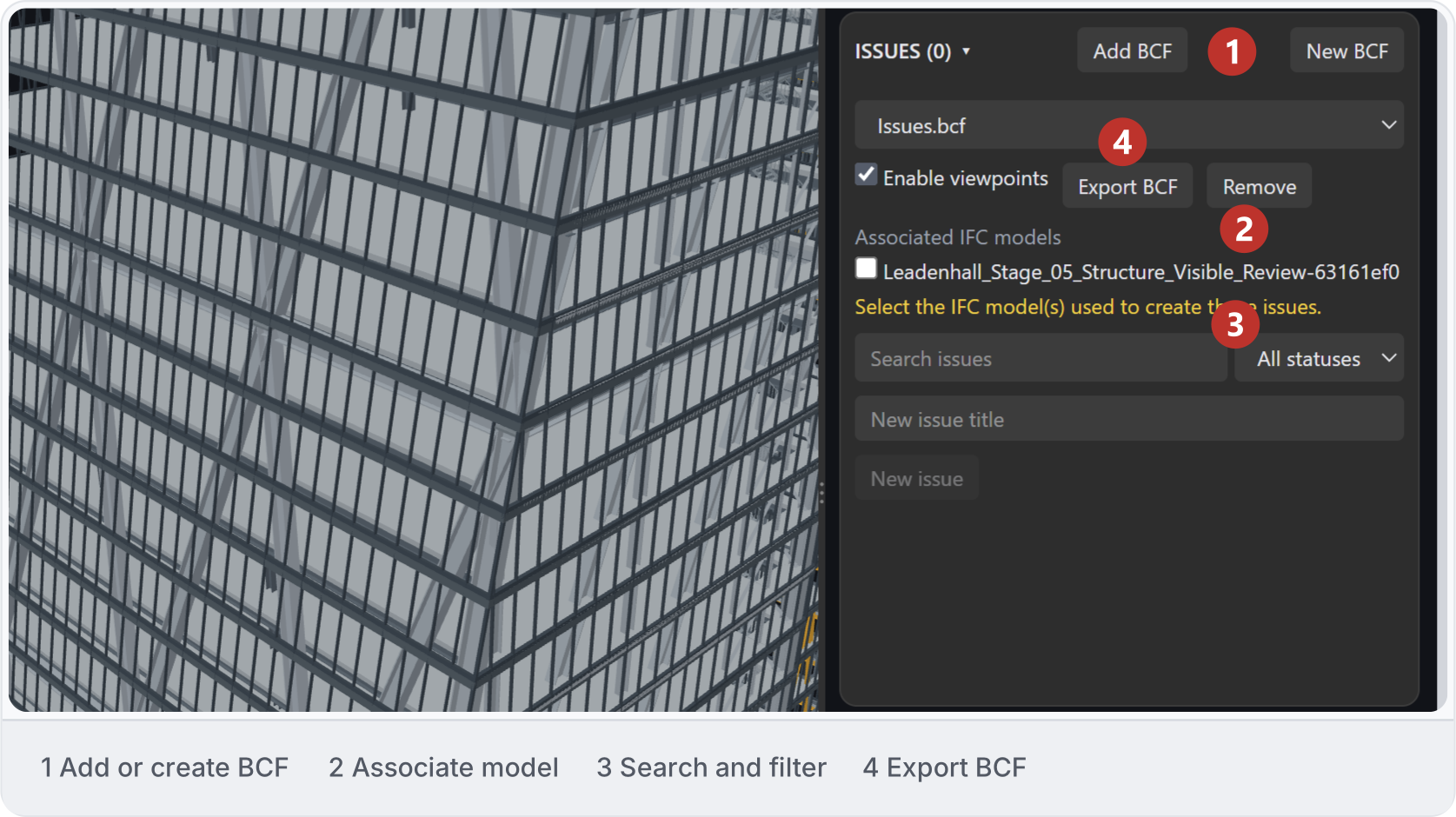
BCF is a format for sharing model-review issues, such as a note about a doorway and the view showing it. Open Issues and choose Add BCF to open an issue file, or New BCF to start one. Associate the relevant IFC models, then open an issue to inspect its viewpoint. Export BCF downloads the issues for sharing. Issues panel with BCF controls for model review.
8. Place a section

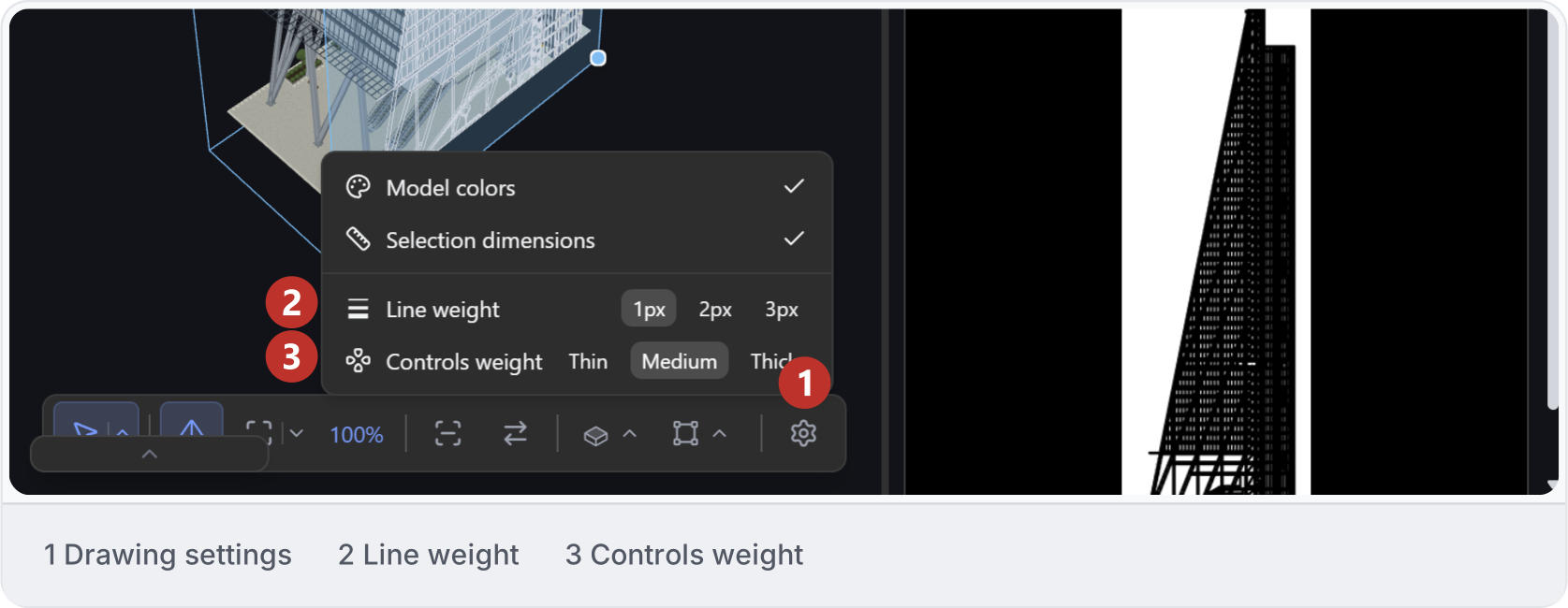
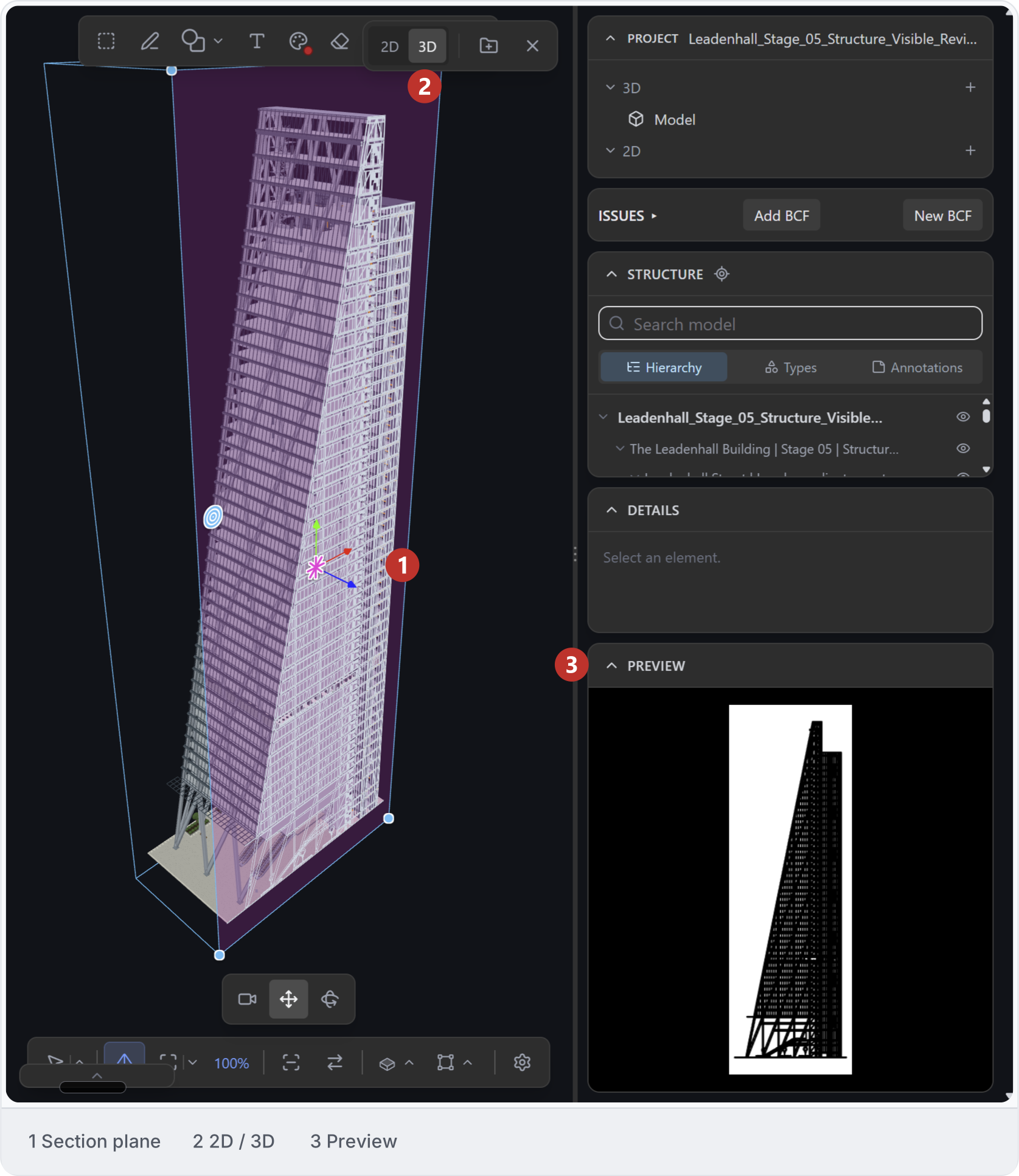
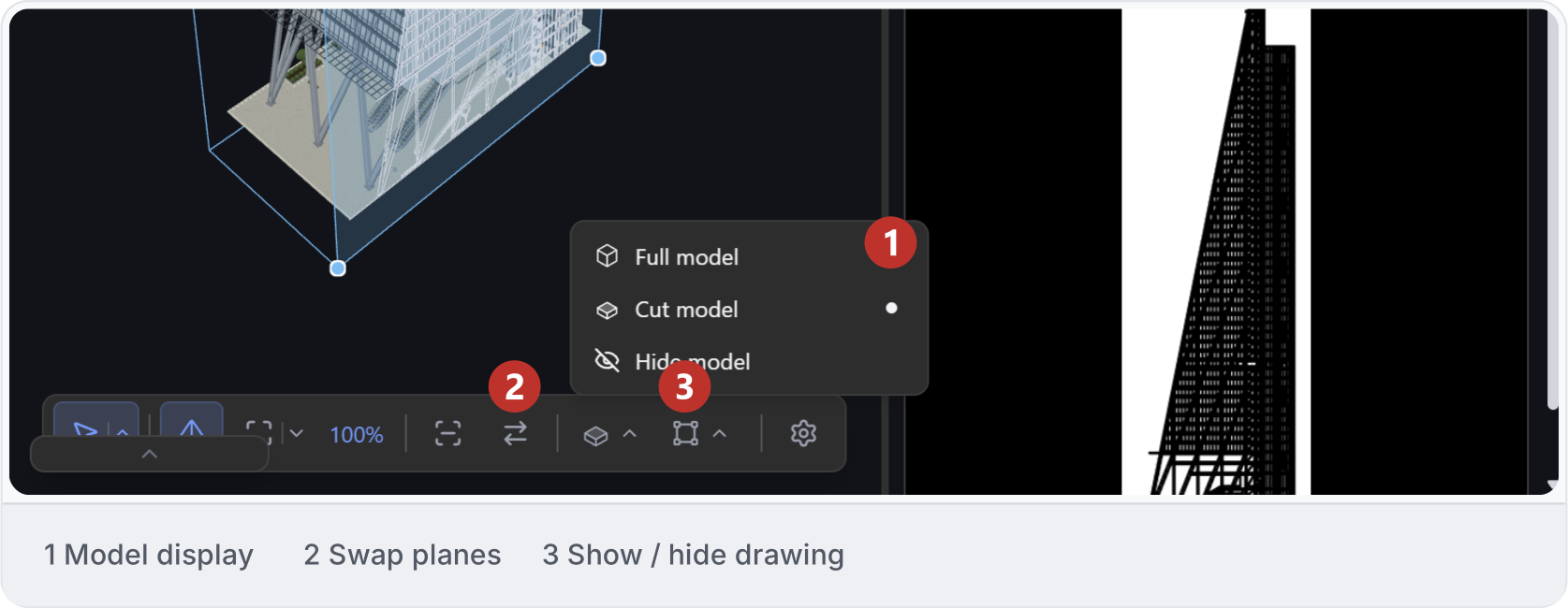
Choose Drawing, then Place plane. Start with Plan, Front or Side and position the plane through the part of the building you want to show. Adjust the depth limit to control how far the view extends. Side section plane through the Leadenhall model and its drawing preview. Use Cut model to see inside the building, Full model to check the plane against the whole model, or Hide model to inspect the drawing alone. Show drawing / Hide drawing controls the drawing on its plane; Swap planes exchanges the source and depth limit planes. Section display controls for viewing the model and drawing around the cut. In Drawing settings, Line weight changes the thickness of drawing lines. Controls weight changes the thickness of the plane-placement controls. Drawing settings with separate Line weight and Controls weight options.
9. Review the drawing

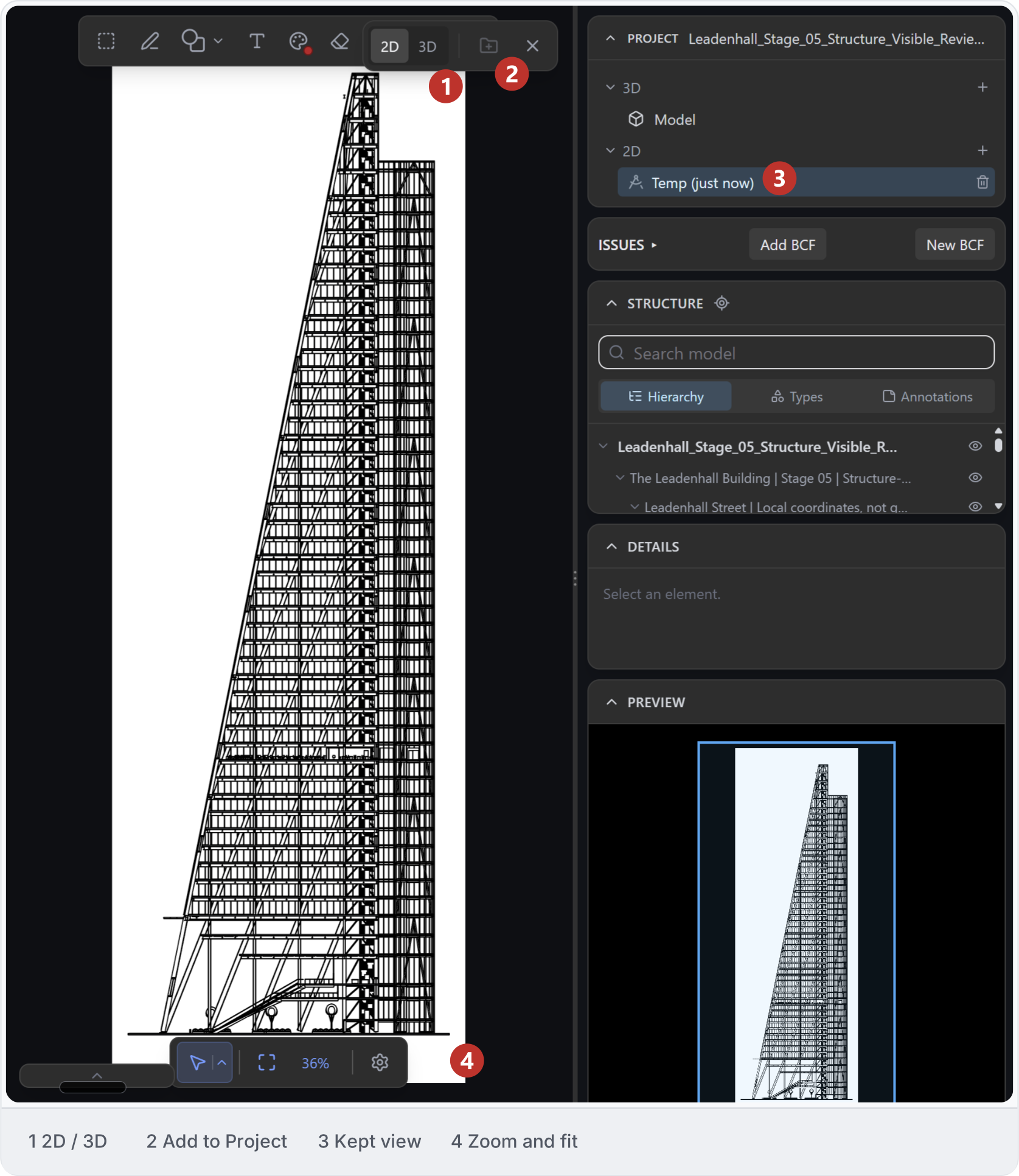
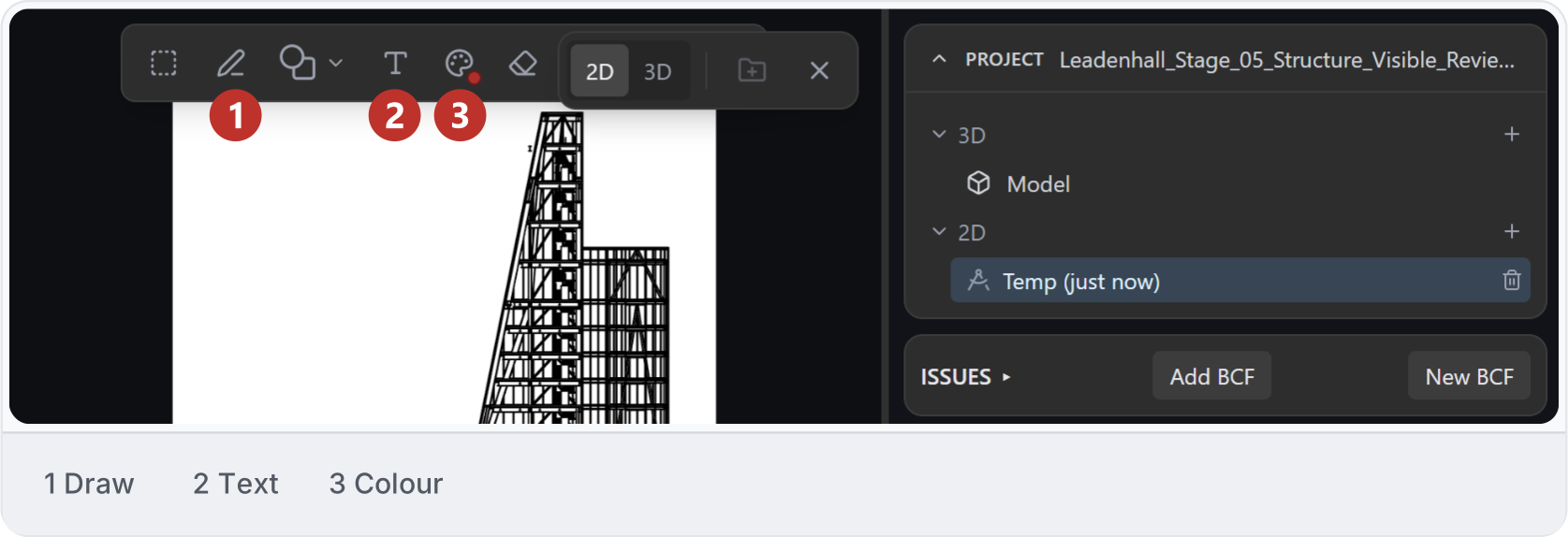
Check Preview, then switch to 2D to inspect the drawing. Switch back to 3D to adjust the cut. If Studio reports an incomplete drawing, check which parts are missing before using it. Extracted 2D section with view controls and the section listed in Project. Use zoom and fit controls to inspect a detail, then add marks with the 2D toolbar and Markup settings. Choose Attach to add the marked view to a request: “Explain the stair arrangement in this section.” 2D section viewer with markup tools and attachment controls.
10. Keep the drawing

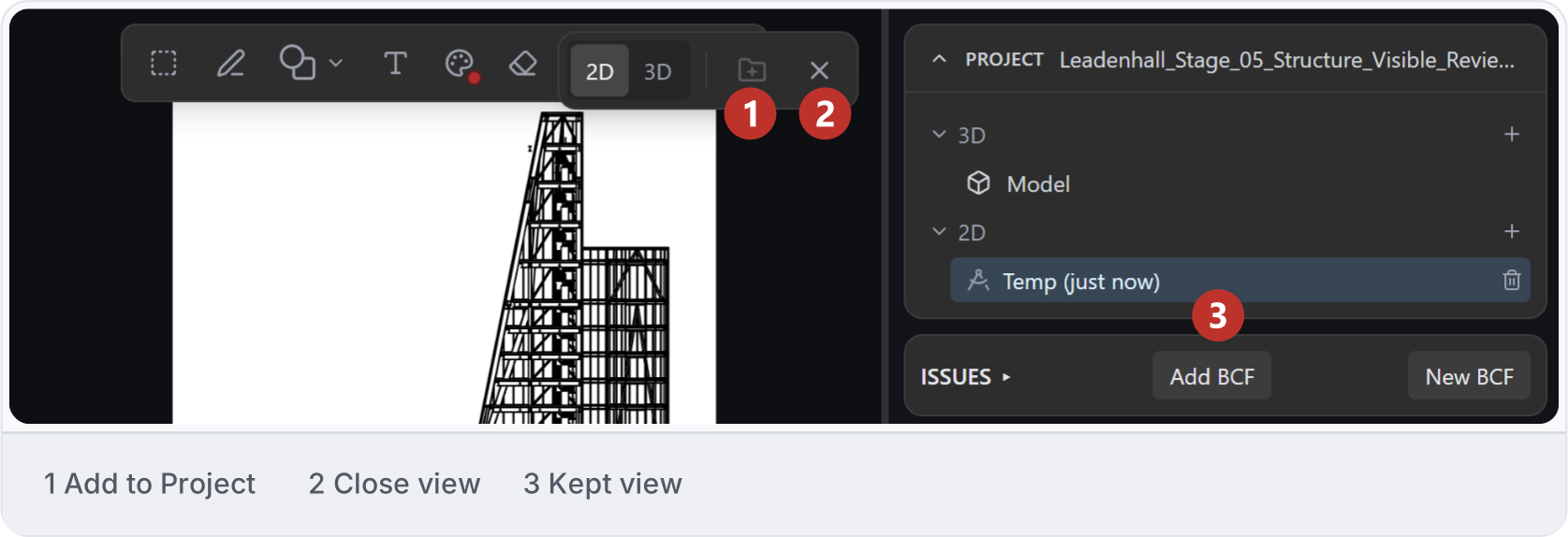
Choose Add to Project to keep the temporary view in the current Project panel. Close view returns to the model. This view has no separate drawing download: Clone and the top download menu act on the model file. Temporary section view listed in Project with view controls.
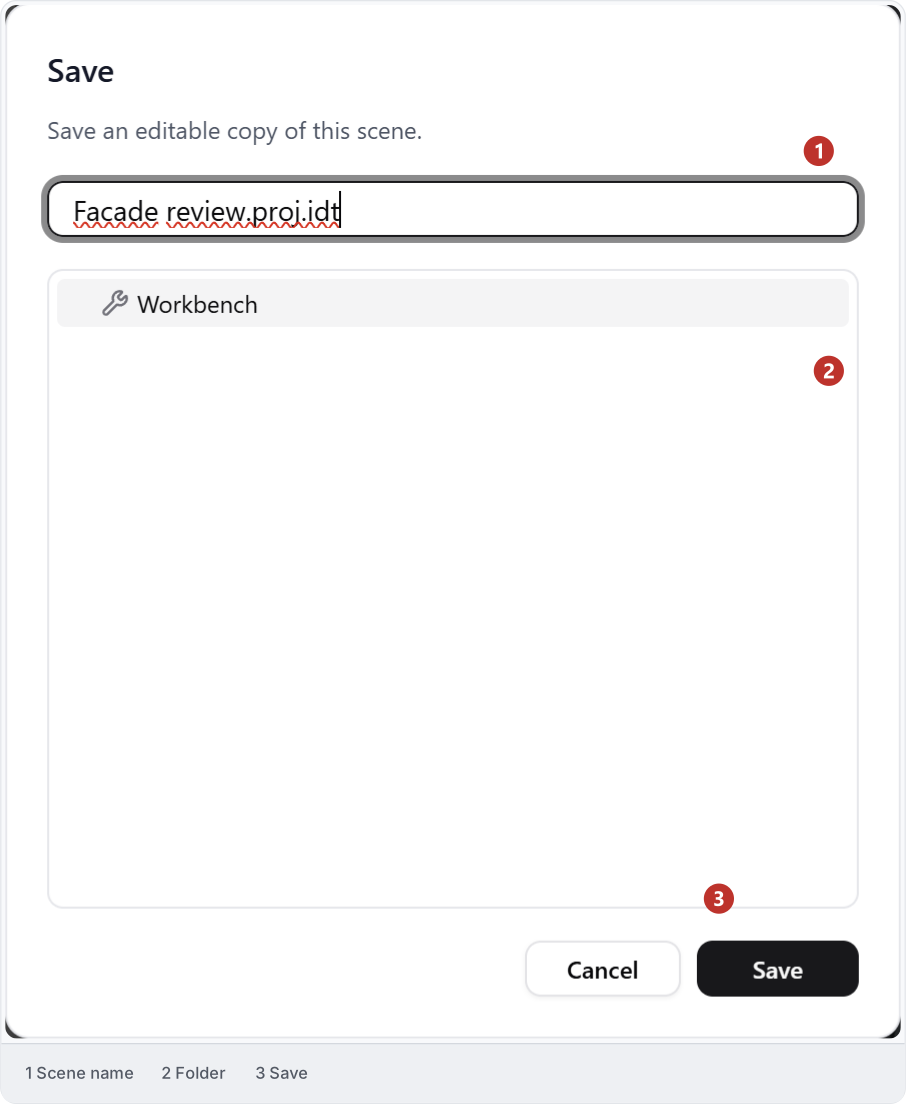
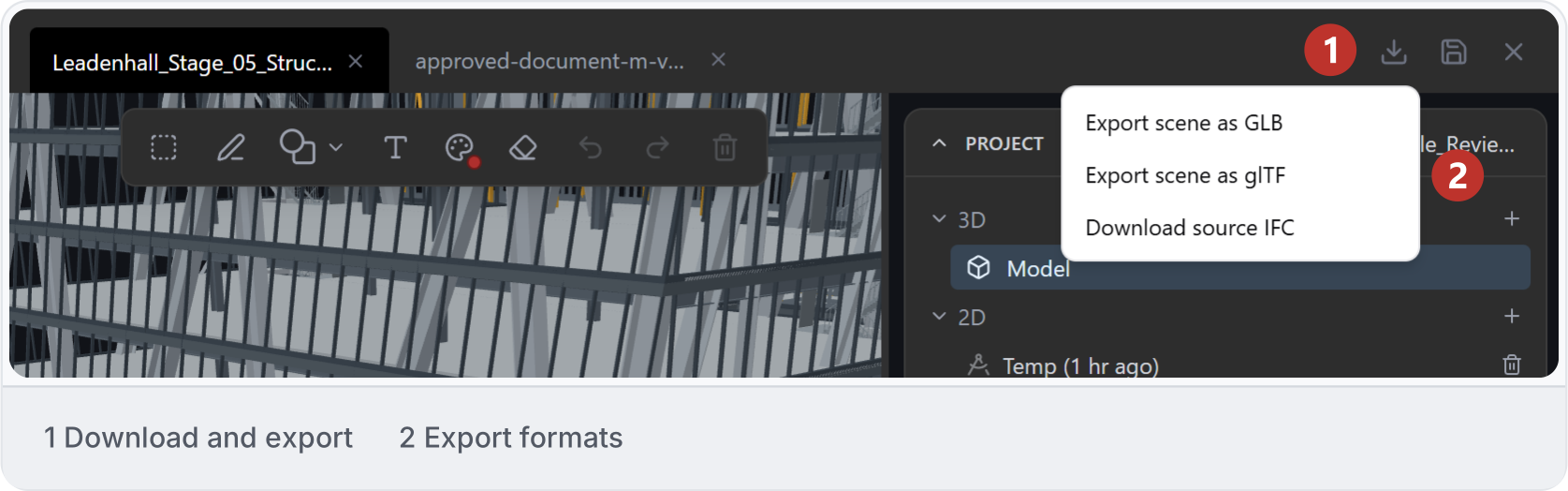
11. Save the scene

Use Save to Workbench to keep an editable copy of the scene. Choose its name and folder, then Save. Save dialog for naming an editable scene copy and choosing its Workbench folder. Open Download and export for Download scene file (saved scenes), Export scene as GLB, Export scene as glTF or Download source IFC. To download a source IFC from a scene with several models, select the model first. Source IFC download is unavailable if that model has been moved, rotated or scaled within the scene. Download and export menu showing GLB, glTF and source IFC options.