1. Composer controls
Write your request in the message box. The controls beside it choose the AI assistant and the application it can work in. No apps means no design application is selected; choose your open Revit file here when you want Ideatura to work in it. This screenshot also shows the Direct mode; see Modes and access for that setting.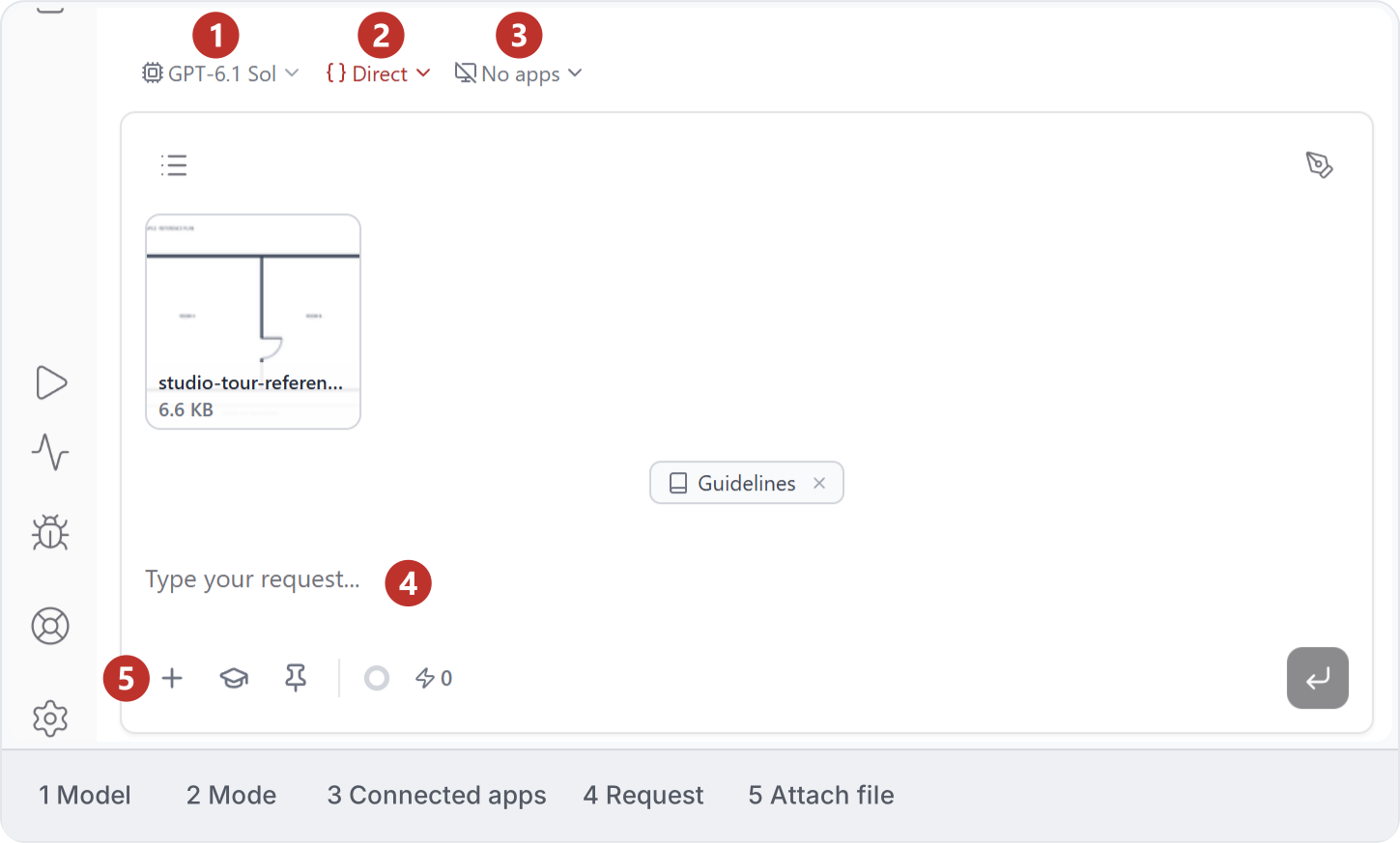
2. AI models
An AI model is the assistant that interprets your request. Open the model selector and read the short descriptions to choose one for your task. The example shows GPT-6.1 Sol with medium effort. Check the credit estimate alongside the choices; available options can change.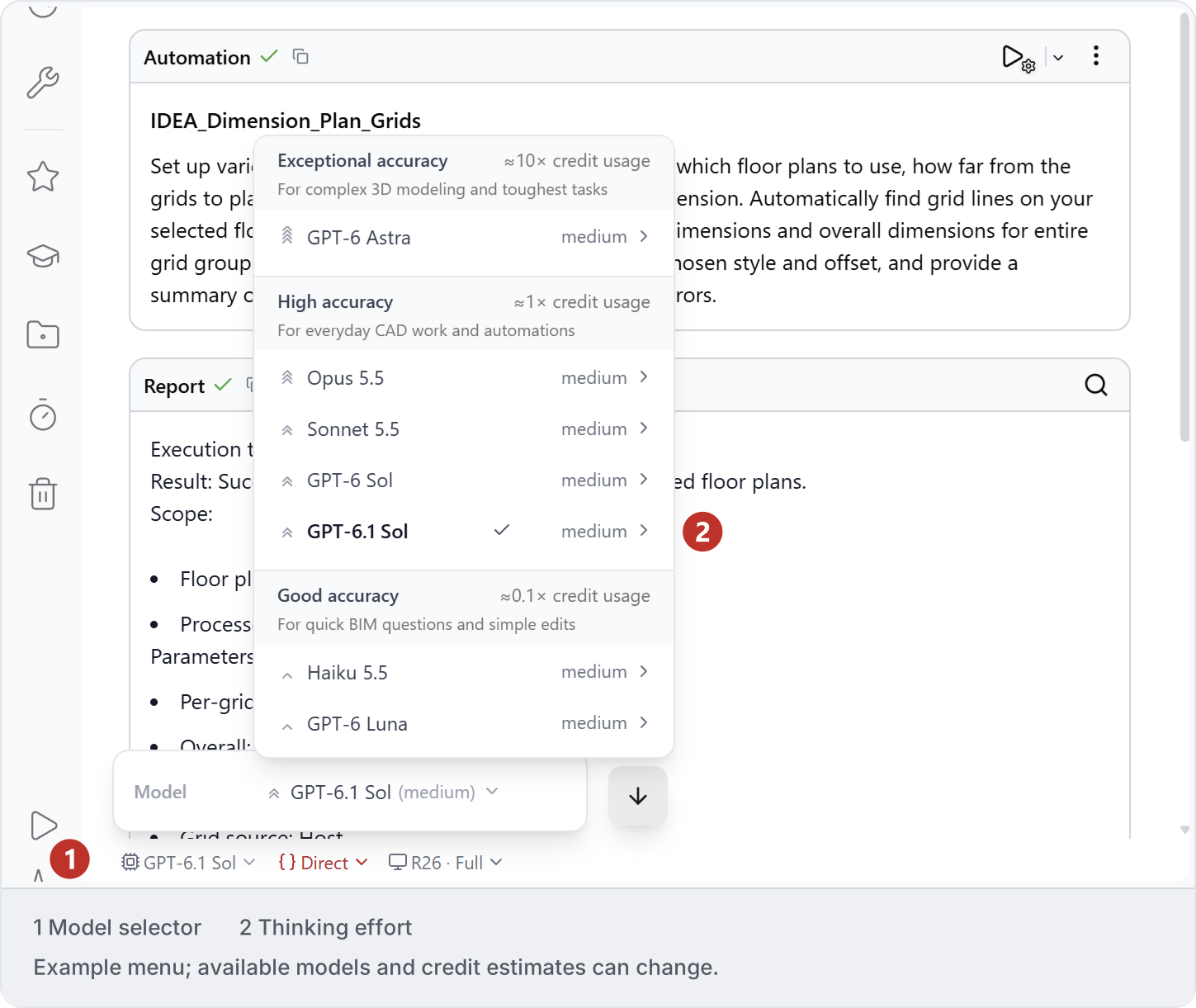
3. Thinking level
The thinking level controls how much reasoning you ask the model to use. A simple list of room names needs less reasoning than investigating inconsistent room areas. Open the submenu beside the model to see its options; this example has medium selected. Check the result whichever level you choose.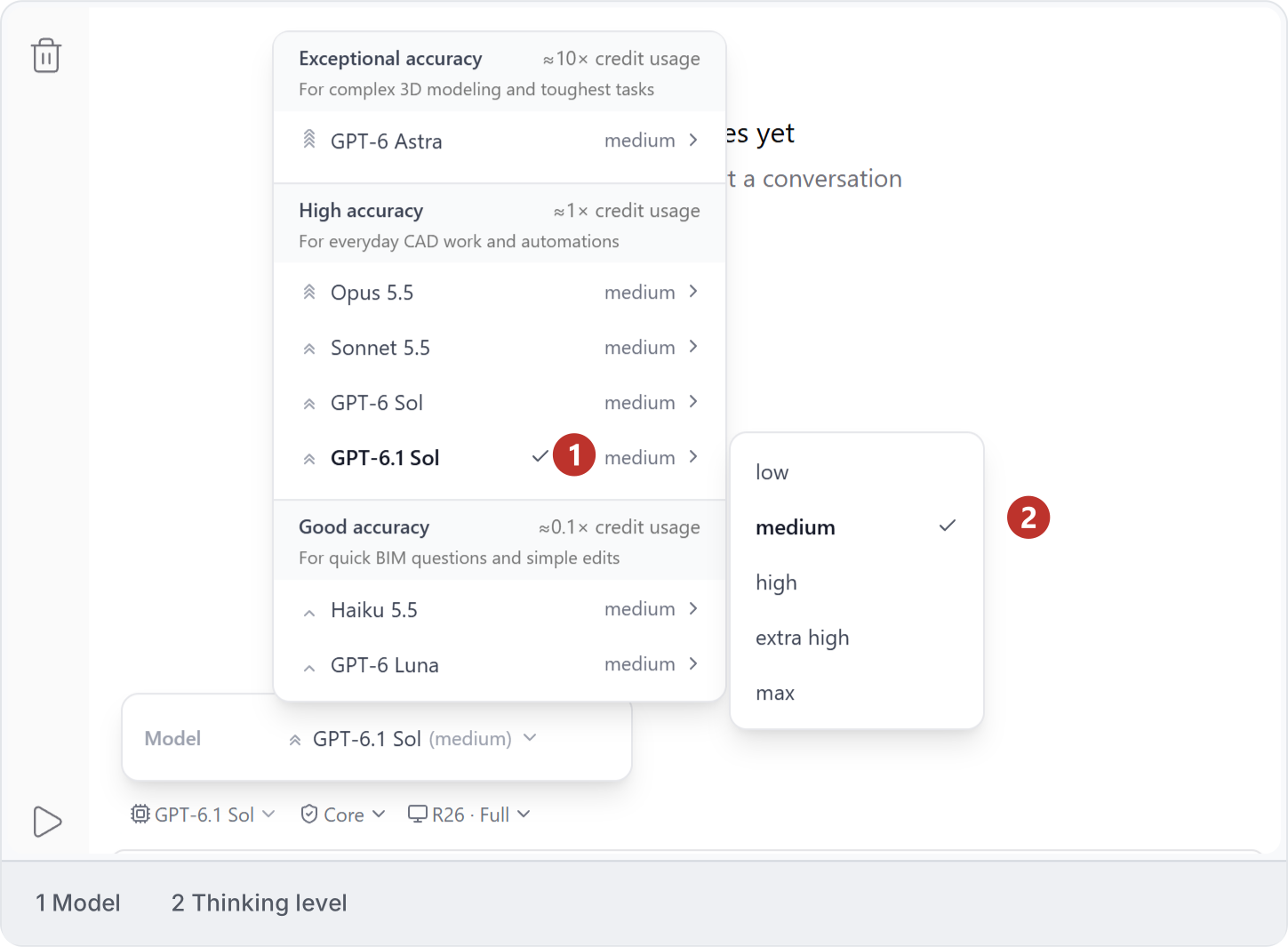
4. Attach files
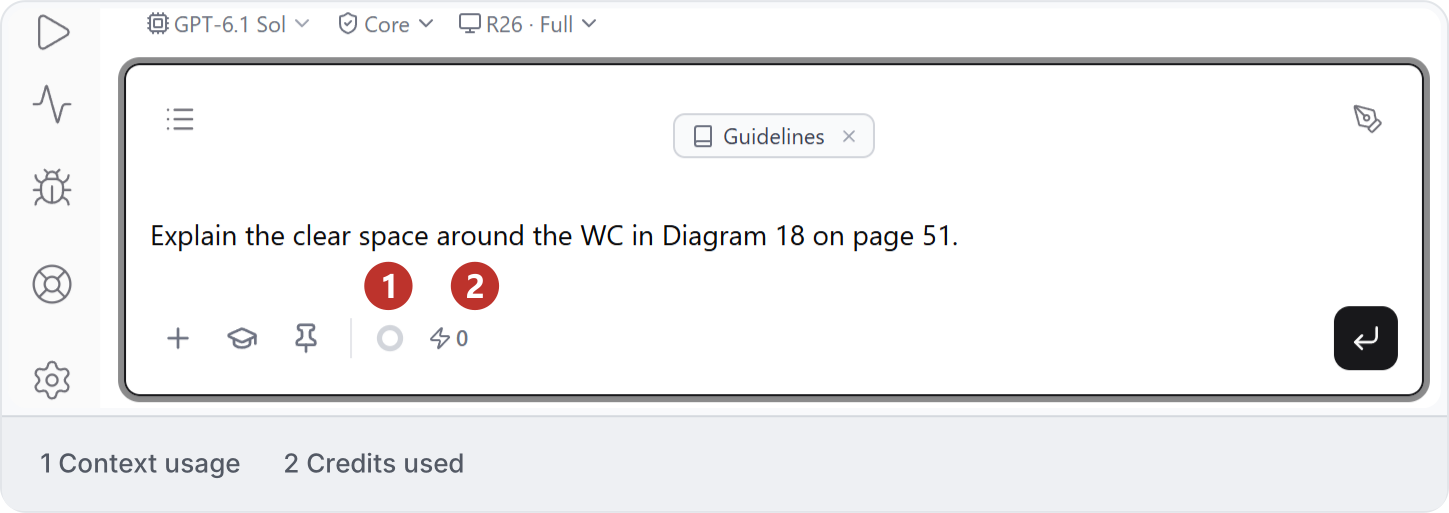
Use Attach file to add a drawing, photograph or PDF. Check its name and add a short request explaining what you need from it. This example asks about clear space around a WC.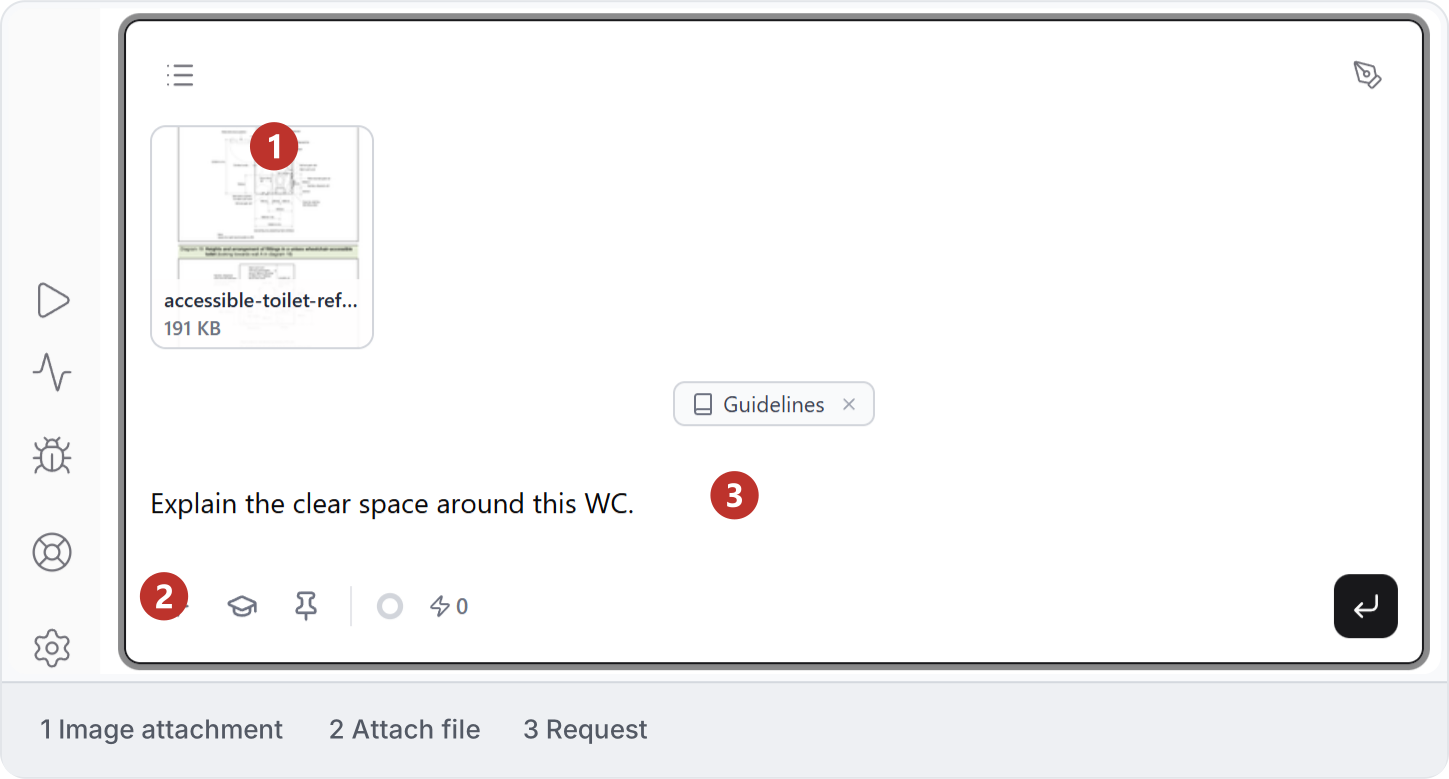
5. Skills and Guidelines
Open Skills for this message to choose instructions for your request. Guidelines holds standing conventions; skills provide particular methods. This example has Guidelines checked and no skill selected. Review your choices before Apply; changing this selection does not delete the shared instructions.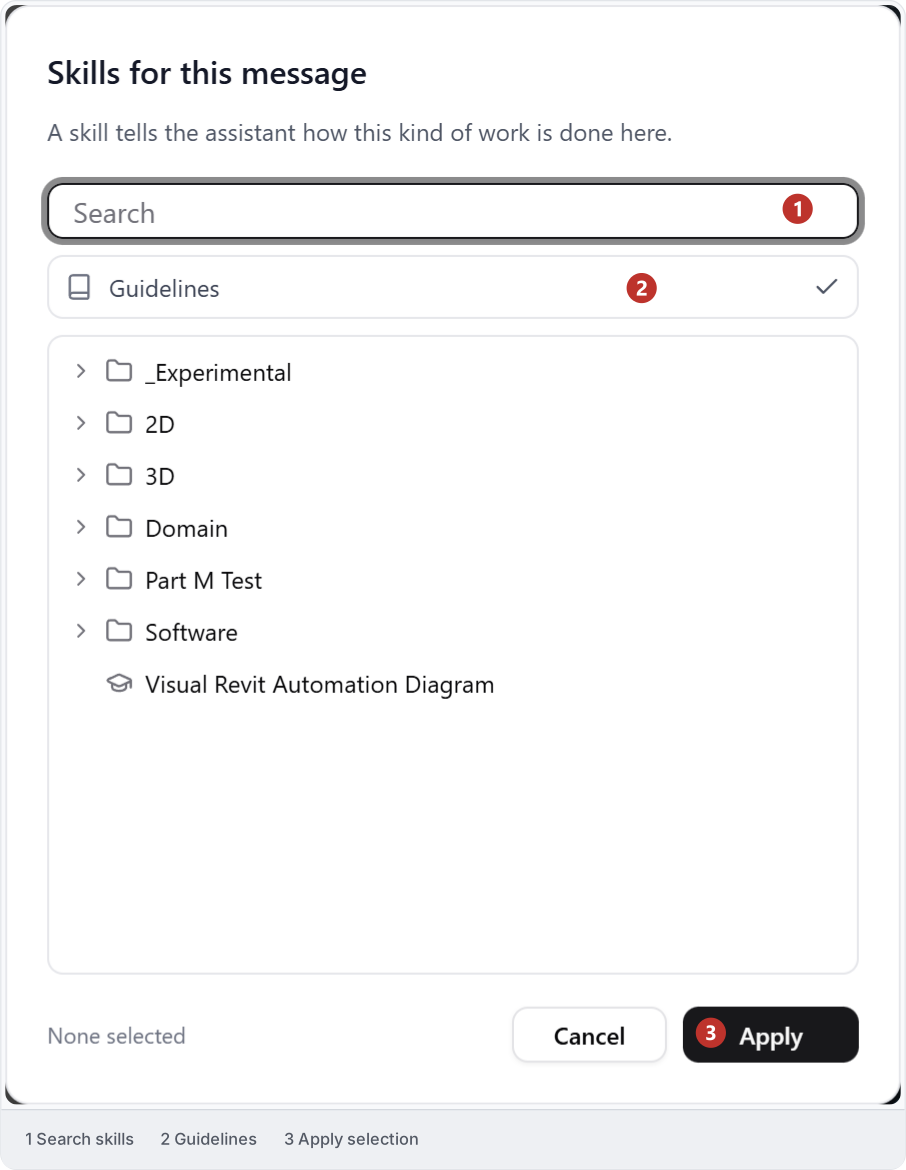
6. Pin context
Use Pin beside the prompt or in the viewer to keep a reference available throughout the conversation. Check its name above the composer before continuing. Attach adds material to the next message; Clone creates a Workbench copy. See Viewer actions.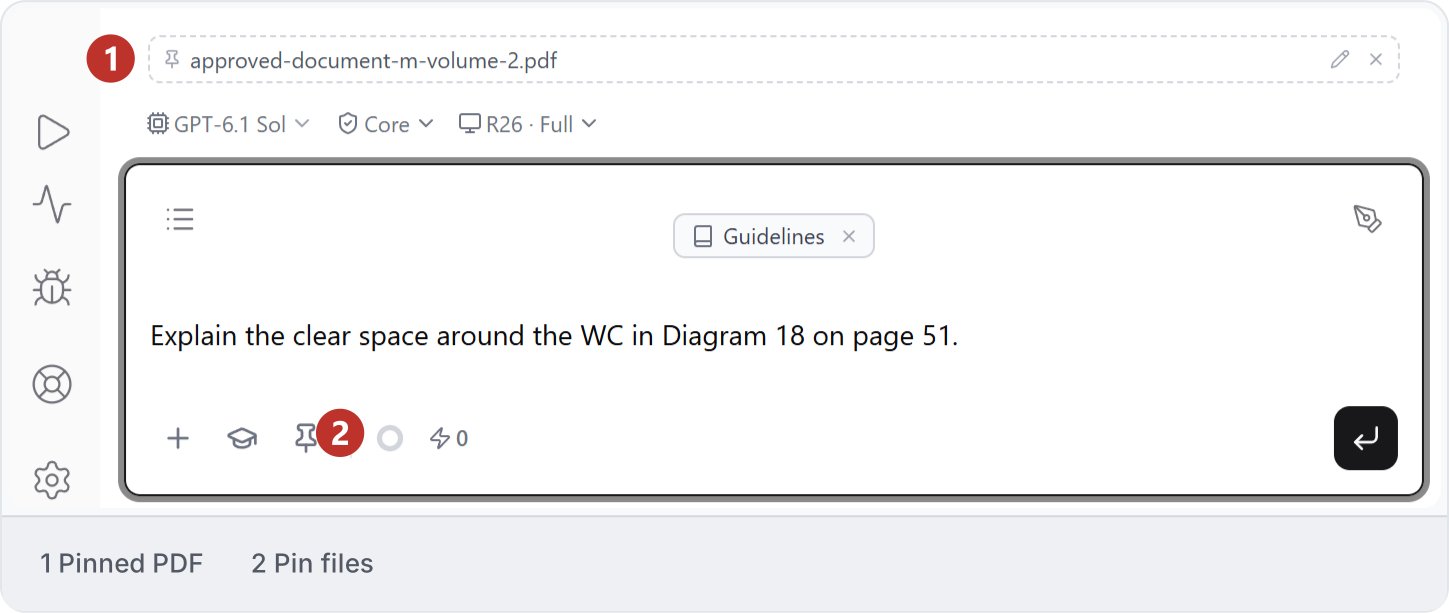
7. Send and stop
Choose Send to start. Follow-up messages help clarify the task: for example, “Use Level 01 only.” Use the square Stop button if you need to interrupt the work. Stopping does not undo changes already made in your model.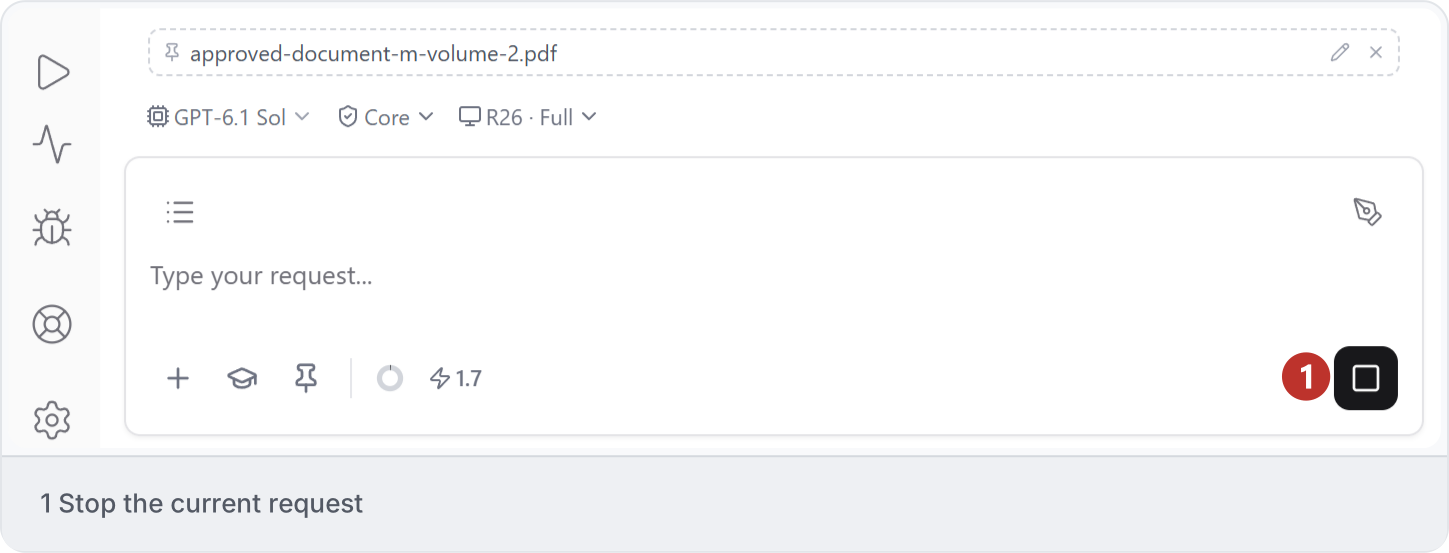
8. Usage indicators
Hover over the ring to read Context window usage; the lightning indicator shows credits. Context measures how much information the conversation holds, while credits measure usage charges. Read the current values rather than treating them as the same limit. See Context window and Tokens and credits; account allowances and storage are in Settings.