

1. Choose controls
Use parameters for choices that change between runs: views, styles, offsets or names. A form can combine number fields, selectors, checkboxes, text and file inputs. The grid-dimension example brings its views, sides, style and offsets together for review before running.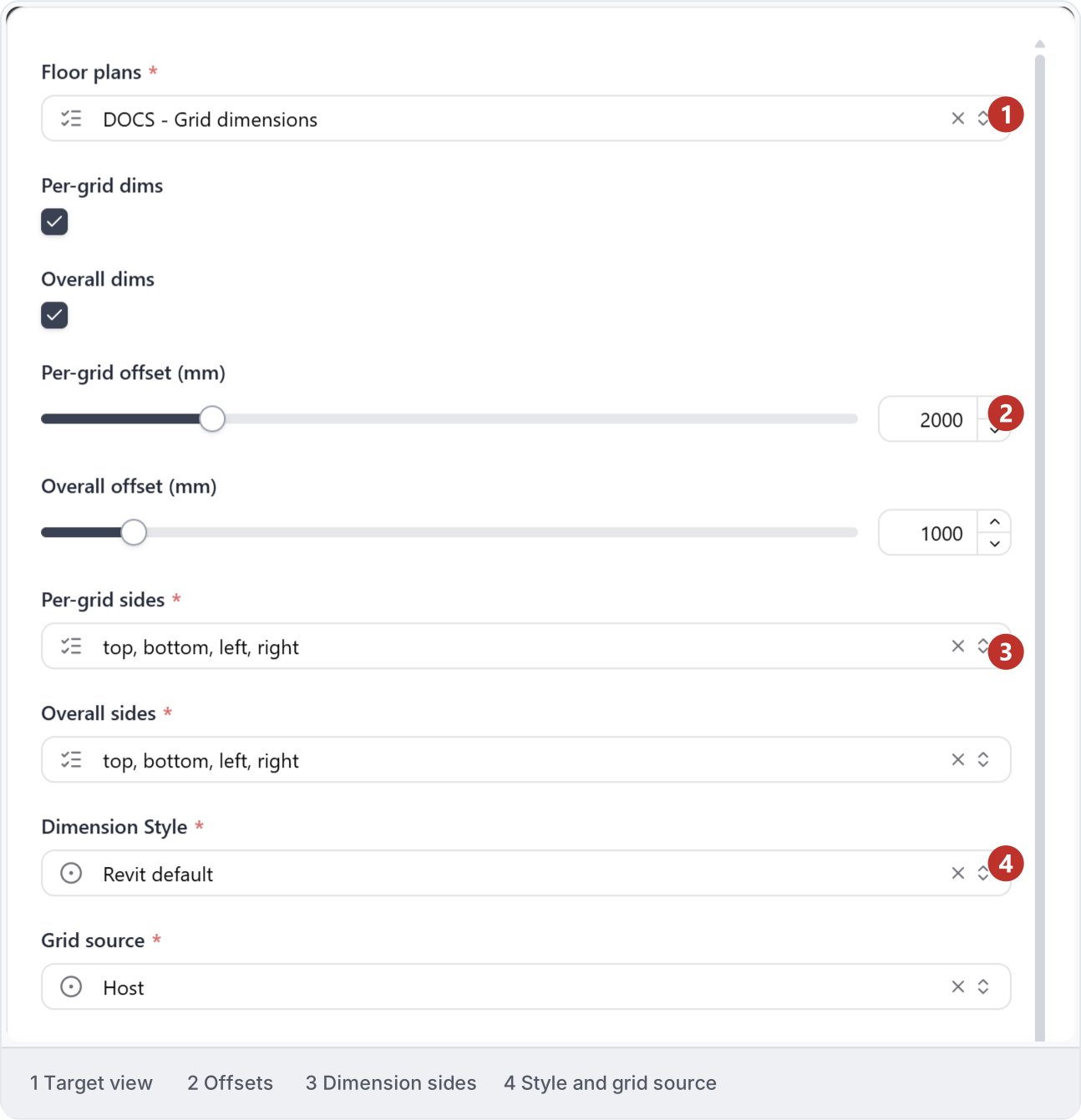
2. Single choice
Use a single-choice field for one option, such as a dimension style. Open the list, search by name and check which option has the selection mark. Choose a style from your model and check whether the field is required before running.
3. Multiple choices
Use a multiple-choice field for a set of views or sides. Open Plans/RCPs to choose the views to dimension, then review the selection before running. Check it again after changing documents or filtering the list.
4. Checkboxes
Use checkboxes to turn an option on or off. This example has Per-grid dims and Overall dims on; Move dimension numbers is a separate option. An unchecked box means off, not a missing answer. For three possible answers, such as Yes, No and Any, use a choice field.
5. Numeric inputs
Read the units beside a number field and enter an offset that suits the drawing. The example shows per-grid and overall offsets in millimetres. Some fields accept only whole numbers; others allow decimals, a range or fixed increments.
6. Text inputs
Use a text field for a name or prefix. Here, Prefix contains A, while Sheet name is a choice set to Room Number - Room Name and Start no. and Digits are numeric inputs. Check whether each text field expects ordinary text or a particular naming format, and what leaving it blank means.
7. File inputs
Use Choose file to supply the file an automation needs, such as a drawing schedule CSV. Check the allowed file types and complete the other required inputs. This drawing-set form requires a CSV and title block, shows Check only as the run mode and has Run disabled while inputs are missing. A file parameter belongs to the automation’s setup; it is separate from attaching a reference to a chat.
8. Required fields
An asterisk marks a required field. In this reopened sample, Plans/RCPs is empty and Run is disabled even though other settings have values. Complete required selections and wait for choices to load. An unchecked checkbox is a valid off value, not a missing answer.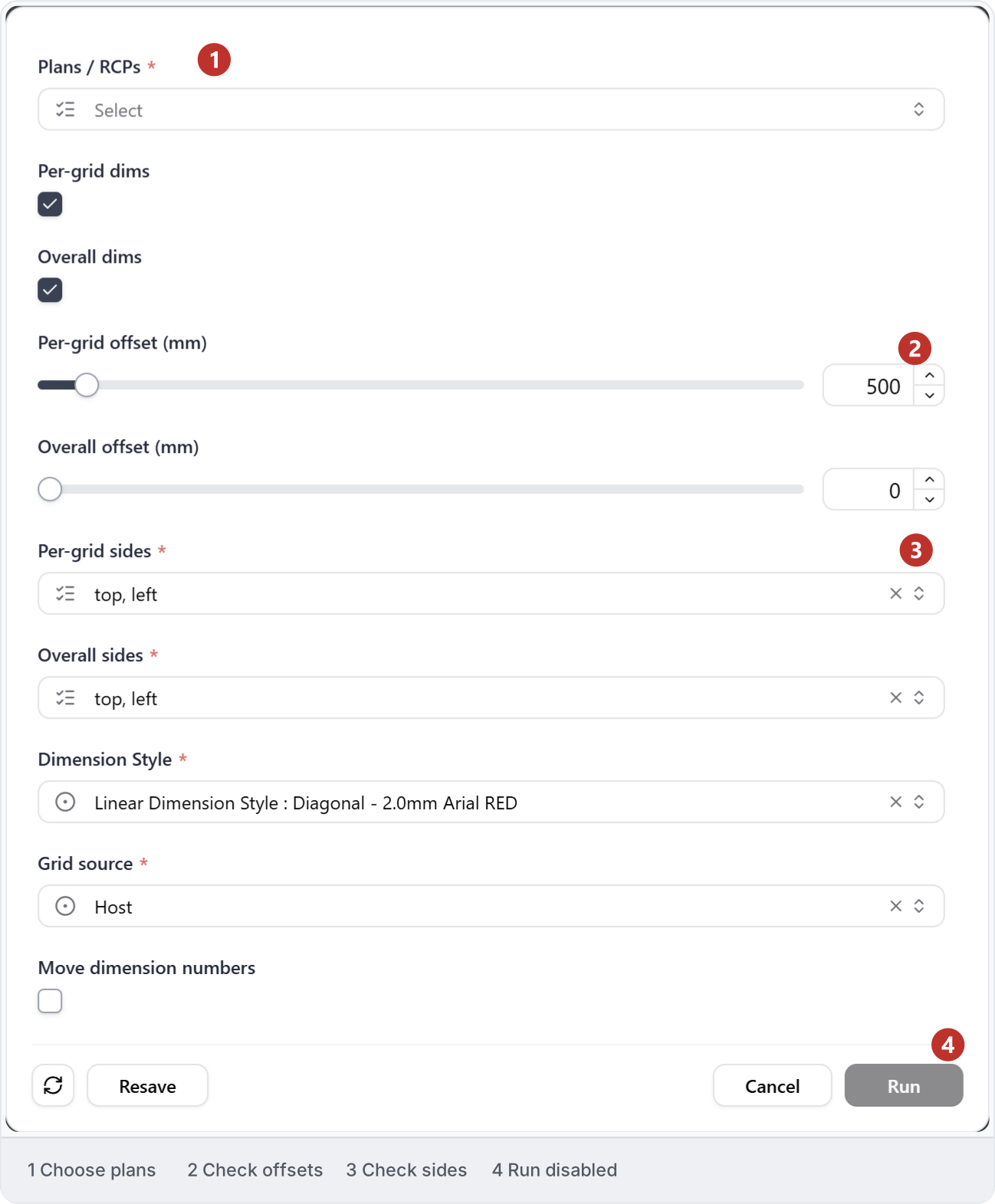
9. Model choices
Some choices come from the open model, such as views, sheets, levels, rooms or family types. The Plans/RCPs list below shows actual model views; sides such as top or left are fixed choices. Refresh after changing documents or editing the model, then check that the selected items still exist.10. Cache, refresh and run
In Automations, open the saved entry’s three-dot menu and enable Cache parameters, marked 1 below. This reuses previously loaded choices so the form opens faster when you return to the same automation.


11. Chain parameters
Check the inputs for each automation in a chain. This example combines plan/RCP grid dimensions with elevation/section grid-and-level dimensions. Select views that already exist; if one step creates a new view, run that step before trying to select its result.
12. Continue with an example
Find the saved automation and reopen its inputs to check the units, defaults and required selections, as shown above. Follow Dimension parameters for the detailed example or Parameterise a task to prepare your own choices.