A workspace is where you find your personal or team’s shared work. A project groups work for a particular building or job. A chat is a conversation about a task, such as preparing a drawing package. Your open Revit or AutoCAD file is separate. Check the connected file before asking Ideatura to change it.

1. Switch workspaces

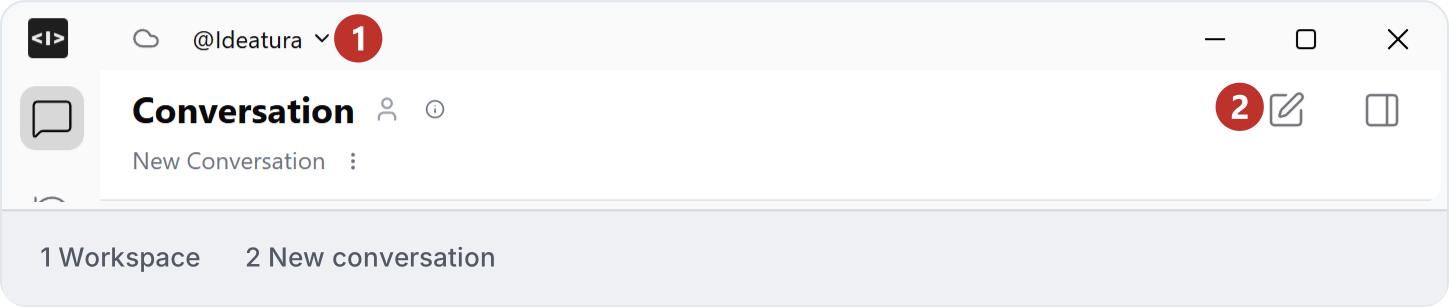
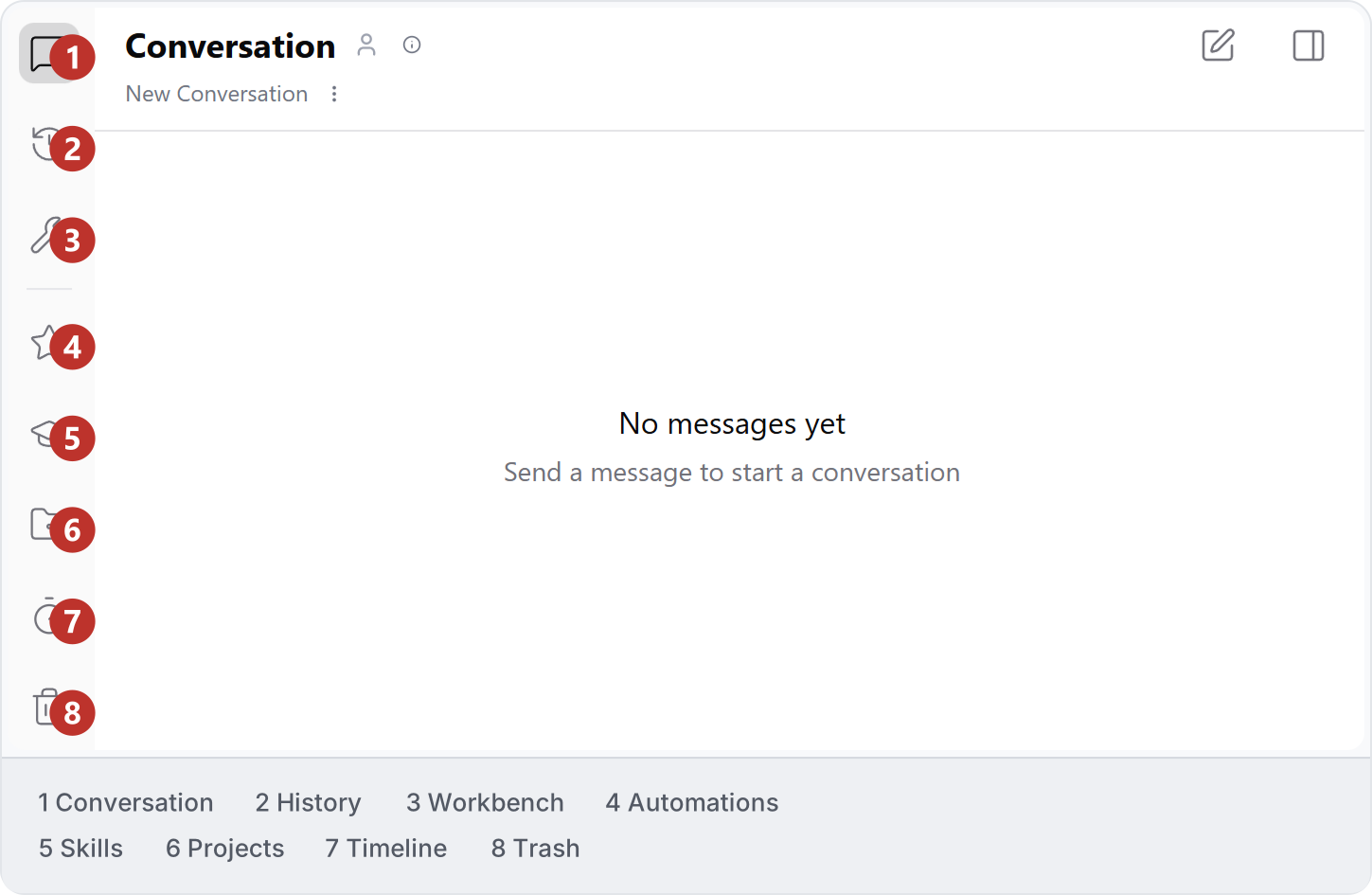
Use the selector at the top of Studio to choose the workspace you need. For example, choose your practice’s workspace to find the automations your colleagues have shared. Workspace selector at the top of Studio. Use the menu on the left to open chats, History, Workbench and libraries. Hover over an icon to see its name. The highlighted icon and page title show where you are. Annotated Studio navigation rail showing conversations and workspace libraries.
3. Personal and shared

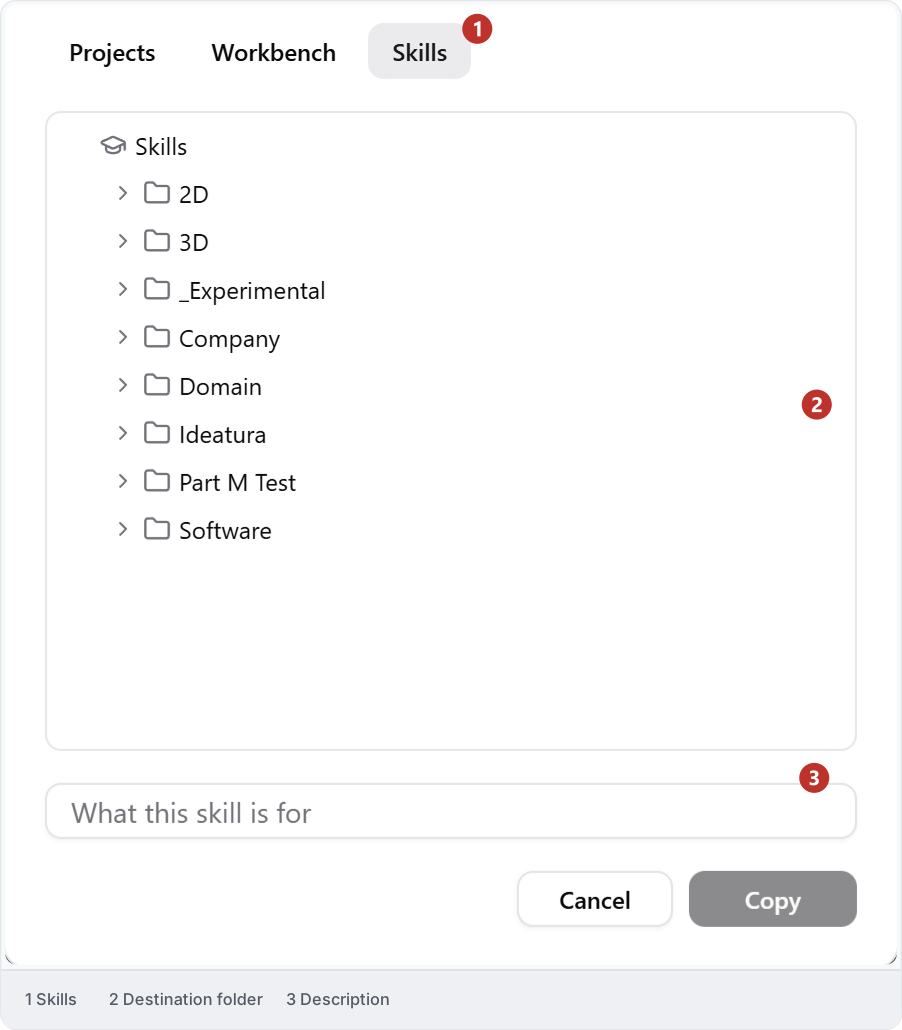
Workbench holds personal editable copies; Projects, Skills and Automations contain workspace material. When copying a file, check the destination in the Copy dialog. This example offers Projects, Workbench and Skills, with folders and a description to review before confirming. Copy destination dialog with Projects, Workbench and Skills choices.
4. Status indicators

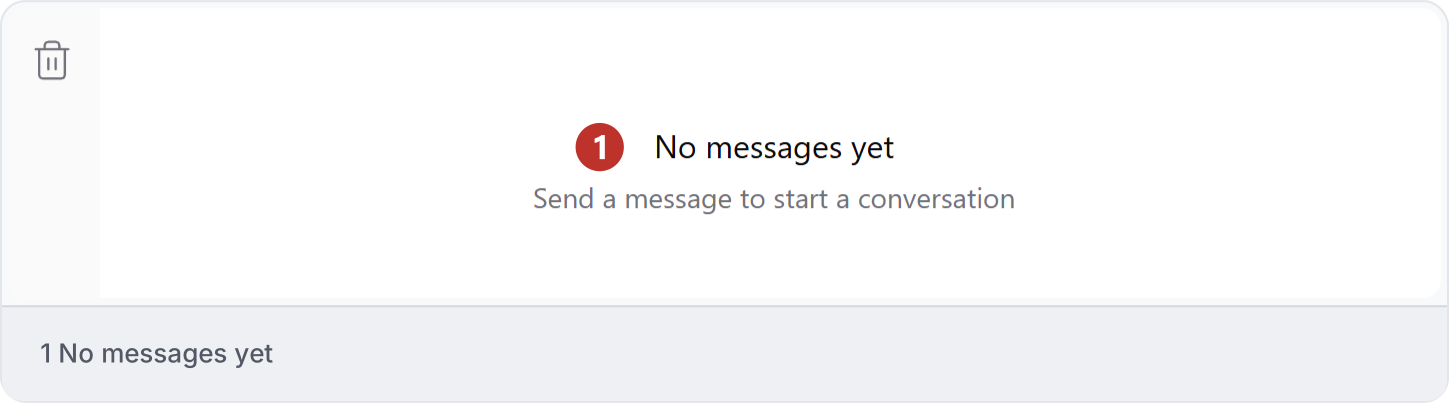
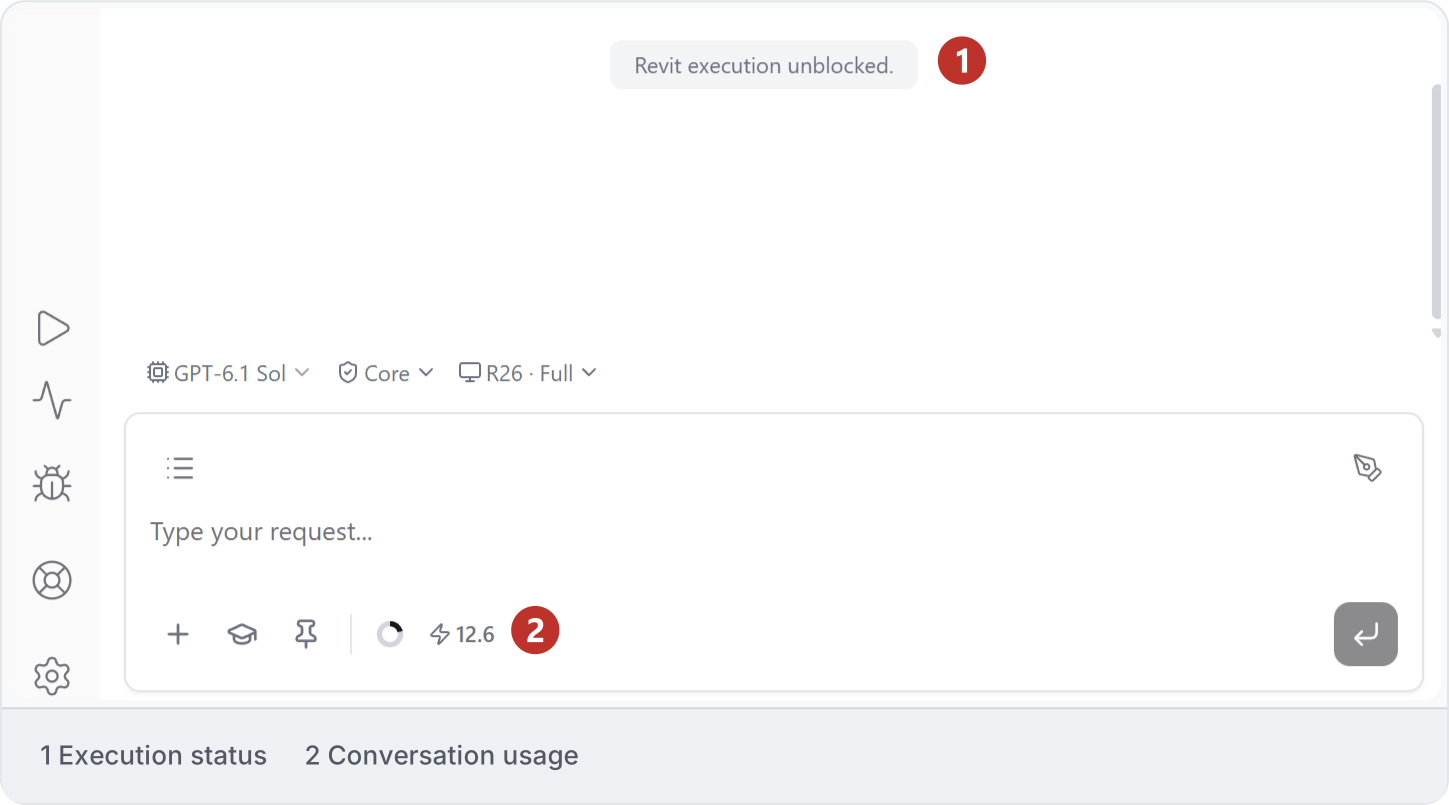
A new conversation shows No messages yet and Send a message to start a conversation. Write your request to begin; this is an empty conversation, not a failed task. Empty conversation with No messages yet and Send a message to start a conversation. Revit execution unblocked means Ideatura can continue working in Revit. Read the response and inspect your drawing to see what actually completed. Studio showing Revit execution unblocked above the composer, with the Revit connection and conversation usage visible. If a control is unavailable, read its message first. You may need to select an application or supply a required input. See Troubleshooting if it remains unavailable.