1. Account and billing
Open Settings → General to find Portal and Billing. Use Billing to review the subscription actions and terms available for your account.
2. Credits and storage
Read the credit and Workspace Storage meters for your account. Credits relate to usage; storage measures retained workspace material. Check each label, used amount and allowance separately.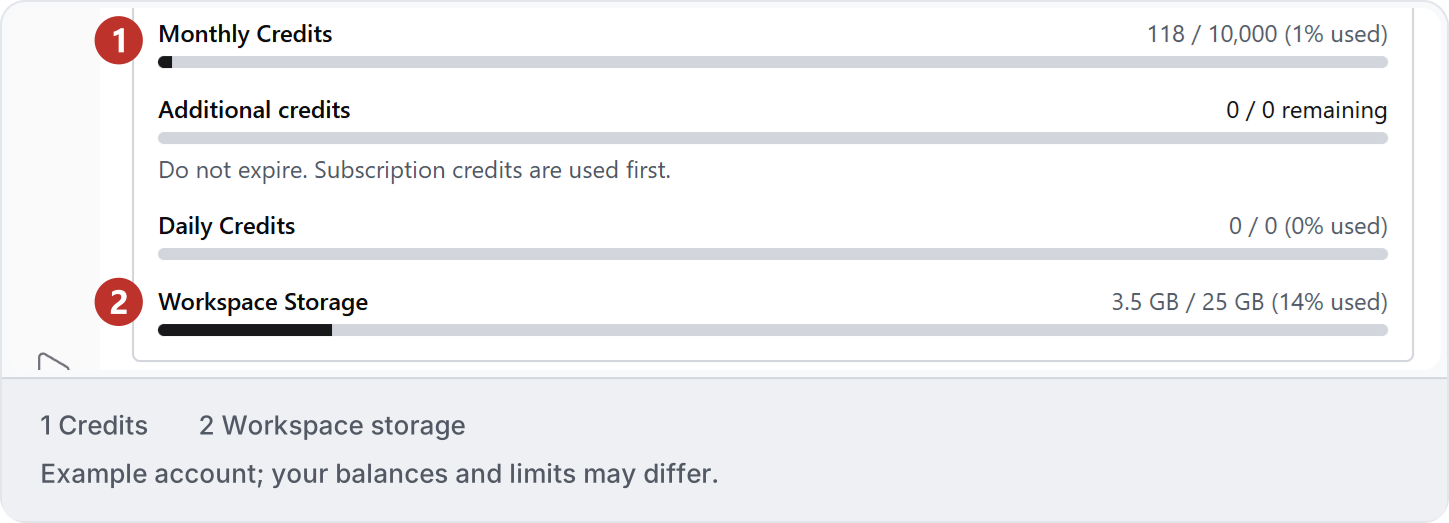
3. Interface preferences
Open Settings → UI. Message shortcut controls how you send a message; Markup changes on sending a message controls pending markup. Read your selected values before changing them, then return to the conversation to try the setting.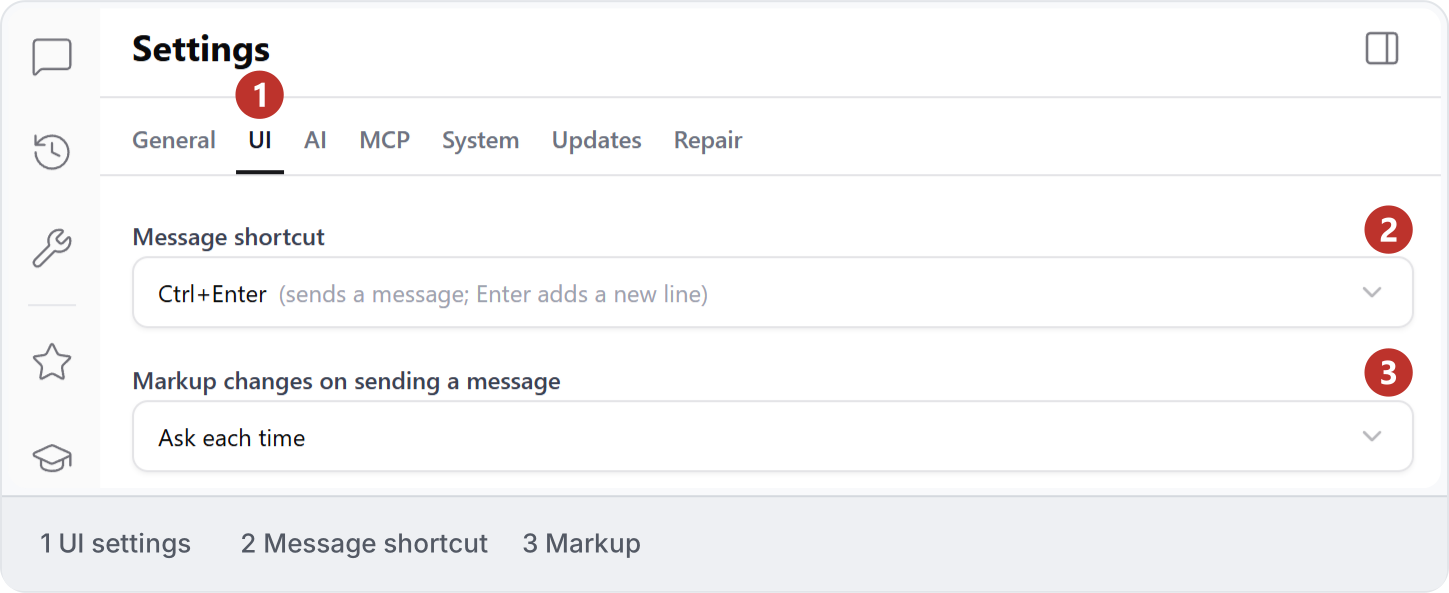
4. AI settings
Choose the model and thinking level beside the conversation prompt. Open the thinking-level submenu to see the options for that model, then check your selection before sending. This example shows medium selected; available options can vary by model.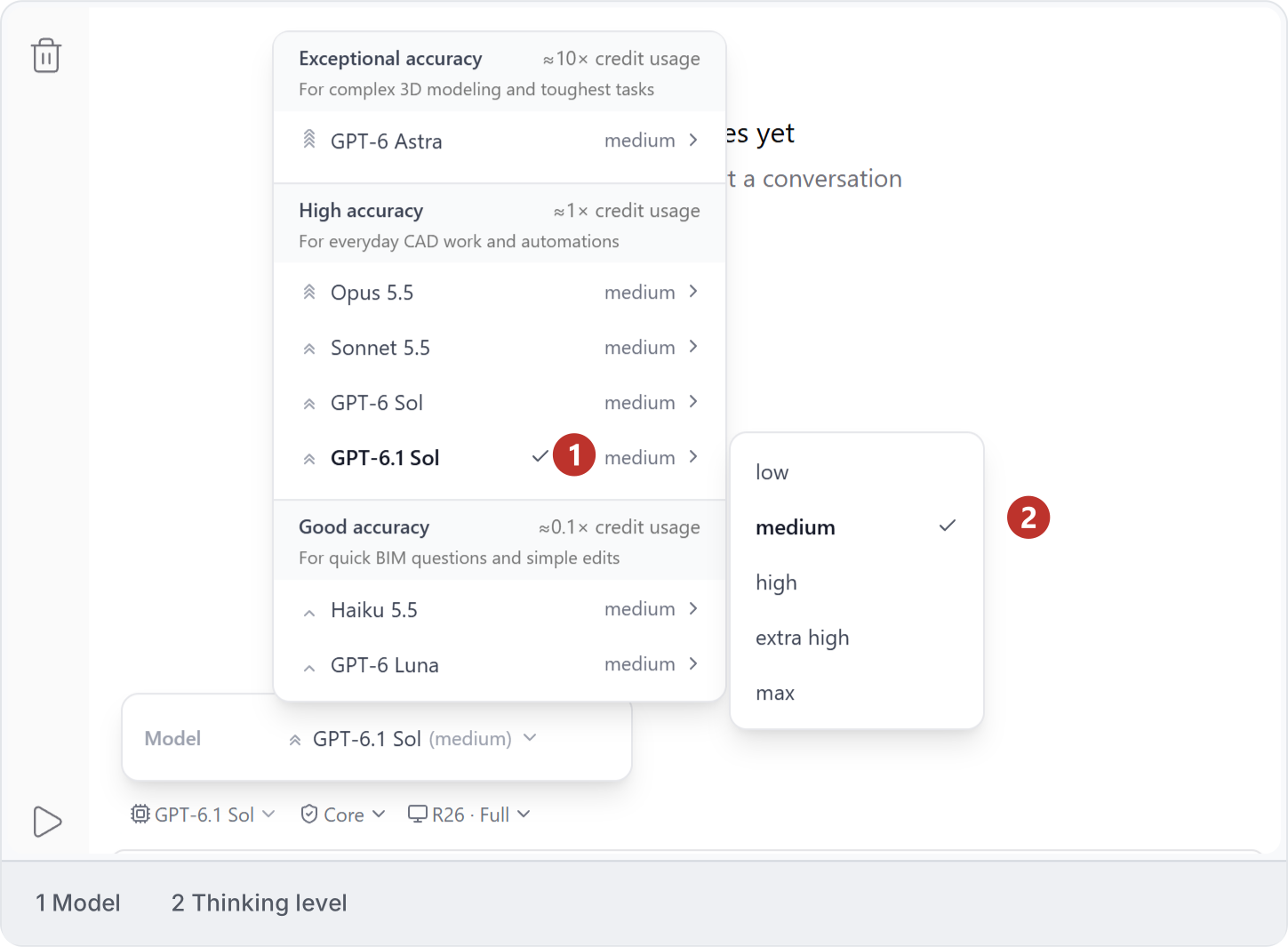
5. MCP settings
MCP is a way for another AI application to connect to tools provided by Ideatura. You can skip this section when working directly in Studio. If you are setting up that connection, follow its setup guide and check Settings → MCP → Enable MCP server. It is off in this example.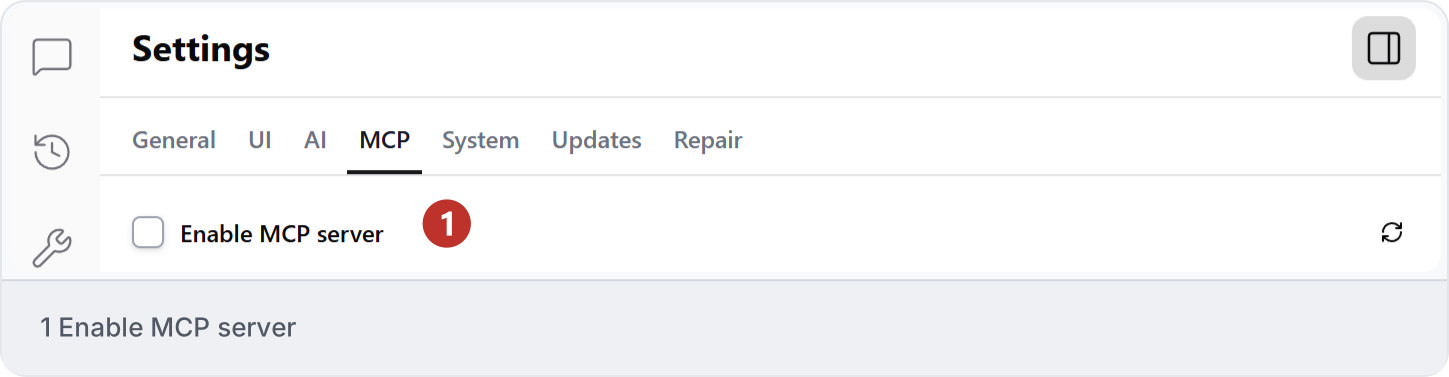
6. System settings
Open Settings → System to review Live stream resolution, Capture resolution and Max texture size. Adjust one setting at a time, then check drawing legibility and responsiveness.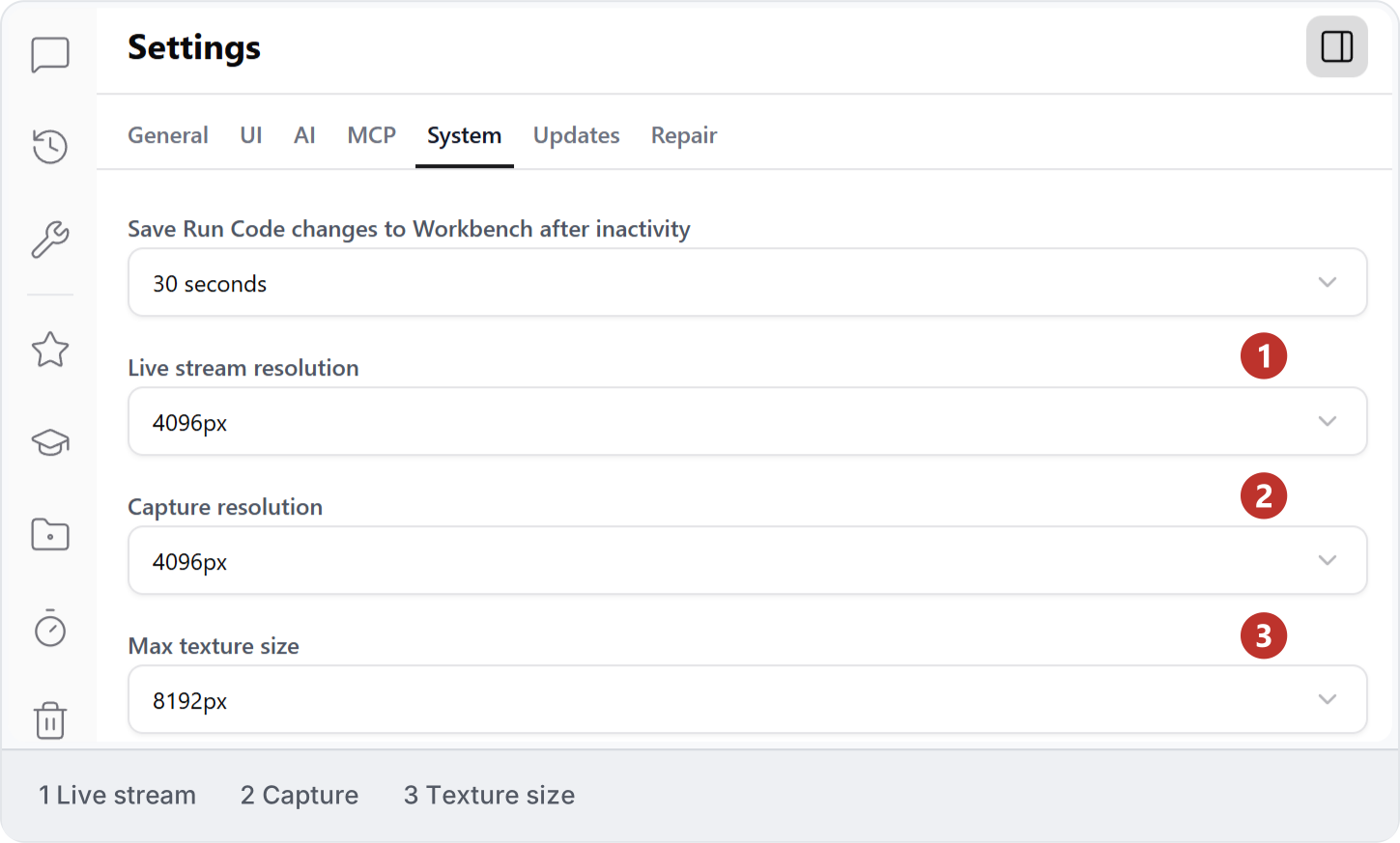

7. Studio updates
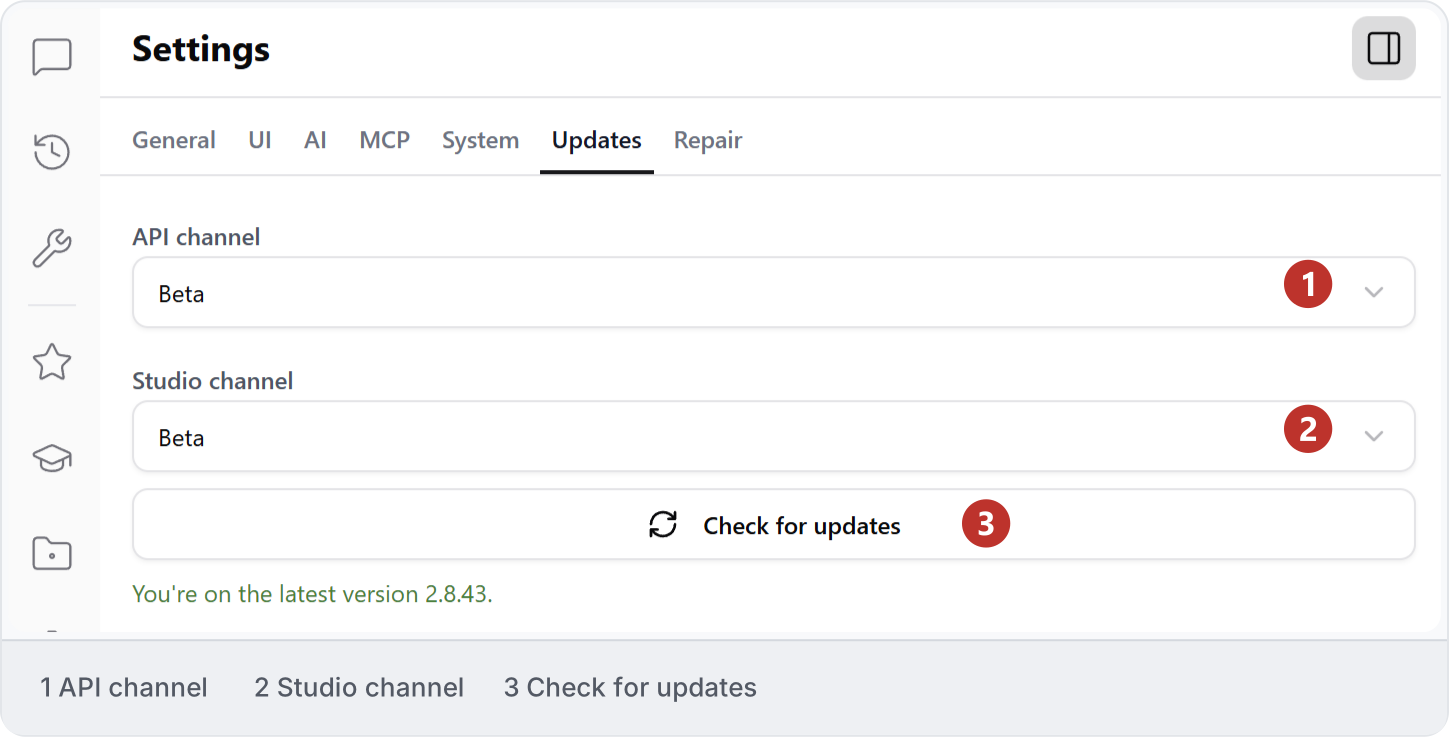
The installed Studio version appears at the bottom of Settings. Include it in a support report when a guide and the application differ.
8. Repair integrations
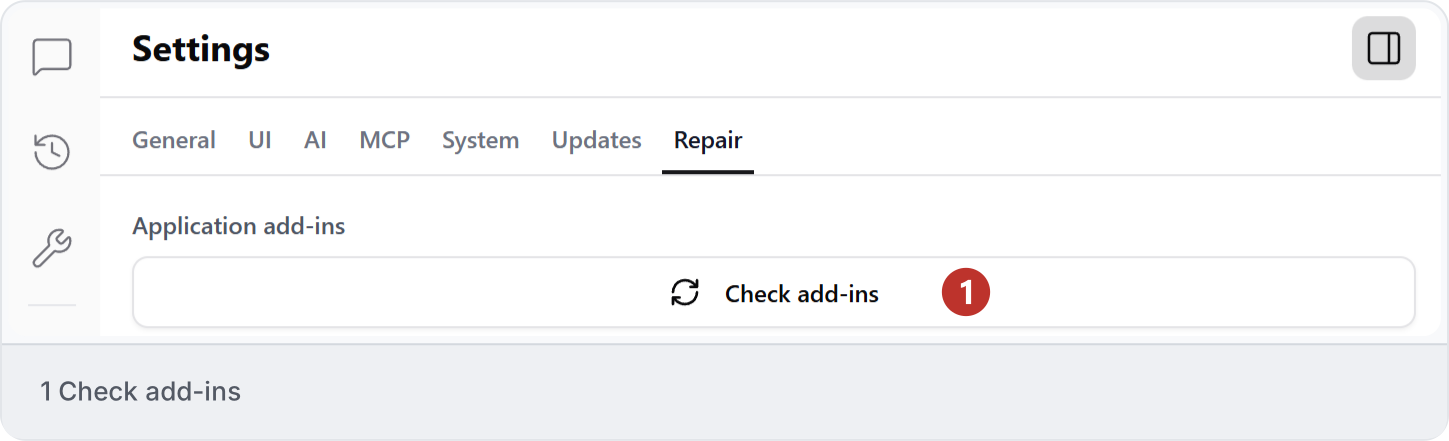
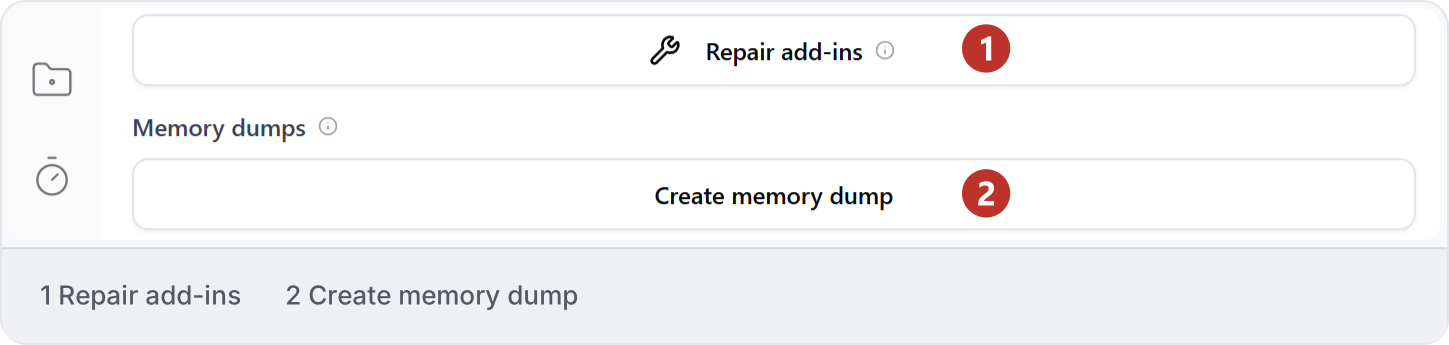
Open Settings → Repair to find Check add-ins when an application connection needs attention. Read the result or error before continuing.