

1. Read the balance
Open Settings → General and read each credit meter’s label, used amount and allowance, including any reset information. Credits measure usage; Workspace Storage measures retained files. One message is not a fixed number of credits. See Settings.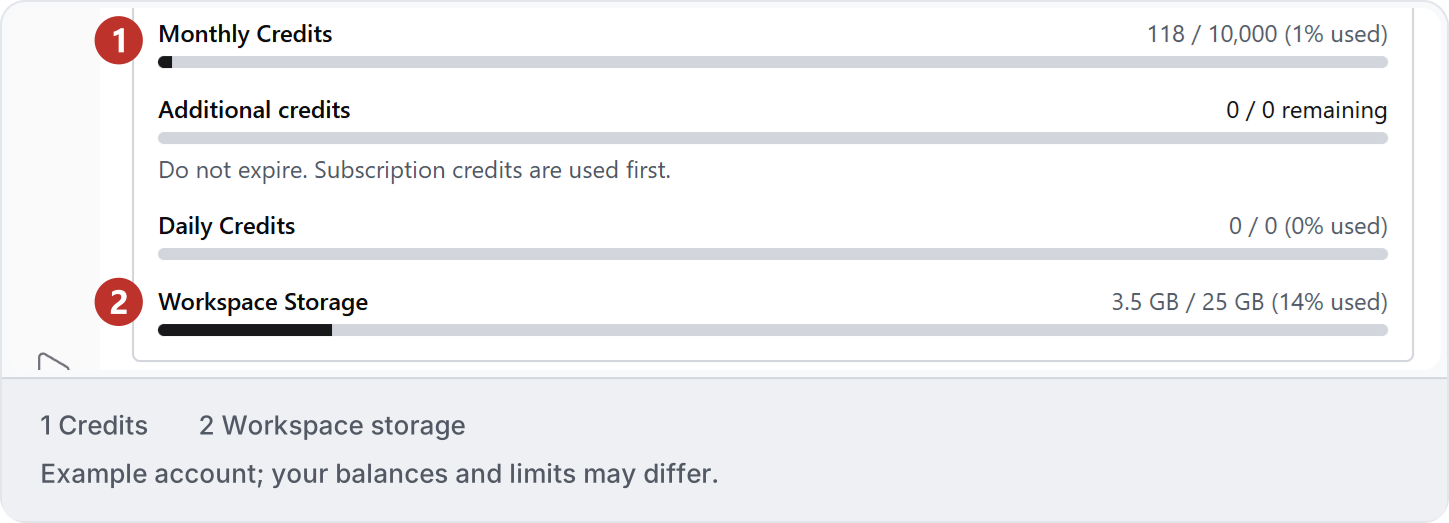
2. Separate task stages
Building a new automation and running an existing one are different tasks. For example, asking AI to create a grid-dimensioning tool involves more work than choosing the views for a tool you already have. Check the recorded usage for each stage; a saved run is not automatically free.3. Include retries
Corrections and repeated attempts contribute to the conversation’s usage. The 12.6 shown here is the total for this example chat, not the price of a particular task. Your model choice, thinking level and the amount of reference material can affect usage.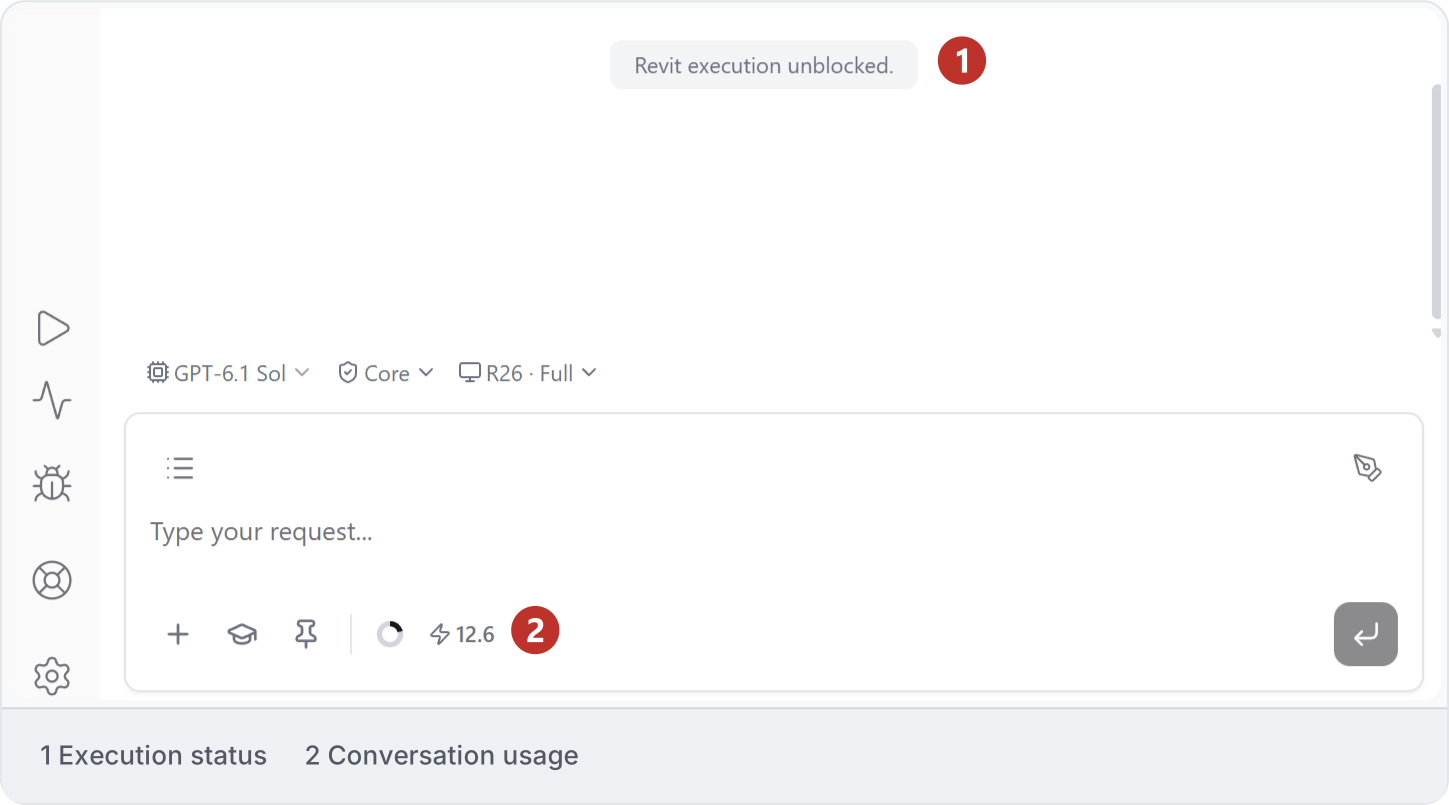
4. Measure a useful result
Open Settings → General → Portal, then Usage, to find a chat’s total. To understand the cost of your workflow, start with one floor or drawing, check the result and include any corrections in your comparison. Use Troubleshooting if repeated attempts are not improving the result.