Keep three things in mind: the references you give Ideatura, the files it produces and the model open in your design application. Save useful output where you can find it again, and save changes in Revit or AutoCAD through that application’s normal workflow.

1. Add and open files

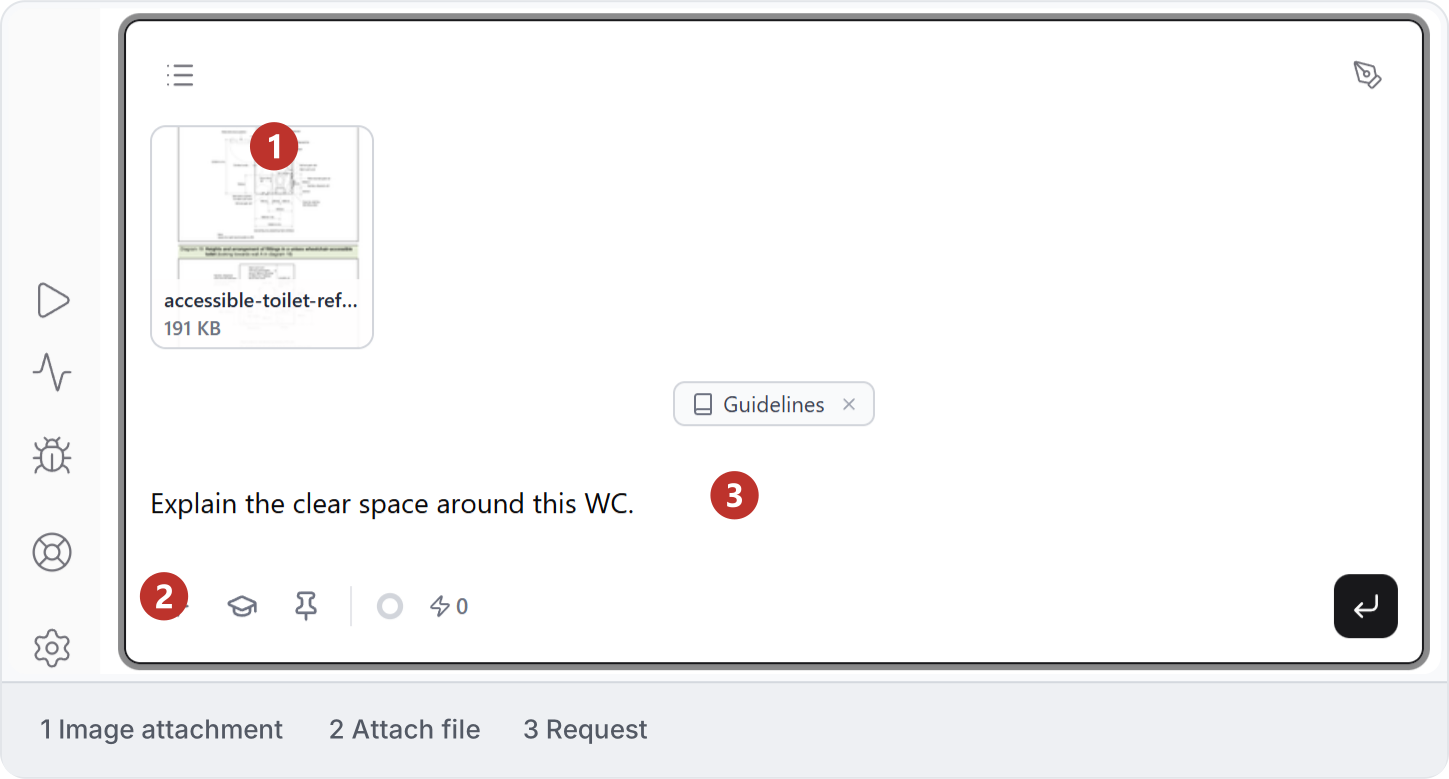
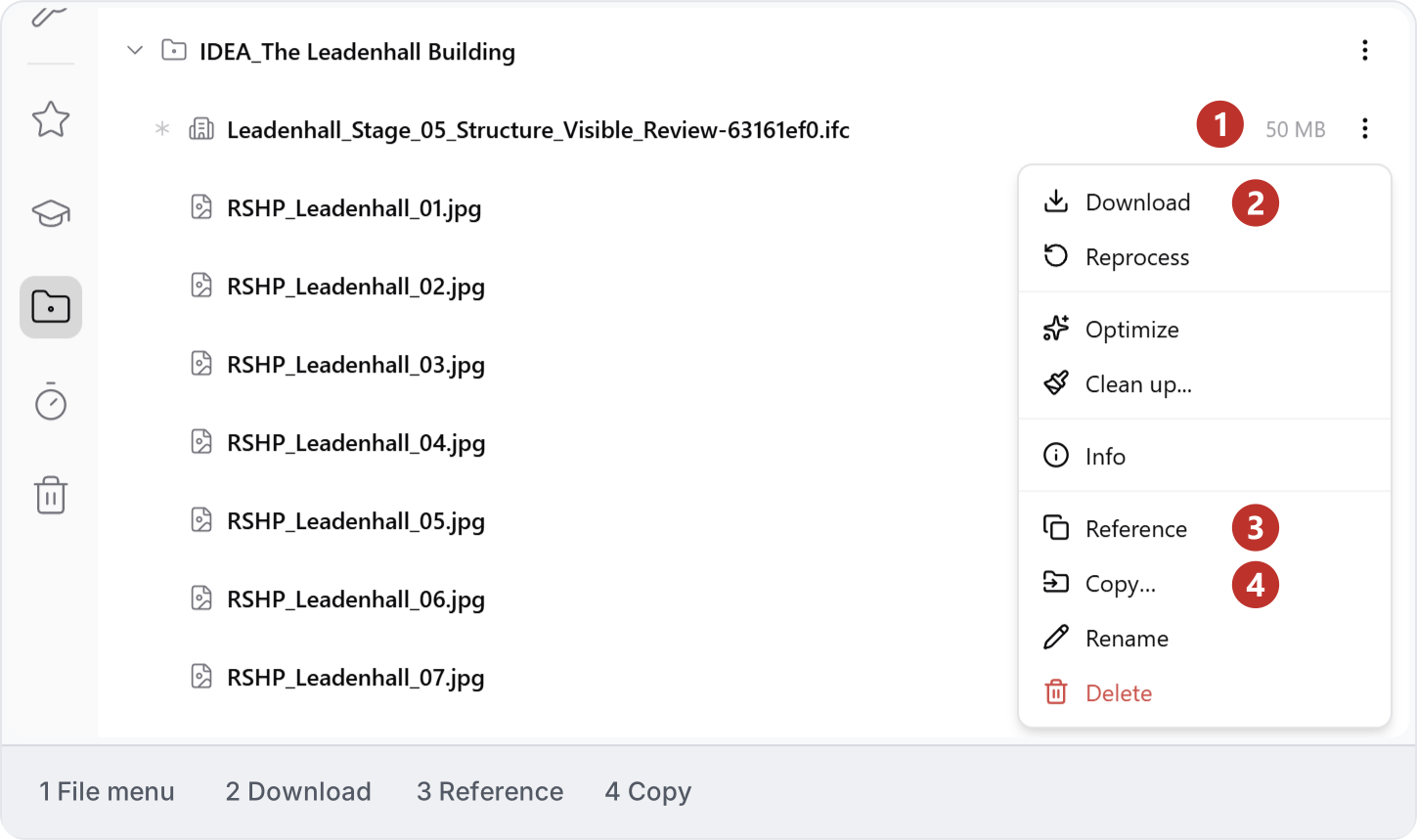
Use Attach file to add an image, PDF or text document, then ask a short question such as “Explain the clear space around this WC.” Check that the attachment is readable and name the page or diagram for a PDF. See Viewers and markup for pages, crops and notes. An architectural reference image attached to a simple question: 1 image; 2 Attach file; 3 request. Open a file’s three-dot menu to find actions such as Download, Reference and Copy. Check the file name before choosing one. Download can be available even when Studio cannot preview the format; editing the original application document requires its own connection. IFC file menu in Projects with Download, Reference and Copy highlighted as available actions.
2. Save models

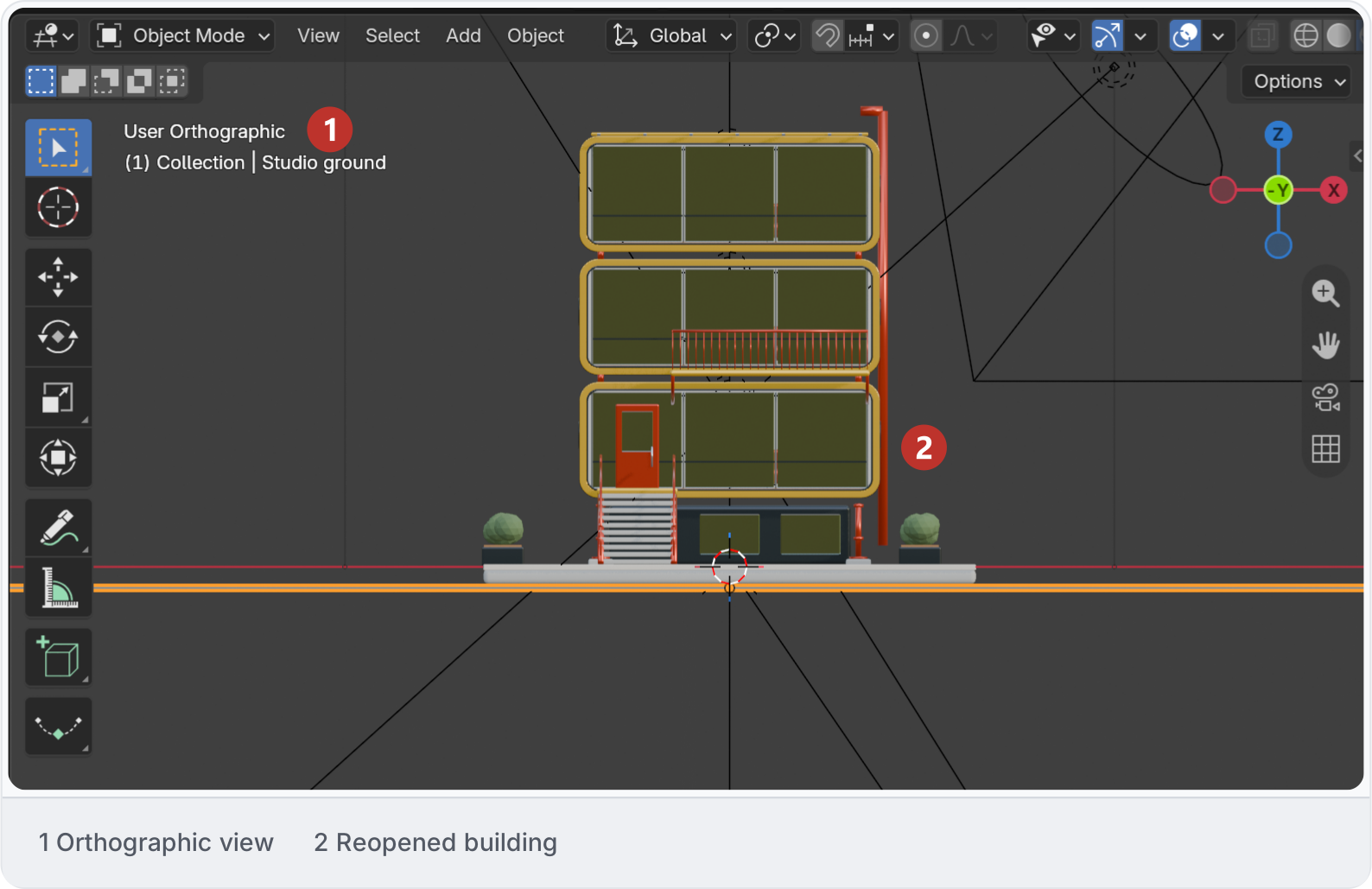
Save Studio files and native application documents separately. After checking the model, use the application’s save controls; this Blender example saves a .blend copy with Save As. Follow your project’s save or synchronisation procedure in Revit or AutoCAD, then reopen the output to check it. Blender Save As controls for saving a native model copy. Check the saved file by opening it again in its application. Here, DOCS-building-front-view.blend was reopened through Blender’s File → Open Recent, with the building and orthographic front view retained. Saved Blender copy reopened with the building and orthographic front view visible.

3. Projects and Timeline

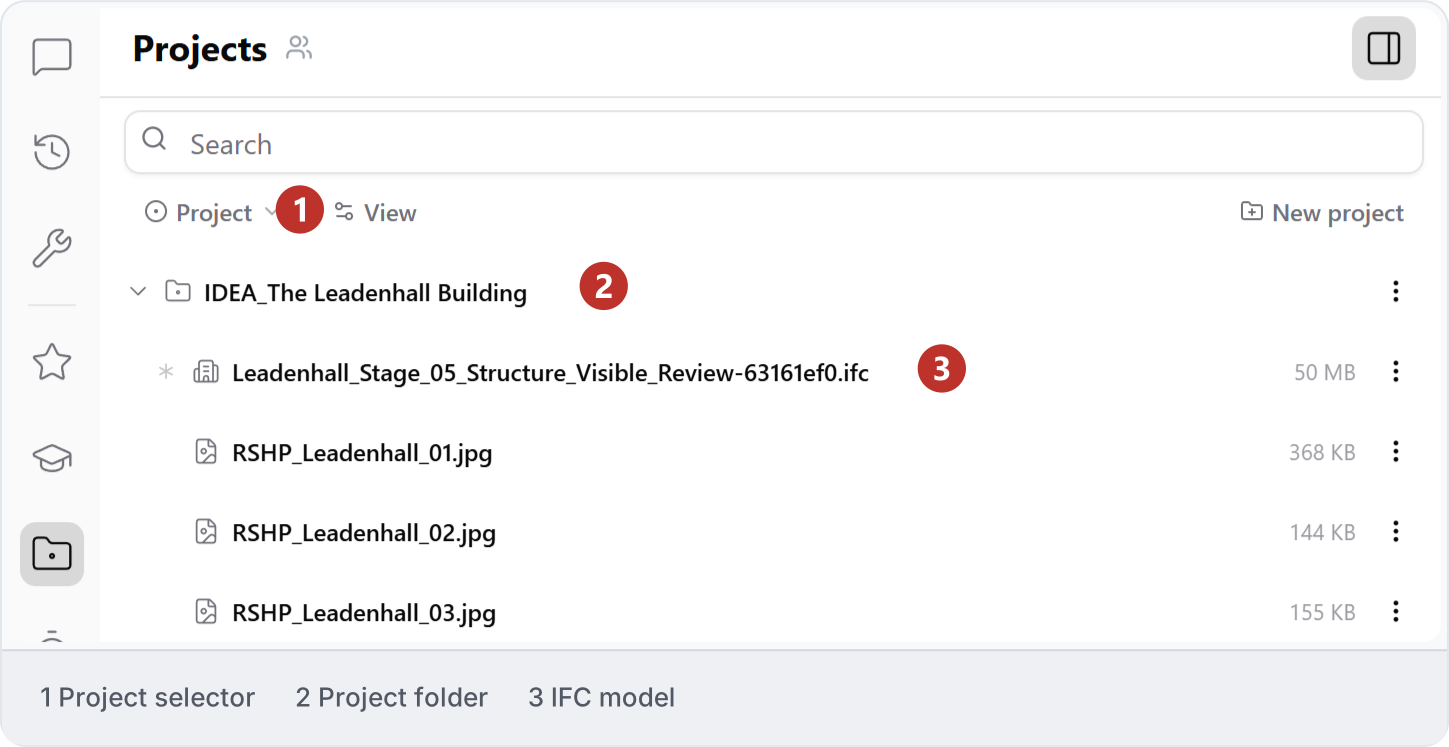
Use Project files to keep a building’s drawings, models and references together, and Workbench for personal editable copies. The earlier screenshot below labels the area Projects. Timeline helps you find produced files; check its retention notice and save useful output in the appropriate library. Projects library with a sample model and reference images grouped in a folder. You can also organise chats by project. Tell Ideatura which files to use for each task; keeping a file in a folder alone does not explain what you want done with it.
4. Restore files

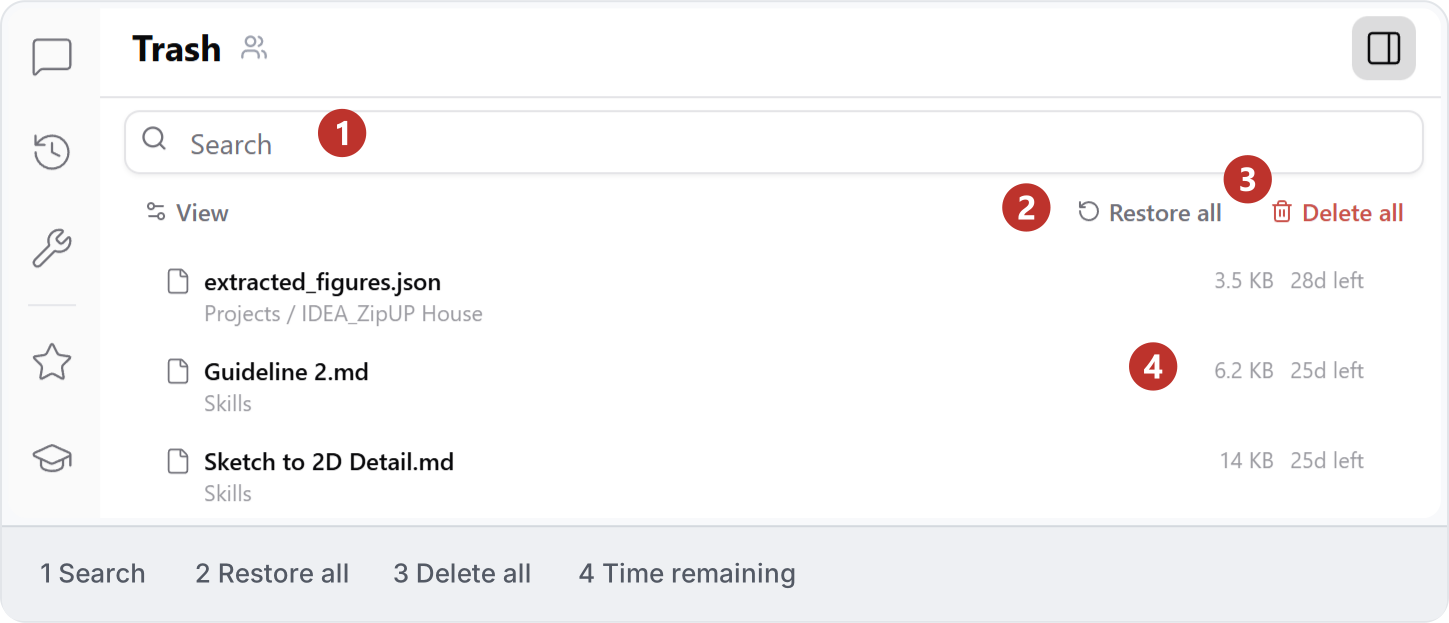
Open Trash, find the deleted file and read its original location and time remaining. Restore the item you need and check where it returns. Restore all and Delete all affect multiple files; review the list before either action. Trash controls and time remaining for listed files.