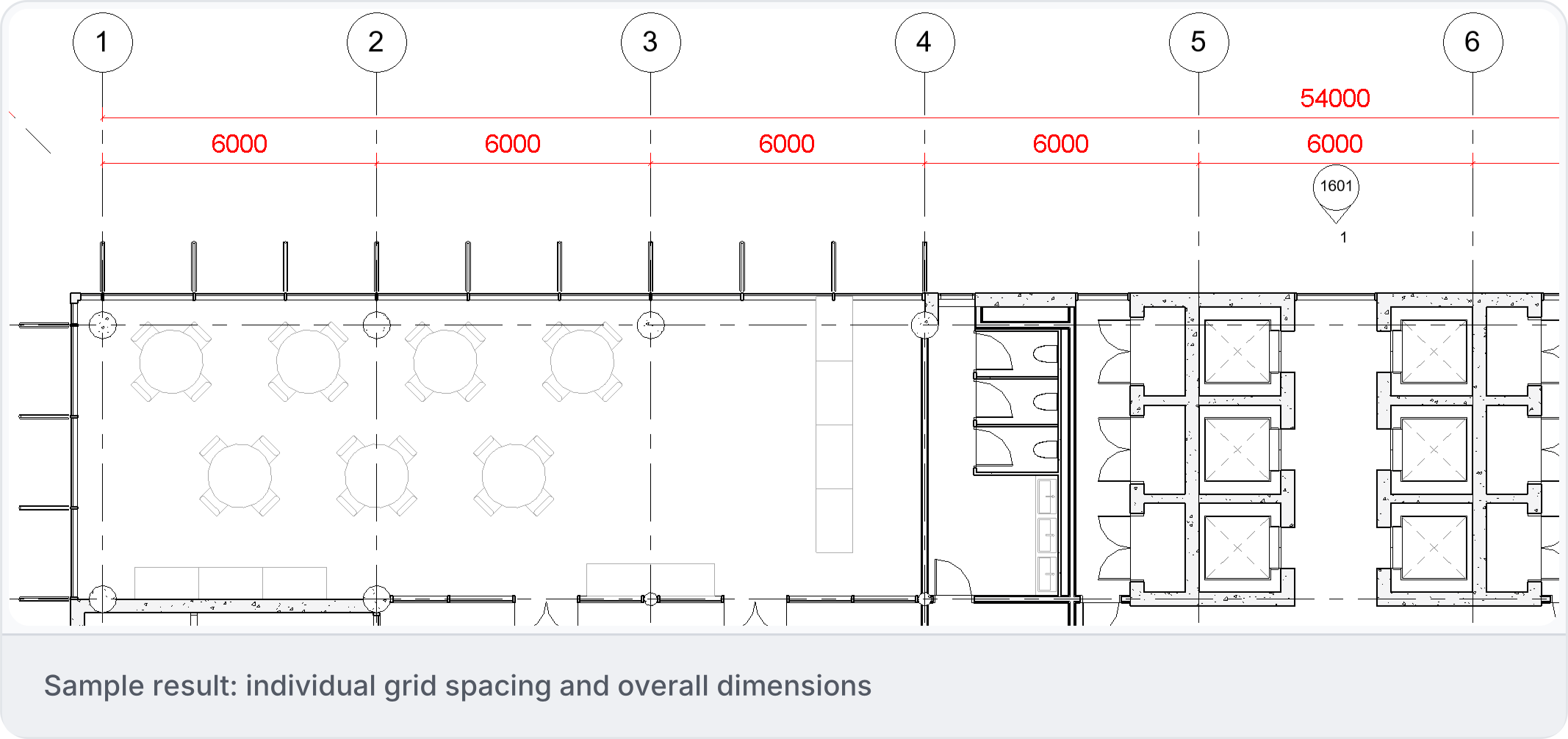
1. Choose the automation
Open Automations and find IDEA_Dimension_Plan_Grids in your workspace. Confirm the connected Revit document and select one floor plan. Use a duplicate view for the first test, then inspect existing dimensions before running.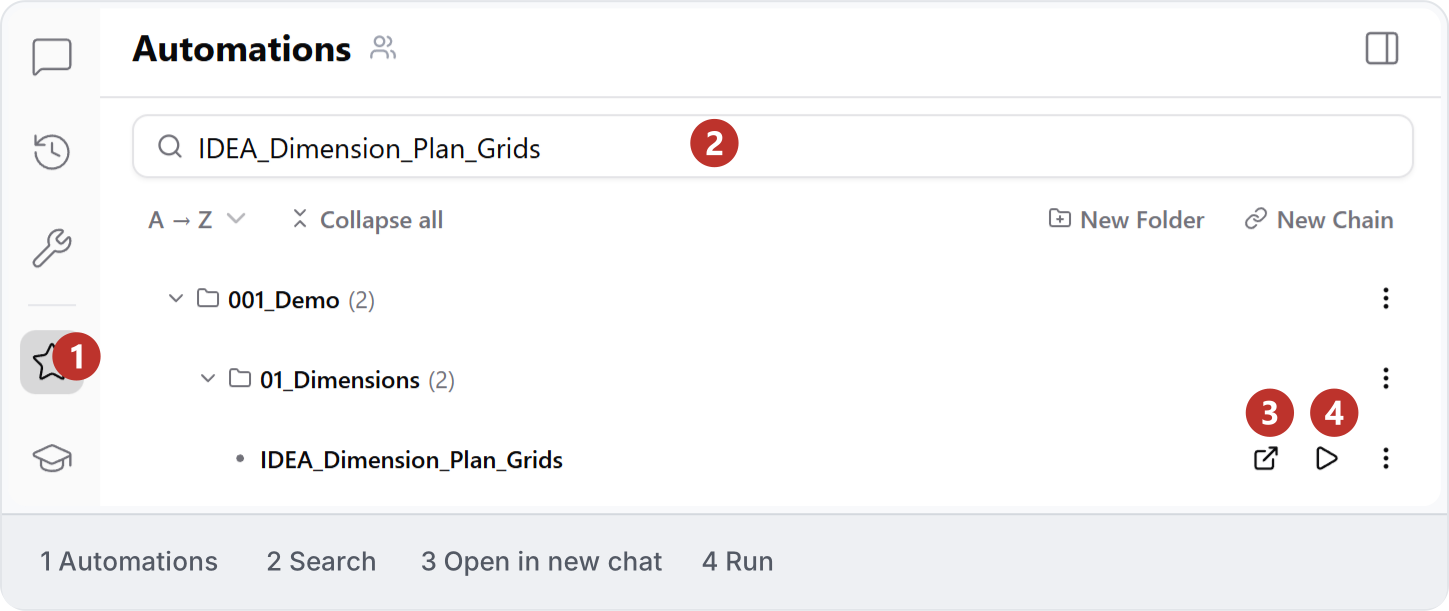
2. Set the inputs
For this sample, enable individual grid dimensions with a 2000 mm offset and overall dimensions with a 1000 mm offset. Select top, bottom, left and right for both. Use the Revit default dimension style and Host grid source, and leave Move dimension numbers off. These offsets are example inputs; choose values that suit your drawing.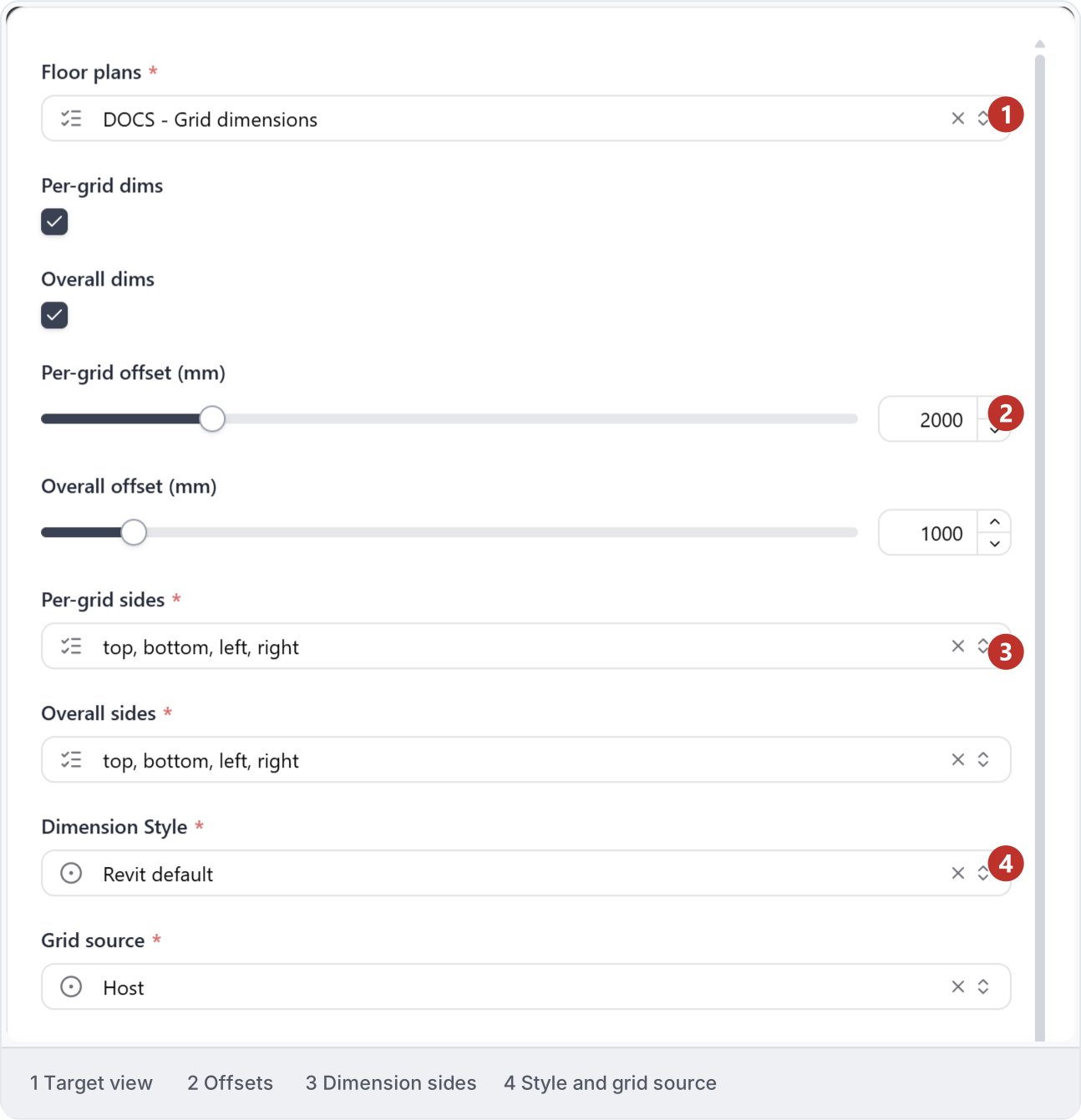
3. Run and inspect
Choose Run and read the summary. This sample reported 16 dimension strings created, 0 text placements updated and no warnings. Inspect the plan in Revit as well: check grid references, individual and overall values, offsets and readability, including the diagonal corner grids.