

Create and find a chat
Click the pencil icon at the top of the conversation to start a new chat. Open History to return to an earlier one, and use search to find it by name. To rename a chat, open its … menu and choose Rename. Use a name that helps you find the work later, such as Level 02 — room dimensions.Move a chat to a project
In History, use the project grouping and drag the chat by its handle into the destination project. You can also choose … → Move to…, or click the project name at the top of the open chat and select a destination.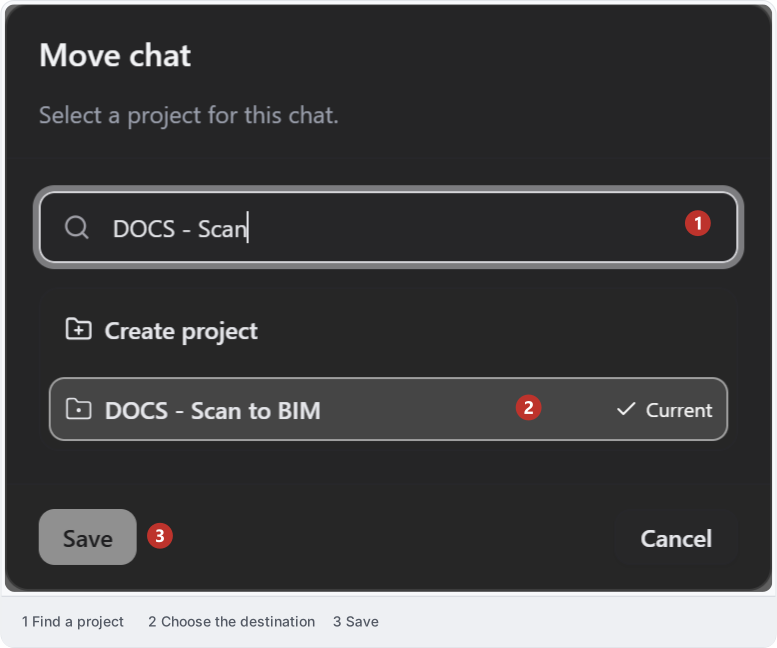
Pin a chat
Open the chat’s … menu and choose Pin in this container. The chat stays at the top of its project or section. Choose Unpin to return it to the ordinary list.Fork a chat
Use a fork to try a different approach from an earlier point while keeping the original conversation.- Find the AI response you want to continue from.
- Hover over the response to reveal its actions.
- Choose Continue in a new chat (the fork button).
- Send your new instruction in the chat that opens.
Rewind a chat
Use Rewind chat to this response when you want to remove the later conversation and continue from that response in the same chat. Wait for a running request to finish or stop it before using history actions.Fork and rewind change the conversation history. They do not restore an earlier version of your Revit, AutoCAD or other application document.