Update Studio
When an update is ready, click Update in Studio and follow the prompts. Studio restarts to apply it, so finish any running task and save your work first. To check manually, open Settings → Updates → Check for updates. You can find the installed Studio version at the bottom of Settings.Restart connected applications when needed
An update can include new add-ins for Revit, AutoCAD, Rhino or Blender. If the installer asks you to close an application, save its documents and close it before continuing. A running application can still have the previous add-in loaded. If Studio reports an outdated add-in or asks for a restart, close and reopen that application, then reconnect its document. A Studio restart alone does not reload an add-in inside Revit or another application.Check the add-ins
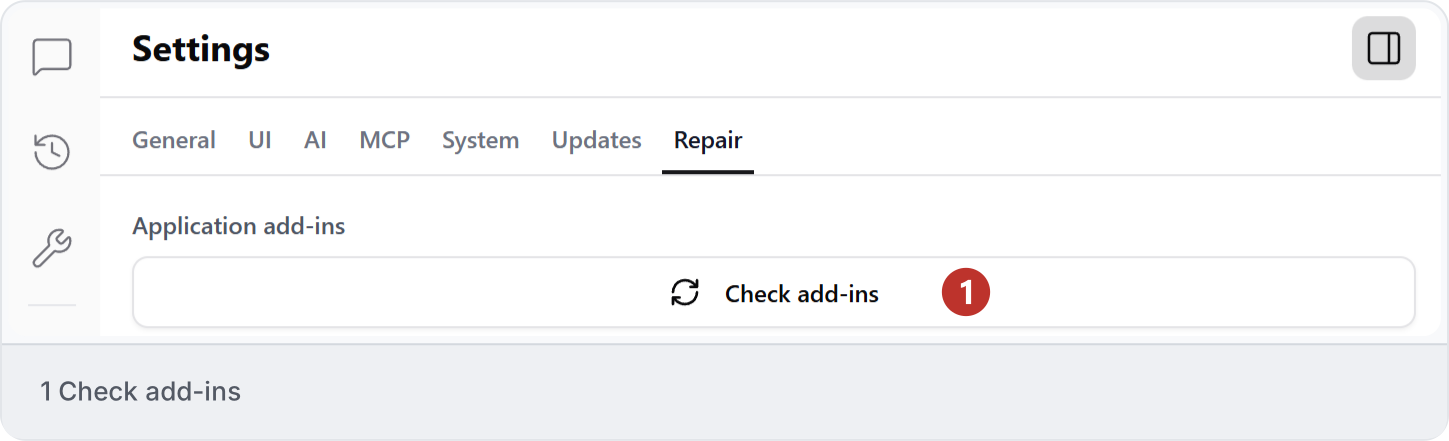
- Open Settings → Repair and click Check add-ins.
- Read the status for the application you use.
- If an add-in is missing or needs repair, follow the repair action shown in Studio.
- Restart the affected application after installation or repair.
- Open your project and select it in Connected Apps. Send a simple request, such as “What is the active view?”, to check the connection.