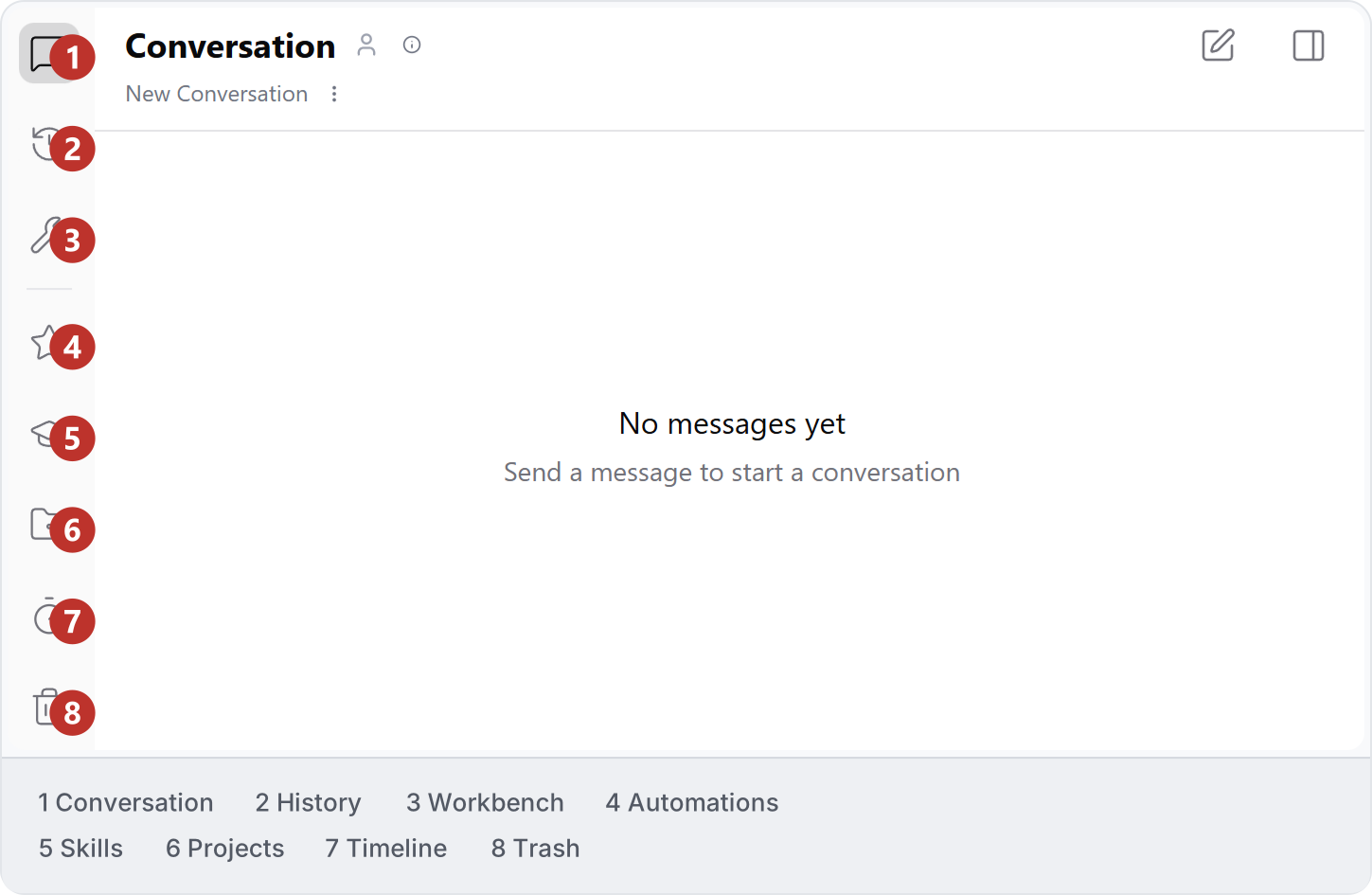
Studio has three main areas: navigation on the left, your conversation in the centre and viewers beside it when you open a file or model. Studio navigation rail beside an empty conversation, with its eight areas numbered.

Find your work in the sidebar

Use the workspace selector to choose whose library and shared resources you are working with. A project groups related chats; the project name at the top of a chat shows where that chat belongs.

Send a request

The message box at the bottom of the conversation is where you type a prompt. Its controls let you choose an AI model, connect an application, attach files and select skills. Connected Apps selects the application document AI works on. For example, choosing a Revit project here lets AI work with that open model. See Prompting for the controls.

Open a result

Click a file or model card in a conversation to open it in a viewer beside the chat. Use the viewer to inspect PDFs, images and 3D models while discussing them with AI. Changes to a connected Revit or AutoCAD document can also be inspected in that application.

Settings and help

Open Settings for your account, preferences, updates and add-in repair. To report a problem, use the bug icon in Studio and describe what happened. Include the affected chat and what you expected to happen.