1. Choose your route
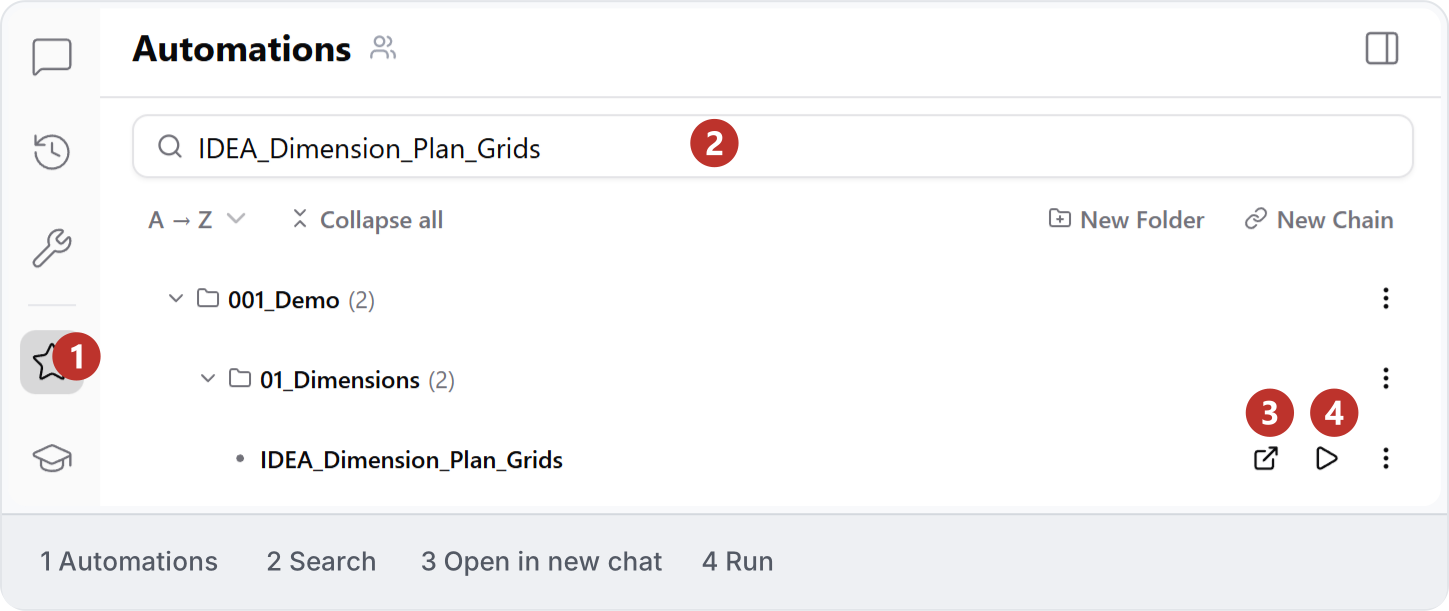
Choose one of two starting points: Start from a chat. Describe the task, for example: “Help me create grid dimensions.” Create an automation, test it on one plan and inspect the result before saving it for reuse.
2. Work through a small result
Try one useful task, such as grid dimensions, and inspect the result in its application. Follow Setup and Connect your model before running it on your own project.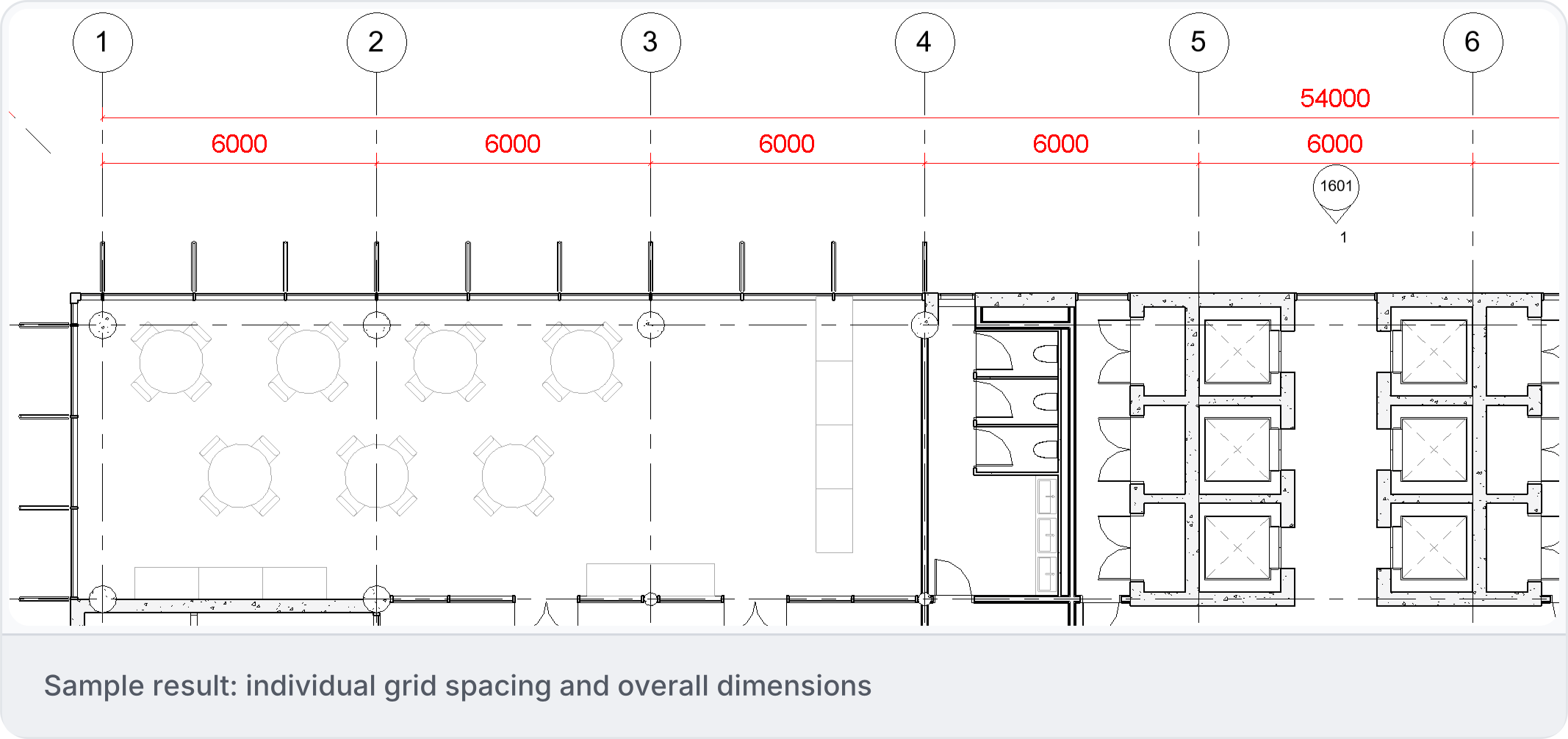
3. Find a guide
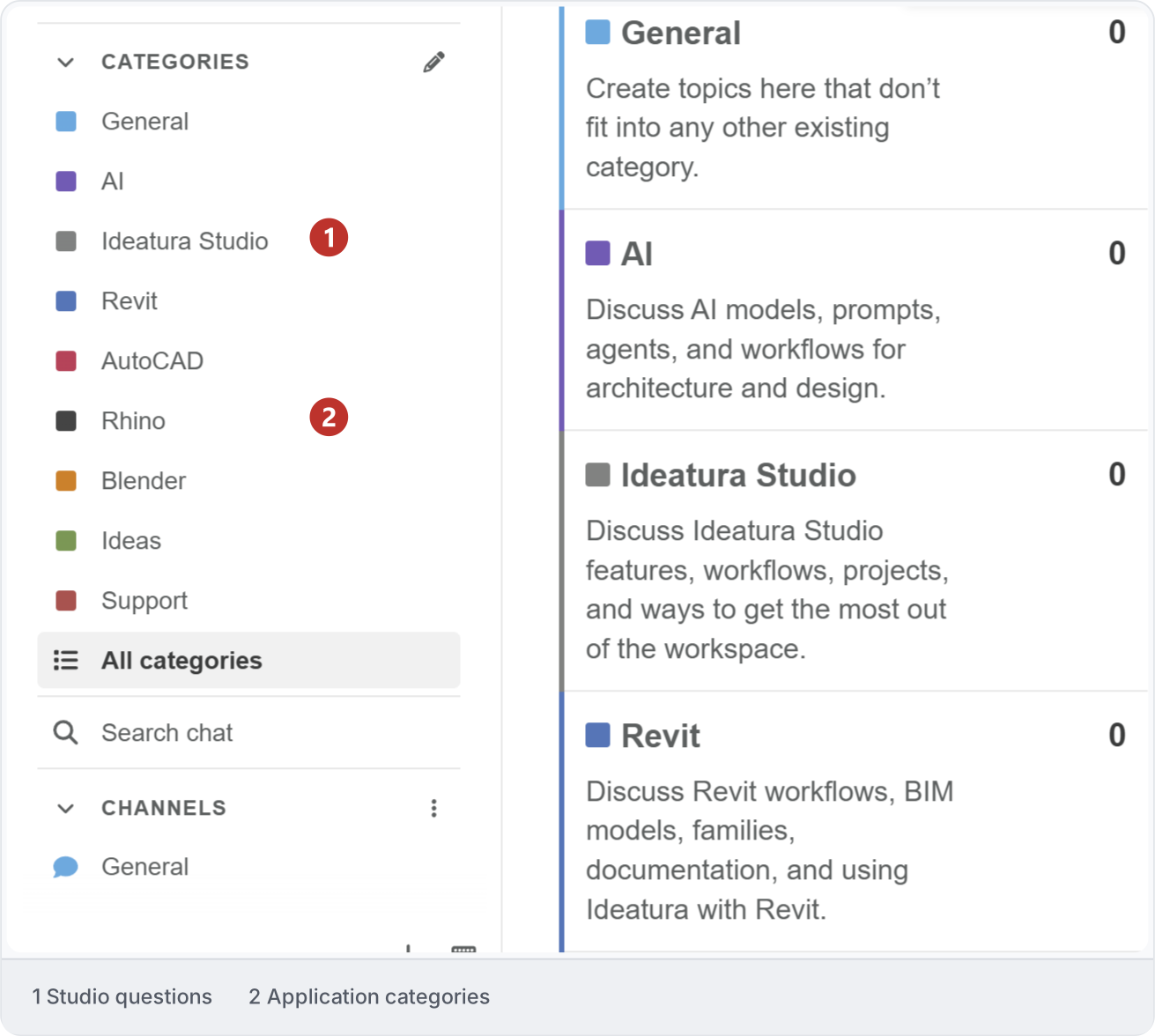
Start with Revit, AutoCAD, Rhino or Blender to choose your working context. Browse 2D Drawings and 3D Modelling for task examples. Use AI Foundations for requests, Automations for reuse, and the Studio tour to find everyday controls.4. Get help
Ask questions in the Community forum, where other users and our team can help. If something isn’t working, start with Fix a problem. If the issue persists, use Report a problem and describe what happened. Keep private project and account details out of public posts.